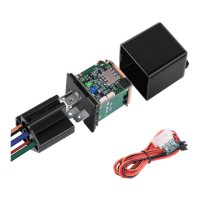
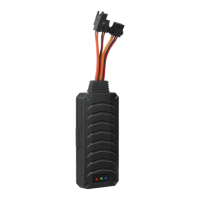
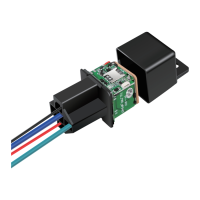
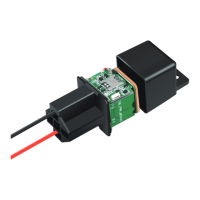
MiCODUS MV730 Tracker User Manual V2.0
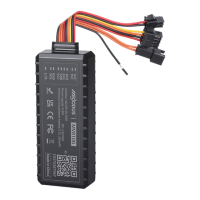
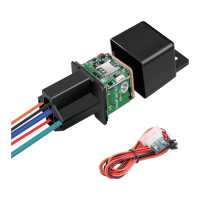
The MiCODUS MV730 is a compact and versatile GPS tracker designed to provide comprehensive vehicle monitoring and security features. This user manual outlines the setup, operation, and troubleshooting of your new MiCODUS tracker, ensuring you can effectively utilize its capabilities for real-time tracking, security alerts, and historical data analysis.
Main Features
The MV730 tracker boasts a robust set of features to enhance vehicle security and management:
- GPS+GLONASS+LBS Positioning: Provides highly accurate location data by utilizing multiple satellite systems and Location Based Services (LBS) for improved coverage, especially in areas with limited GPS signal.
- Remotely Cut Off/Resume Fuel: Offers the ability to remotely disable or enable the vehicle's fuel supply, providing an effective anti-theft measure or a way to manage vehicle usage.
- Historical Route Playback: Allows users to review past travel routes, including speed and stops, providing valuable insights into vehicle movement over time.
- Realtime Tracking: Enables continuous monitoring of the vehicle's current location, speed, and status through a dedicated tracking platform or mobile application.
- 9-90V Wide Working Voltage: Designed to be compatible with a broad range of vehicles, from motorcycles to heavy-duty trucks, accommodating various power systems.
- Vibration Alarm: Alerts the user to any unauthorized movement or impact detected by the tracker when the vehicle is stationary and armed.
- ACC Status Detection: Provides information on the vehicle's ignition status (on or off), allowing for more precise tracking and event logging.
- Tow Alarm: Notifies the user if the vehicle is being towed or moved without the engine running, enhancing security against theft.
- Power Disconnect Alarm: Sends an alert if the tracker's main power supply is disconnected, indicating potential tampering or a power issue.
- Geo-fence: Allows users to define virtual boundaries on a map. The tracker will send an alert if the vehicle enters or exits these predefined areas.
- Engine On/OFF Alarm: Provides notifications when the vehicle's engine is turned on or off, offering insights into vehicle usage patterns.
- Auto Arm by ACC: Automatically arms the tracker's security features when the vehicle's ignition is turned off, simplifying security management.
- Overspeed Alarm: Alerts the user if the vehicle exceeds a predefined speed limit, promoting safer driving habits and compliance.
- Lifetime Free Tracking Platform: Offers a complimentary tracking platform, eliminating recurring subscription fees for basic tracking services.
How to Manage the Tracker to Get Online
To ensure your MV730 tracker functions correctly and connects to the online tracking platform, proper SIM card setup and APN configuration are crucial.
Step 1: SIM Card Requirements
Before installation, acquire a suitable SIM card that meets the following criteria:
- 2G GSM Network Compatibility: The SIM card must be compatible with the 2G GSM network, as the tracker operates on this frequency.
- Enabled Services: Ensure that SMS, call, and internet data traffic services are enabled on the SIM card. These are essential for communication between the tracker and the platform/user.
- Caller ID Display: The caller ID display feature must be enabled on the SIM card.
- PIN Code Removal: Remove any PIN code from the SIM card before inserting it into the tracker. A PIN-protected SIM card will prevent the tracker from functioning.
- Nano SIM Size: The MV730 tracker uses a Nano SIM card.
- Correct APN Information: Obtain the exact correct APN (Access Point Name) information from your SIM card provider. This is critical for the tracker to access the internet.
Step 2: SIM Card Installation
Follow these steps to install the SIM card:
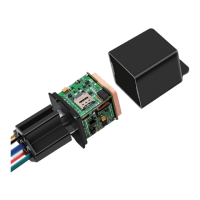
- Open the tracker's casing to access the SIM card slot.
- Carefully insert the Nano SIM card into the designated slot, ensuring it is oriented correctly.
- Close the tracker's casing securely.
Step 3: Wiring
The MV730 tracker requires proper wiring to the vehicle's power supply and, optionally, to the fuel pump for remote cut-off functionality.
- Power Connection: Connect the tracker to the vehicle's battery. The tracker supports a wide working voltage range of 9-90V DC. Important: After installing the SIM card, it is crucial to connect the tracker to an external power source of no less than 12V for proper operation.
- Fuel Pump Line (Optional): If you intend to use the remote fuel cut-off feature, connect the tracker's fuel pump line to the vehicle's fuel pump circuit. This line operates at 5V-30V and handles a current of less than 60A.
After physical installation, configure the APN settings to enable internet connectivity for the tracker. Take the tracker to a location with good signal reception and send the following SMS commands from the admin number:
- APN Name:
apn123456+space+apn name (e.g., apn123456 cmnet). The tracker will reply with "apn ok".
- APN User (if applicable):
apnuser123456+space+apnuser (e.g., apnuser123456 cmnet). The tracker will reply with "apnuser ok". If your SIM card operator does not require an APN username, ignore this step.
- APN Password (if applicable):
apnpasswd123456+space+apnpassword (e.g., apnpasswd123456 123). The tracker will reply with "apnpasswd ok". If your SIM card operator does not require an APN password, ignore this step.
Note: The APN information must be 100% accurate to match your SIM card. Incorrect APN settings will prevent the tracker from getting online, even if it replies "SET APN ok".
Indicator Status Description
The MV730 tracker uses LED indicators to communicate its operational status:
- GSM LED (GREEN):
- Solid: Searching for network.
- Flash every 1 second: Network has been registered.
- GPS LED (Blue):
- Solid: GPS is in fixing (searching for satellites).
- Flash every 1 second: GPS has fixed (acquired satellite signal).
- ALL LED:
- Device is working but stopped more than 5min: Indicates the device is in a low-power state after being stationary.
- Device has not been turn on: All LEDs are off.
- Device ran out of battery: All LEDs are off.
Functions Explanation
The MV730 offers various functions configurable via SMS commands.
a. Vibration Alert
This feature works when the device is stationary and armed, notifying you of any detected vibrations.
- Set Admin Number:
admin123456+space+mobile number with country code (e.g., admin123456 0086134********).
- Enable Arm Mode: Send
111 to the tracker.
- Configure Alarm Ways:
vibalm123456 (configures the tracker to send SMS alarms for vibrations).
Once configured, if the device remains stationary for more than 5 minutes to enter sleep arm mode, and then a vibration is detected, the tracker will send vibration alarm messages.
b. Cut Off Fuel/Resume Fuel
This critical anti-theft feature allows remote control of the vehicle's fuel supply.
- Set Admin Number:
admin123456+space+mobile number with country code.
- Cut Off Fuel: From the admin number, send
555. The tracker will reply with "cut oil ok".
- Resume Fuel: From the admin number, send
666. The tracker will reply with "resume oil ok".
Important Notes on Fuel Cut-Off:
- Ensure the fuel circuit is correctly connected to the main power.
- Network and Satellite Signal Available: If the vehicle speed exceeds 20km/h, the fuel circuit will not be cut off immediately. It will cut off intermittently until the speed drops below 20km/h, then it will be completely cut off.
- Network Signal, No Satellite Signal: The fuel circuit will cut off intermittently, and after 2-3 minutes, it will be completely cut off.
- Tracker Stationary for >5 Minutes: The fuel circuit will be cut off immediately. If the tracker is vibrated, the fuel circuit will be cut off immediately.
c. Engine On/Off Alarm
Receive alerts when the vehicle's engine is turned on or off.
- Set Admin Number:
admin123456+space+mobile number with country code.
- Configure Alarm Ways:
autorep123456,AB (e.g., autorep123456,12).
- A (Engine ON):
A=0: No AlarmA=1: SMS onlyA=2: Platform onlyA=3: SMS+Platform
- B (Engine OFF):
B=0: No AlarmB=1: SMS onlyB=2: Platform onlyB=3: SMS+Platform
Installation Recommendation
For optimal performance and signal reception, consider the following installation guidelines:
- Orientation: The device should always face upwards towards the sky to ensure the best possible GPS signal acquisition.
- Location:
- Cars: Under the front dash, inside the door pedal, inside the taillight component or plastic, or under the pedal.
- Motorcycles: Inside the headlight or inside the front cover.
- Avoid Obstructions: Metal thermal barriers or heating layers of the windshield can significantly affect the GPS signal. Choose a location free from such obstructions.
Troubleshooting
If you encounter issues with your MV730 tracker, refer to the following troubleshooting tips:
- Unable to connect to tracking platform:
- Check APN and settings.
- Verify if data service is enabled on the SIM card.
- Check the SIM card balance.
- Tracker shows offline:
- Ensure external power is connected.
- Check if the vehicle is in a network blind area.
- Check the SIM card balance.
- Unable to locate:
- Ensure the top side of the tracker faces upward without metallic shielding.
- Confirm the vehicle is not in an area with no satellite coverage.
- Location drift:
- May occur in areas with poor GNSS signal (e.g., tall buildings, basements).
- Check if vibration is triggering the accelerator.
- No command reply:
- Verify the SMS command format is correct.
- The vehicle might be in a network blind area.
- Ensure the SIM card is properly inserted and has SMS service.
Full SMS Commands List
The MV730 supports a comprehensive list of SMS commands for configuration and control:
- Set Admin Number:
admin123456+space+mobile number with country code
- Back to Factory Setting:
begin123456
- Password Change:
password+old password+space+new password (6 digits)
- Restart:
rst
- APN Configuration:
apn+123456+apn contentapnuser+123456+space+contentapnpasswd+123456+space+content
- IP & Port Configuration:
adminip+123456+space+ip+space+port (Micodus platform IP: 47.254.77.28; Port: 7700)
- Domain Configuration:
SZCS,123456,DOMAIN=d.micodus.net:7700 (Micodus server domain: d.micodus.net, Port: 7700)
- Google Maps Link:
G123456# or where (provides location details including GPS signal, date/time, speed, battery level, ACC status, device ID, GSM/GPS signal strength, and LBS code).
- Data Upload Frequency:
upload123456+space+time (time interval scope: 10-180 seconds)
- Time Zone:
timezone+123456+space+GMT No. (e.g., timezone123456 8 for GMT+8)
- Parameter Query:
param1 (firmware version, ID, IP, port, domain, APN)param2 (admin number, SOS number, move distance, overspeed, auto arm time, auto disarm time, alarm interval)
- Status Query:
status (BAT, GPRS, GSM, GPS, ACC, oil, power status)
- Arm:
111 or SF
- Disarm:
000 or CF
- Cut Off Fuel:
555
- Resume Fuel:
666
- Movement Alarm:
move+alarm distance (scope: 100-1000m)
- Overspeed Alarm:
speed+123456+space speed limit (scope: 20-150km/h)
- IMEI Checking:
imei+123456
- Sleep Mode:
sleep123456 time (SMS/call can wake up)sleep123456 shock (vibration, SMS/call can wake up)sleep123456 off (cancel sleep mode)
- Vibrate Alarm:
vibx,y (x=1-3 for alarm type: SMS, Call, SMS then Call; y=1-9 for sensitivity, 1 is most sensitive)vibcall+123456 (vibrate call alarm set ok)vibalm123456 (vibrate SMS alarm set ok)
- Tow Alarm:
towA,B (A=1-4 for alarm type: SMS, Call, SMS+Call, Platform; B=distance 500-10000m)
- Auto Arm By ACC:
acclt,time (time scope: 5-1200 seconds)
- Engine On/Off Alarm:
autorep123456,AB (A for Engine ON alarm type, B for Engine OFF alarm type)
Download the APP
To access the full features of your MiCODUS MV730 tracker, download the official MiCODUS APP. Search for "MICODUS" in the iOS APP Store or Google Play Store, or scan the provided QR code in the manual.


 To Next Page
 General