Micro-Air, Inc. Page 10 EasyTouch Operations Manual
Rev 3.0 4/3/17
8. STANDARD OPERATION
8.1 Operator Controls and Display
8.1.1 Home Screen Indicators & Buttons
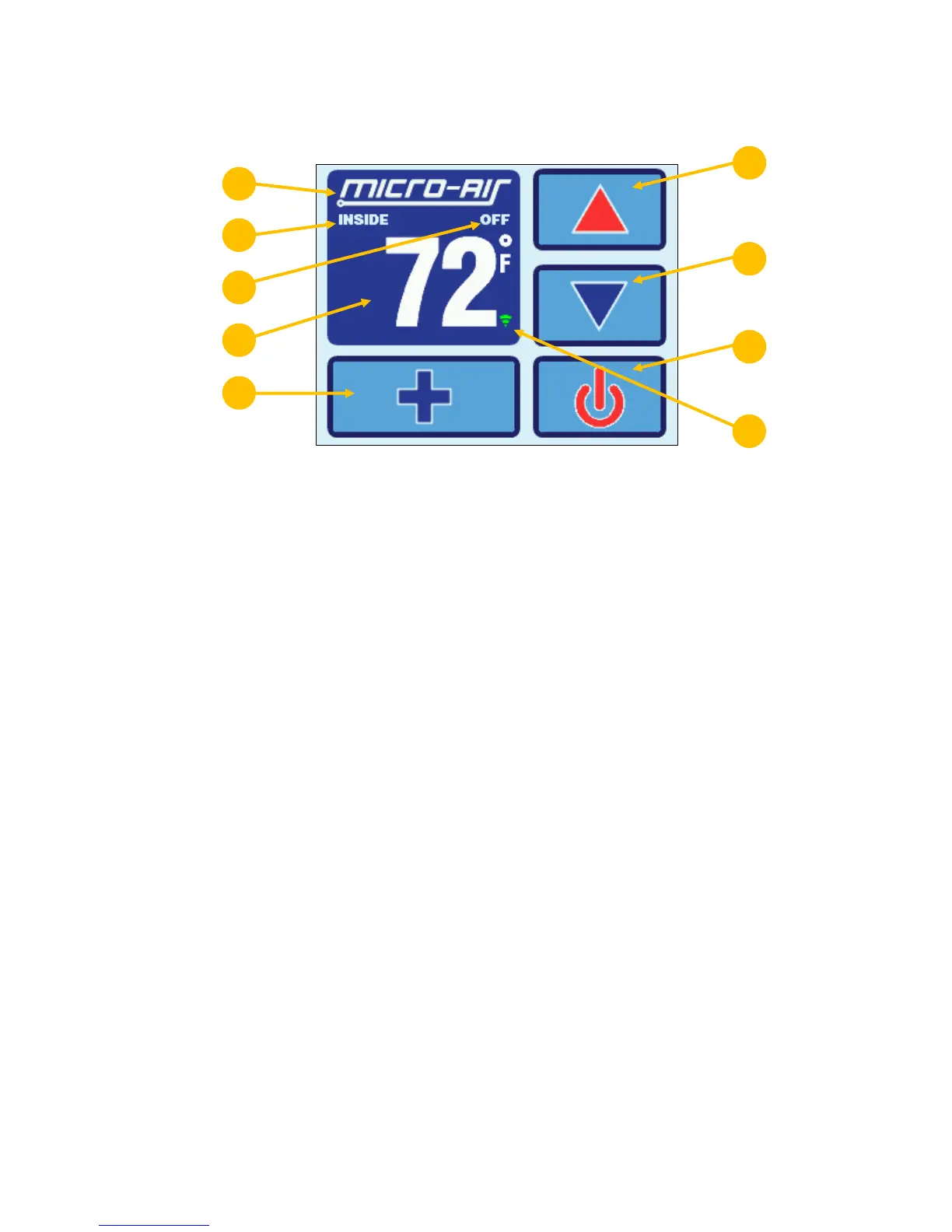
Figure 7 – EasyTouch Home Screen Icons & Functions
1. Force Sleep Mode Button - Press and release to force Sleep Mode to initiate
immediately, if enabled. See section 15.3 for more information on Sleep Mode.
2. Temperature Display Selection – Indicates the current temperature display value: SET,
INSIDE, OUTSIDE, SERVICE/WATER, or %RH. If the associated temperature sensor is
not installed or is faulty, “- - -” will be displayed.
3. Status Indicator – This display area indicates the abbreviated operational status of the
control, including standby and active states, fault states, fault recovery, and fault lockout.
More information on the operational status is available on the Main Screen.
4. Temperature Display Indicator – This value indicates the current temperature reading
that corresponds to the Temperature Display Selection explained above. Press and
release over the top of the numeric value to select the various temperature displays: Set
point(s), Inside, Outside, Service/Water temperatures, or Relative Humidity (if equipped).
By default, the temperature display will always revert back to showing the Inside
Temperature after 3 seconds. If you wish to change the default Temperature Display to
one of the other available choices, immediately after selecting the desired temperature,
press and hold again for 5 seconds (until the button highlight disappears) and the
currently displayed temperature will be retained and reverted back to.
5. More Button - Press and release to change display to Main Screen.
6. Up Button - Press and release to display the set point. Press and release or press and
hold the UP button to increase the set point.
7. Down Button - Press and release to display the set point. Press and release or press
and hold to decrease the set point.
8. Power On/Off Button - Press and release to toggle between the ON (green) and OFF
(red) operation.
9. Wi-Fi Network Status Indicator Icon – If the EasyTouch display has the optional Wi-Fi
support feature installed, a Wi-Fi icon will appear and indicate the status of the Wi-Fi
connection. Green=connected, Yellow=connecting in progress, and Red=connection
failed/disconnected.



 To Next Page