Micro-Air, Inc. Page 12 EasyTouch Operations Manual
Rev 3.0 4/3/17
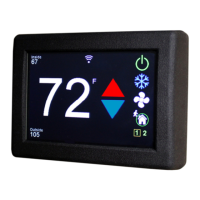
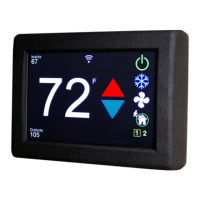
10. Power On/Off Button - Press and release to toggle between the ON (green) and OFF
(red) operation.
11. Date & Time Display – The date and time are displayed here, if enabled. See section
14 for information on how to set the date & time, change formats, and enable or disable
the display.
12. Home Button – Hidden behind the Micro-Air logo is a button that when pressed returns
the display to the Home Screen.
13. Operational Status & Fault Help Button – This display area indicates the current
operational status of the control, including standby and active states, fault states, fault
recovery, and fault lockout. If a fault is active, touching this status area will display the
Fault Help screen for the active fault. See section 9.3.2 for more information on fault
displays.
14. Program Scheduler Status and Resume Button – This display area indicates the
current operational status of the Program Scheduler. If the Program Scheduler is
currently in an Override state, touching this status area will cause the Program Scheduler
to resume the active program for the current time & date period. See section 13 for more
information on the Program Scheduler.
15. Filter Maintenance Status – If enabled, this display area indicates when it is time to
clean or replace the air filter. See section 12.1.6 for more information on the Air Filter
Reminder.
16. Wi-Fi Network Status Indicator Icon – If the EasyTouch display has the optional Wi-Fi
support feature installed, a Wi-Fi icon will appear and indicate the status of the Wi-Fi
connection. Green=connected, Yellow=connecting in progress, and Red=connection
failed/disconnected.
8.2 Modes of Operation
8.2.1 OFF Mode
When the control is in OFF Mode, all control outputs are turned off. Upon entering OFF
mode, if the electric heater was active within the previous 4 minutes, the fan will remain on at
low speed for up to 4 additional minutes to cool down the electric heater.
8.2.2 ON Mode
When the control is in ON Mode, power is supplied to the appropriate outputs and the display
indicates the current state of operation.
8.2.3 AUTO Mode
When AUTO Mode is selected as indicated by the Mode button icon, the system provides
both heating and cooling as required. The Inside temperature in is maintained within 2°F (or
1.0°C) of set point by default. See section 12.1.3 for more information on the Set Point
Temperature Differential parameter setting and how it can be adjusted. If the system was
most recently cooling, the cabin temperature must drop below the set point by at least 4°F (or
2.0°C) by default in order for the system to switch from cooling to heating. Similarly, if the
system was most recently heating, the cabin temperature must exceed the set point by at
least 4°F (or 2.0°C) by default in order for the system to switch from heating to cooling. This
behavior prevents small temperature overshoots from causing the system to switch between
heating and cooling when it is not necessary.
8.2.4 COOL Mode
When COOL Mode is selected as indicated by the Mode Button icon, only the cooling system
operates as required. If the ambient temperature drops below the set point, the system will
not automatically switch to the HEAT Mode.
8.2.5 HEAT Mode
When HEAT Mode is selected as indicated by the Mode Button icon, only the heating system
operates as required. If the ambient temperature rises above the set point, the system will not
automatically switch to the COOL Mode.
8.2.6 MOISTURE Mode
MOISTURE Mode, sometimes called “Humidity” or “Dehumidification” mode, is used to help
control humidity while you are away from the boat or away from a particular cabin. Once



 To Next Page