Micro-Air, Inc. Page 21 EasyTouch Operations Manual
Rev 3.0 4/3/17
10.9 EasyStart Fault (DX & FAMU DX only, contributes to lockout count)
Main Screen Display: “FAULT EASYSTR”
FAMU Screen Display: “FAULT EASYSTART”
Status Screen Display: “FAULT EASYSTART”
Fault History Display: “EASYSTART”
The EasyStart Fault occurs whenever the EasyStart daughterboard system detects a problem with
the compressor during startup and during normal operation. This fault remains active for 5 minutes,
and so there is no additional 2-minute fault delay sequence after it is cleared as with all other faults.
The causes of EasyStart faults can be deciphered by examining the fault LEDs displayed on the
EasyStart daughterboard during the active fault. Refer to the chart below and also printed on the
daughterboard itself to determine the exact cause of the fault, and take appropriate action from there
to remedy the cause.
EasyStart LEDs Lit
EasyStart Fault D6 D3 D4
Overcurrent X
Overload (Klixon) Open X
Power Interruption X X
Compressor Stalled X X
Open Wire Connection X X X
11. MENU AND SETTINGS OVERVIEW
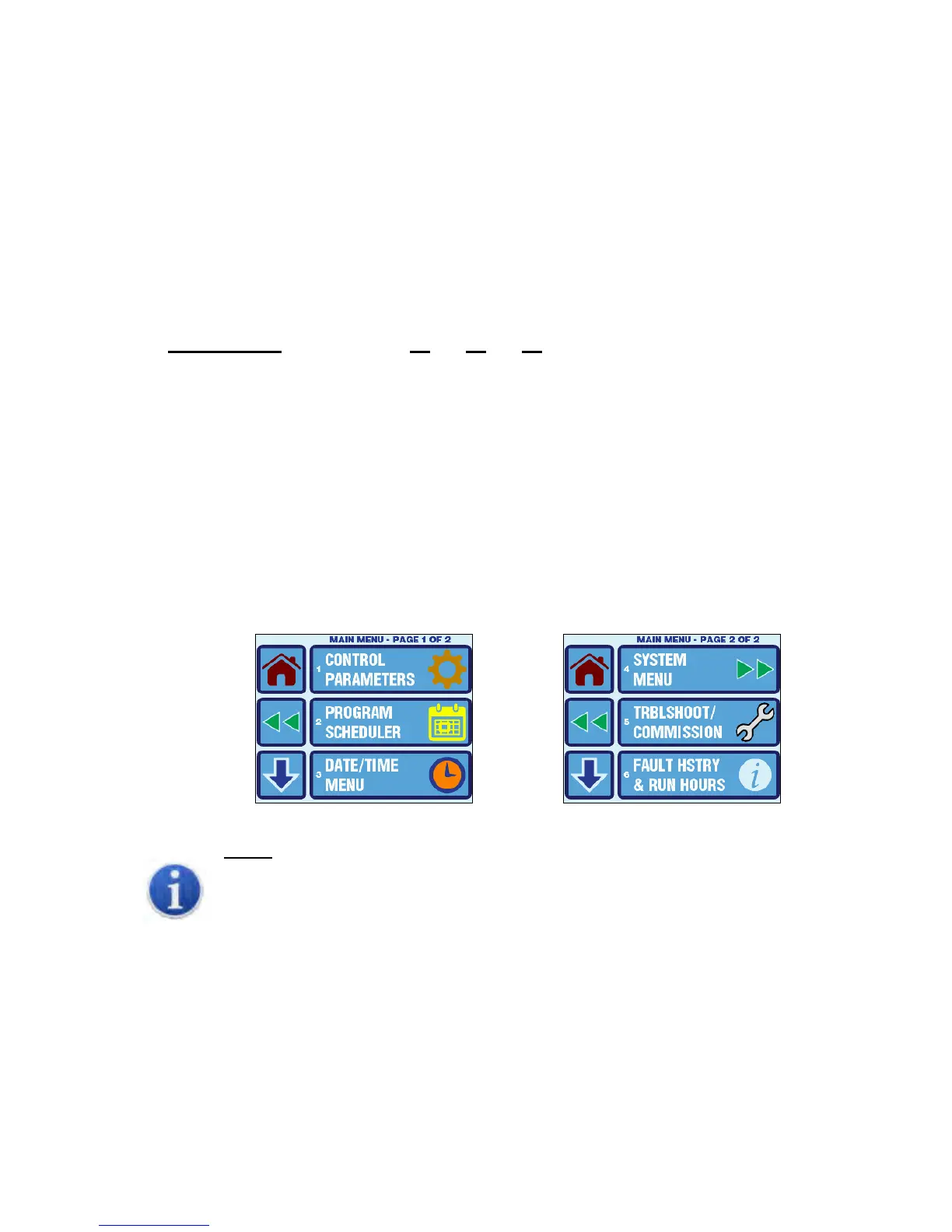
The Main Menu is accessed from the Main screen by pressing the MENU button. The Main Menu consists
of 6 items on 2 pages (screens) as shown in Figure 13. All menus are hierarchically designed. All sub-
menus and the various parameter settings available are accessed starting from the Main Menu. All of the
parameter settings are stored in non-volatile memory and they are always retained, even when the battery
is removed. A unique set of parameter settings can be saved and recalled, or factory default settings can
also be recalled. Refer to sections 12.5, 12.8, and 12.9 for more information on memorizing and recalling
settings.
Figure 13 – Main Menu Display Screens
NOTE:
When the EasyTouch loses power, all of the parameter settings and the mode of operation
are retained indefinitely. When power is restored, the control resumes operation as last
programmed. The EasyTouch also has a battery to supply power to the real-time clock. If the
battery has completely discharged or has been removed, only the time and date settings will
be lost and will require resetting upon the next power up.
11.1 Menu Screen
All menu screens are constructed identically as shown in Figure 14. There are three large buttons to
choose from three sub-menu or parameter setting choices. Paging through the menu is possible by
using the DOWN ARROW button, and the current page number is always shown at the top. The
menu page will wrap around to page 1 again after the last page has been reached.



 To Next Page