Setting up Xpress 7
Checking In Your Shipment
Before unpacking Xpress:
• Check shipping cartons against table below
• Check for shipping damage
The shipment should include the following number of cartons:
SYSTEM CONFIGURATION NUMBER OF CARTONS
No printer 3
System with printer 4
System with printer and
I
MAGEALIGNER option
5
Please examine all of the shipping cartons. If any cartons are missing or
damaged, notify the shipping carrier as soon as possible, then contact
Microtech technical support at (650) 596-1900. Technical support is available
Monday through Friday from 7:30 AM to 6:00 PM Pacific Time. Please
contact us with any questions or problems during the unpacking,
installation, and set up of the Xpress disc production system. If the
shipping cartons are present and not damaged, start setting up a
workspace for your production system.
Unpacking Xpress
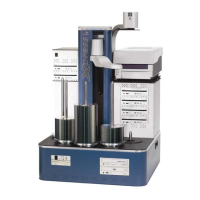
There are four basic Xpress configurations:
1. Basic system only (no printer)
2. Basic system with the Signature IV or Signature Pro (inkjet)
printer
3. Basic system with the Perfect Image (thermal transfer) printer
4. Basic system with the Perfect Image (thermal transfer) printer and
ImageAligner for printing on pre-printed discs
A printer (and ImageAligner for printing on pre-printed discs) can be
added to a basic system. Ask your dealer or sales representative about
upgrade kits.
All Xpress configurations are equipped with up to four CD-R or DVD-R
writer drives and an additional 1 or 2 reader drives.
Moving Xpress: Never pick
up the main unit up by
grasping the tower, as this
can damage the unit.
lways lift it using the
handholds in the sides of
the unit’s base


 To Next Page