(Only for Multi-Channel Mode)
/ /
Window Layout
(Only for Multi-Channel Mode)
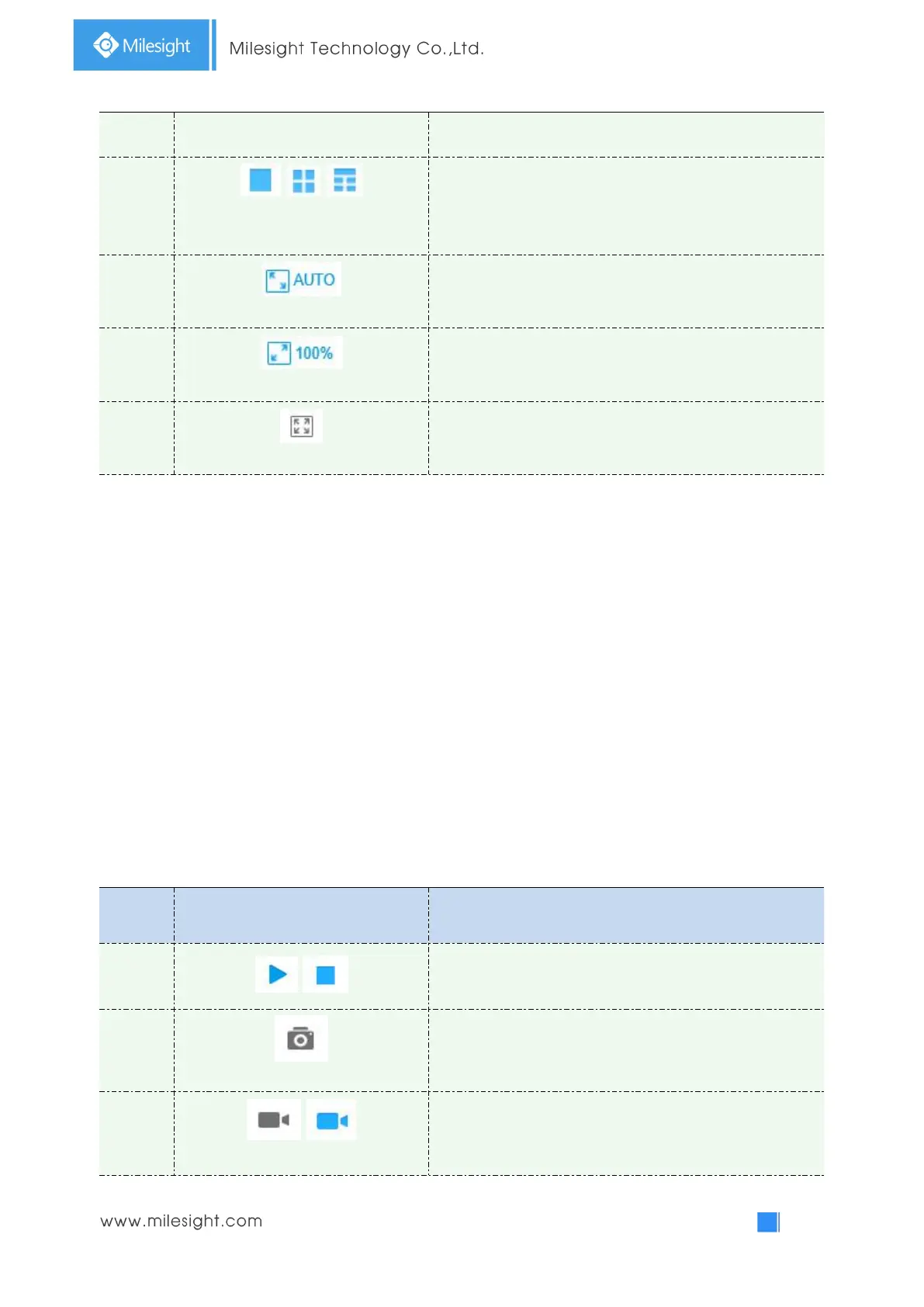
Click to set window layout to “1*1”/ “2*2”/ “1+4”.
Click to display images at a window size.
Click to display images at a real size.
Click to display images at full-screen.
Note:
A. Original fisheye view: the whole wide-angle view of the fisheye camera is displayed.
B. Panoramic view: the round fisheye image is transformed to rectangular image by certain
calibration methods.
C. Regional view: the close-up view of defined area in the original fisheye view or panoramic
view.
D. Select the Installation, Display mode and the most appropriate Window Layout in sequence.
All the Display modes are hardware decoded.
Live View Window
Display live video on the window.
Tool Bar
Table 4-1-1 Description of Tool Bar buttons
Click to capture the current image and save to the
configured path. The default path is
C:VMS\+-1\ IMAGE-MANUAL
Click to start recording video and save to the configured
path. The default path is C:VMS\+-1\MS_Record. Click again
to stop recording


 To Next Page
 Loading...