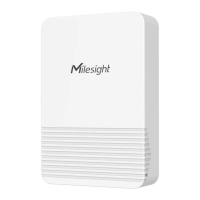
This document describes the Milesight AM103 & AM103L Indoor Ambiance Monitoring Sensor, featuring LoRaWAN® connectivity. This user guide covers product introduction, hardware overview, operation, installation, device payload, and carbon dioxide level guidelines.
Function Description
The Milesight AM103/AM103L is a compact indoor ambiance monitoring device designed to measure humidity, temperature, and CO2 levels. It utilizes LoRaWAN® protocol for secure, long-range data transmission and can be configured via a smartphone or a PC software. The sensor data is transmitted in real-time and can be viewed through the Milesight IoT Cloud or a user's own Network Server. The device is equipped with NFC (Near Field Communication) for easy configuration. It provides vivid emoticon and traffic light indicators to help users understand the comfort level of the environment.
Important Technical Specifications
General:
- Device Type: Indoor Ambiance Monitoring Sensor
- Connectivity: LoRaWAN® (Standard LoRaWAN® supported)
- Configuration: Via NFC-supported mobile phone using "Milesight ToolBox" App or PC software.
- Power Supply: ER14505 Li-SOCl2 batteries (not AA batteries).
- Operating Temperature Range: The device should not be placed outdoors where the temperature is below/above its operating range. If the AM103 detects temperatures beyond 0°C to 40°C, the screen will automatically close.
- Installation Height: Recommended to install at least 1.5 m high from the floor.
Sensors and Measurements:
- Humidity: Measured in %. Resolution: 0.5%.
- Temperature: Measured in °C. Resolution: 0.1 °C.
- CO2 Concentration: Measured in ppm.
- Normal Outdoor Air Level: 400 ppm
- Typical Indoor Level (good ventilation): 400-1000 ppm
- Poor Air Quality (requires ventilation): 1000-2000 ppm
- Headaches, sleepiness, stagnant air, poor concentration, increased heart rate, slight nausea: ≥ 2000 ppm
- Workplace Exposure Limit (8-hour TWA): 5000 ppm
- Serious oxygen deprivation, brain damage, coma, death: > 40000 ppm
Hardware Features:
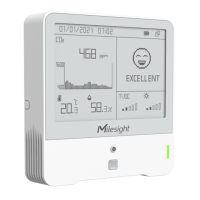
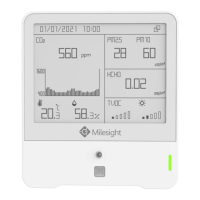
- AM103: Features an E-ink screen, LED Indicator, NFC Area, Power Button, and Battery Compartment.
- AM103L: Features an LED Indicator, NFC Area, Power Button, and Battery Compartment (no E-ink screen).
- E-ink Screen (AM103 Only): Displays battery level, time of last collected sensor data, network join status, temperature, humidity, CO2 concentration and history trends. It also shows icons for polluted or bad CO2 thresholds and excellent environment. Updates data every 2 minutes if "Screen Smart Mode" is disabled. Performs a full-screen refresh after 30 updates to prevent ghosting.
- LED Indicator: Provides visual feedback on device status and CO2 level indication (Excellent, Polluted, Bad).
Payload Information:
- Basic Information: Reports Protocol Version, Hardware Version, Software Version, Power On status, Device Type, Device SN, and Sensor Status upon joining the network.
- Sensor Data: Reports Battery Level, Temperature, Humidity, and CO2 according to the reporting interval (default 10 minutes).
- Downlink Commands: Supports configuration of reporting interval, reboot, CO2 calibration (Factory, Auto Background, Manual), screen display enable/disable, LED indicator enable/disable, CO2 threshold settings (Bad and Polluted), and Screen Smart Mode enable/disable.
Usage Features
Configuration via Milesight ToolBox App:
- Download and Install: "Milesight ToolBox" App from Google Play or Apple App Store.
- Enable NFC: On smartphone and launch the App.
- Attach Smartphone: To the device's NFC area to read/write configurations.
- Default Password: 123456 (recommended to change upon first configuration).
- NFC Tips: Ensure smartphone NFC area location is correct, remove phone case, and if reading/writing fails, move the phone away and back.
- Alternative Configuration: Via ToolBox software with a dedicated NFC reader or via TTL interface inside the device.
LoRaWAN Settings:
- Basic LoRaWAN Settings: Configure Device EUI, App EUI, Application Port (default 85), Join Type (OTAA/ABP), LoRaWAN Version, Application Key, Spread Factor, Confirmed Mode, Rejoin Mode, ADR Mode, Tx Power, RX2 Data Rate, RX2 Frequency/MHz.
- Frequency Settings: Configure support frequency and select channels. Default frequency is EU868 for -868M models and AU915 for -915M models.
Time Synchronization:
- Synchronize device time with the smartphone by clicking "Sync" in the "Device -> Status" section of the ToolBox App.
Basic Settings:
- Temperature Unit: Change between °C and °F.
- Reporting Interval: Set the interval for sending sensor data to the network server (default 10 mins, range 1-1080 mins).
- LED Indicator: Enable or disable the traffic light indicator for CO2 threshold.
- Screen Display (AM103 Only): Enable or disable the E-ink screen.
- Color Theme (AM103 Only): Select White or Black background for the screen.
- Change Password: Update the device password.
Advanced Settings:
- Calibration Settings:
- Numerical Calibration: Apply a calibration value to raw temperature, humidity, and CO2 readings.
- CO2 Manual Calibration: Place the device outdoors for >10 minutes and click to calibrate.
- CO2 Restore Factory Calibration: Revert CO2 calibration to factory settings.
- CO2 Auto Background Calibration: Enable for 7 days in a well-ventilated environment, then disable for automatic calibration.
- Threshold Settings:
- Temperature Threshold: Configure upper and lower temperature limits for instant data upload.
- CO2 Threshold: Define Excellent, Polluted, and Bad thresholds for traffic light and screen alarms. Instant data upload when CO2 exceeds the Bad threshold.
Button and Traffic Light:
- Power ON/OFF: Press and hold for >3 seconds.
- Reset to Factory Default: Press and hold for >10 seconds.
- Check On/Off Status: Quickly press.
- CO2 Level Indication: Traffic light blinks for Excellent, Polluted, or Bad CO2 levels (if enabled).
Maintenance Features
Upgrade:
- Download Firmware: From www.milesight-iot.com to your smartphone.
- Import Firmware: Open ToolBox App and click "Browse" to import and upgrade the device.
- Note: Upgrade is not supported on ToolBox for iOS, only Android.
Backup:
- Create Template: Go to "Template" page in the App, save current settings as a template.
- Apply Template: Select a saved template file and click "Write" to configure another device.
- Edit/Delete Template: Slide the template item to the left.
Reset to Factory Default:
- Via Hardware: Hold the power button for more than 10 seconds.
- Via ToolBox App: Go to "Device -> Maintenance" and click "Reset", then attach smartphone with NFC area to the device.
Installation:
- Fixed by Screws: Remove the rear cover, screw wall plugs into the wall, fix the rear cover with screws, then install the device. Secure the bottom with a theft-deterring screw.
- Fixed by 3M Tape: Fix the bottom of the device to the rear cover with the theft-deterring screw. Paste 3M double-sided tape to the back of the device, then place it on a flat surface.
Safety Precautions:
- Do not disassemble or remodel the device.
- Change the default password (123456) upon first configuration.
- Avoid placing the device outdoors, near extreme temperatures, naked flames, heat/cold sources, liquids, or areas with varying airflow.
- The device is not a reference sensor; Milesight is not responsible for damages from inaccurate readings.
- Remove the battery if not used for an extended period to prevent leakage and damage.
- Do not subject the device to shocks or impacts.
- Clean with a soft, moistened cloth, then wipe dry. Do not use detergents or solvents.

 Need help?
 General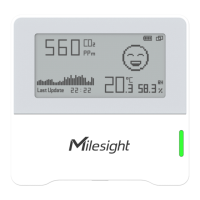

 To Next Page