00110230w Rev 10/20 15 of 24
TIP
Having Trouble?
See Troubleshooting
Exporting Data
Export to USB thumb drive
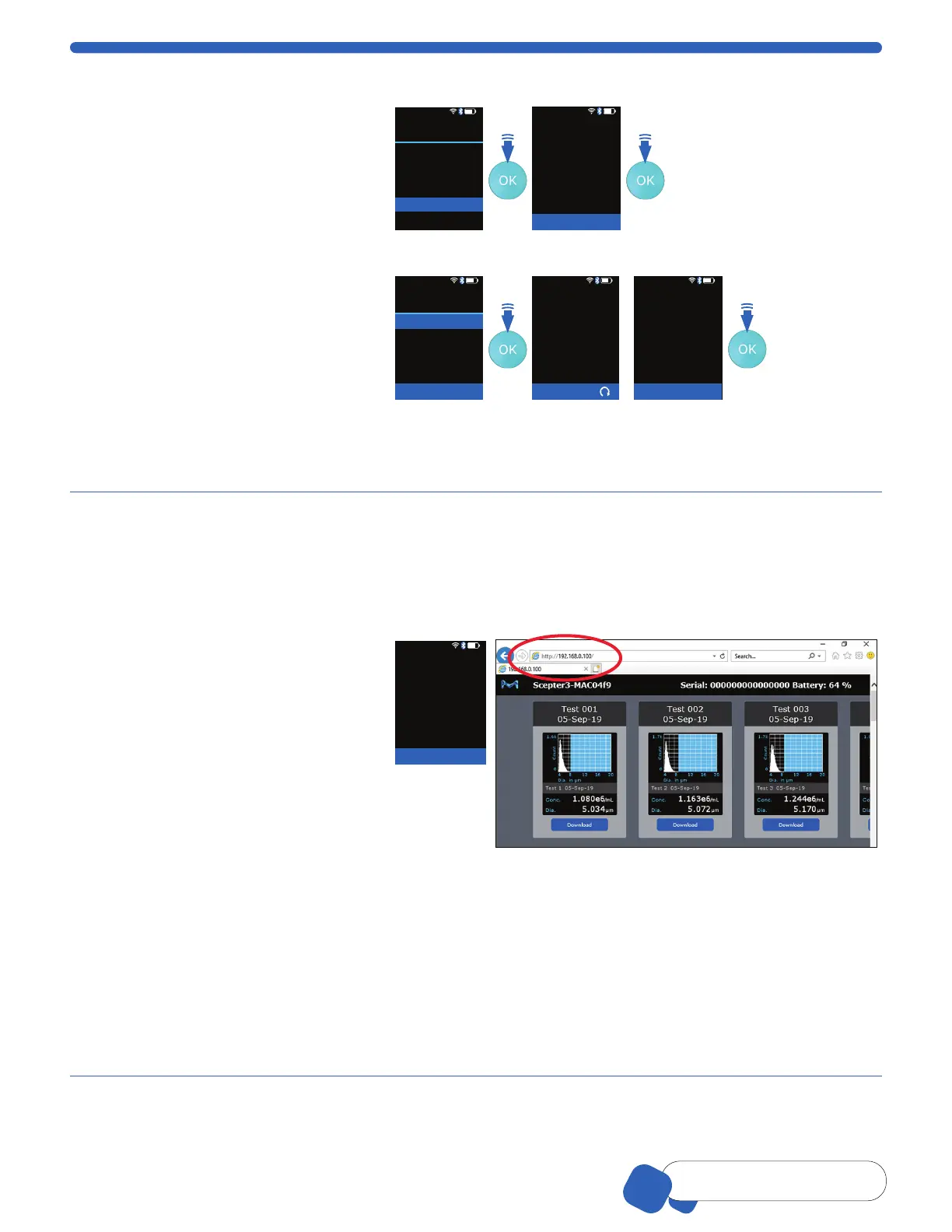
1. Select Histogram from the main
menu and scroll to Export to USB,
press the OK button.
2. Insert USB thumb drive into
Scepter™ 3.0 USB port when
prompted. Drive must be formated
to FAT32. Press the OK button.
01-Feb-18 14:16
Histogram
Back
Go to Home
Edit Analysis
Switch to Volume
Scale Y Axis Count
Export to USB
Print
<
<
01-Feb-18 14:16
Histogram: Export
Press OK to continue
Insert
USB Thumb Drive
Into USB Port
3. Select histogram(s):
TO EXPORT ONE, Scroll to the desired
histogram and press the OK button.
TO EXPORT ALL, Scroll to Export All
and press the OK button.
4. Exporting (All) Histograms will be
displayed on the screen. Data will export
as an image (PNG) and data (CSV).
01-Feb-18 14:16
Histogram: Export
Back
Export Test 03
Export All
<
Press OK to continue
01-Feb-18 14:16
Histogram: Export
Exporting...
Exporting All
Histograms
01-Feb-18 14:16
Histogram: Export
Press OK for Explorer
Successful File
Transfer
Remove
USB Thumb Drive
Export is complete when Successful File Transfer Remove USB thumb drive shows on screen. Removing
the USB thumb drive early may result in corrupted data. It is safe to remove the USB thumb drive now.
5. Press the OK button to return to the main Histogram Explorer screen.
Export to computer over Wi-Fi
®
Network
The Scepter™ 3.0 hosts its own web page allowing users to download test data wirelessly.
Materials Required
• Wireless Network broadcasting at 2.4 Ghz.
• PC, Mac
®
or UNIX
®
Computer connected to the same Wi-Fi
®
Network as Scepter™ 3.0.
• Scepter™ 3.0 Instrument. Follow
Wi-Fi
®
Network, p.8
directions first.
1. Obtain Scepter™ 3.0 IP address.
(See Help Screens, p.17.)
2. Confirm Scepter™ 3.0 is connected
to the same Wi-Fi
®
network as the
computer. (Follow Wi-Fi
®
Network,
p.8 again if needed.)
3. From the computer, open the internet
browser. Type the Scepter™ 3.0 IP
address in the address bar (see red
circle on image right). Press ENTER.
The current data on Scepter™ 3.0 will
be displayed.
Help: About
DNS Address
123456789
IP Address
WiFi MAC Address
AA:BB:CC:DD:EE:FF
BT MAC Address
AA:BB:CC:DD:EE:FF
<
Press OK to return to Help
4. Scroll to the desired histogram, click Download. Data will download as an image (PNG) and data (CSV). The
CSV file contains sample histogram data and summary results that is best opened through a spreadsheet
program, such as Microsoft
®
Excel, OpenOffice
®
Calc, or Google Docs™ web-based word-processing program.
Log files or other device-maintenance formats may also be downloaded. These files are used by Tech Service
if troubleshooting is needed.
5. To disconnect the communication, close the browser on the computer or power off the Scepter™ 3.0.
Note: Scepter™ 3.0 must remain powered on during this process, and can be actively in-use. Data can be
downloaded from Scepter™ 3.0 multiple times, as long as the histogram remains in Scepter™ 3.0 memory.
Scepter™ 3.0 can store a maximum of 999 histograms at one time. Files can only be deleted from Scepter™
menus, not from the web, see Deleting Saved Data.
192.168.0.100


 To Next Page