00110230w Rev 10/20 16 of 24
TIP
The continue-arrow in the lower right
screen indicates more menu options
V
Reviewing Saved Data
Although Scepter™ 3.0 has the capacity to hold 999 histograms, we recommend exporting data for easier file
maintenance. See Exporting Data, p.15.
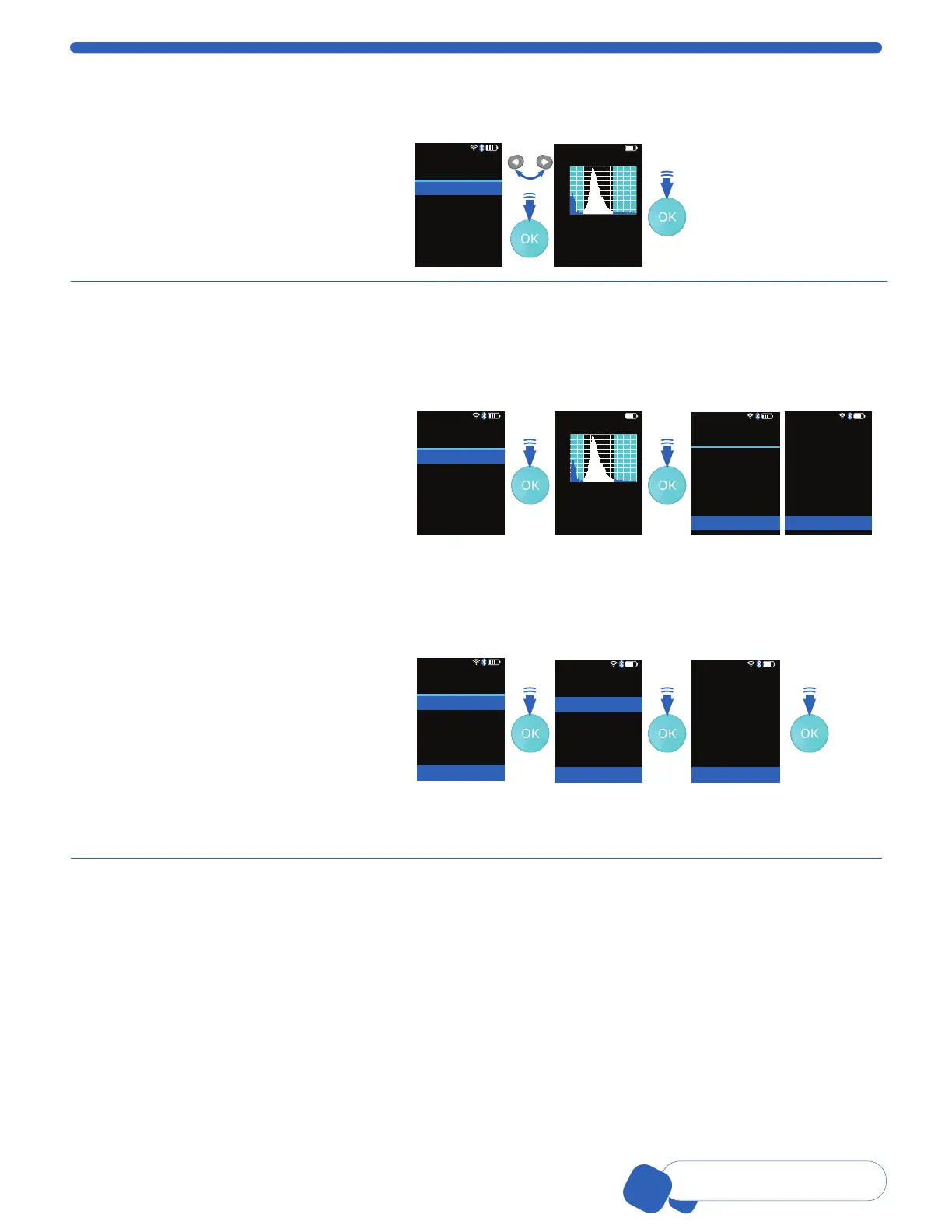
Select Histograms, press the OK button.
The Histogram that was last edited or
acquired will be displayed. Using the
ARROW keys, scroll to the desired
histogram. When the desired histogram
is on screen, press the OK button to go to
the Histogram Explorer.
Menu
Home<
Histograms
Settings
Help
Histogram
Test 3 03-Dec-17
Count
36
3.342e5
15.685
/mL
µm
Conc.
Dia.
Deleting Saved Data
After exporting data, it is recommended to delete it from Scepter™ 3.0. Please confirm export was successful
before deleting. Once a file is deleted from Scepter™ 3.0, it cannot be recovered.
1. Select Histograms, press the OK
button. The last histogram that was
created or viewed is shown.
2. TO DELETE ONE HISTOGRAM: Scroll
to the desired histogram, press the OK
button to open the Histogram
Explorer menu.
TO DELETE ALL HISTOGRAMS: Press
the OK button from any histogram on
screen to open the Histogram
Explorer menu.
01-Feb-18 14:16
Menu
Home<
Histograms
Settings
Help
01-Feb-18 14:16
Histogram
Test 3 03-Dec-17
Count
36
3.342e5
15.685
/mL
µm
Conc.
Dia.
01-Feb-18 14:16
Histogram
Back
Go to Home
Edit Analysis
Switch to Volume
Scale Y Axis Count
Export to USB
Print
<
<
01-Feb-18 14:16
Histogram
Go to Home
Edit Analysis
Switch to Volume
Scale Y Axis Count
Export to USB
Print
Delete
<
3. The Delete option is on the second screen of the Histogram Explorer menu.
Scroll past Print to advance to the next screen. Select Delete, press the OK button.
Note: A blue arrow in the lower right corner of any screen indicates there are more options to that menu.
4. Scroll to select Delete Test _name_ OR
Delete All, press the OK button.
5. Scroll to Yes, and press OK to proceed
with deleting.
If you do not wish to delete histograms,
scroll to No and press the OK button. The
system will return to Menu.
Note: Once the Delete process is initiated,
the histograms cannot be recovered.
01-Feb-18 14:16
Histogram: Delete
Back
Delete Test 02
Delete All
<
Press OK to accept
Histogram: Delete?
No
Yes
Press OK to accept
Test 2 29-Nov-17
Histogram: Delete
Press OK for Explorer
Histogram
Test 2 29-Nov-17
was deleted


 To Next Page