miniDSP Ltd, Hong Kong / www.minidsp.com / Features and specifications subject to change without prior notice 7
2 INSTALLATION AND CONFIGURATION – WINDOWS
For use with Windows, the miniDSP driver must be installed. You will also need to download the software
package if there is a firmware upgrade.
2.1 DOWNLOAD
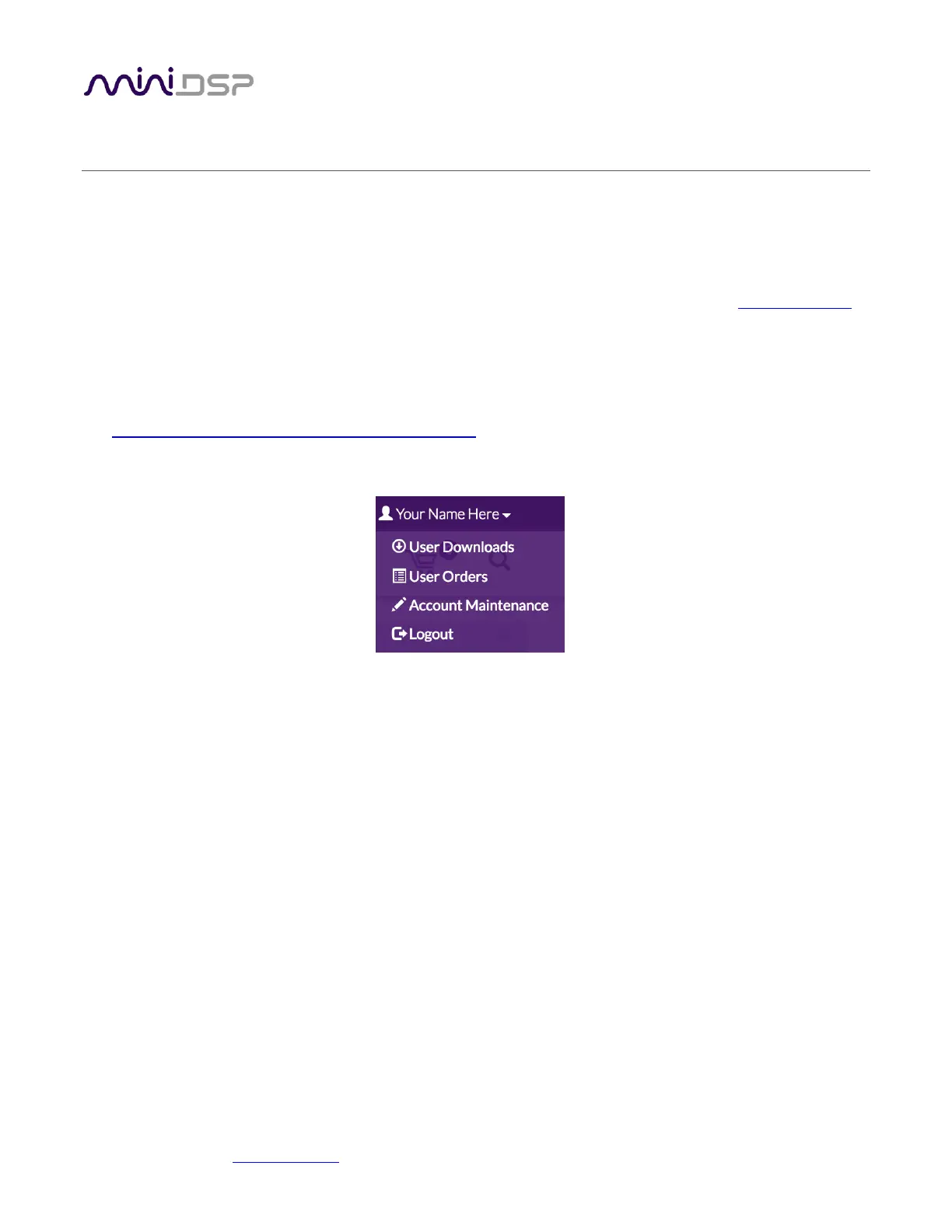
If you purchased your product directly from miniDSP, your software will be available from the User Downloads
section of the miniDSP website when your order ships. You will need to be logged into the website with the
account you created when purchasing to access the download.
If you purchased your product from a miniDSP dealer, you will receive a coupon together with the product.
Redeem this coupon and select the Plugin Group “UMIK-2” at the link below:
• https://www.minidsp.com/support/redeem-coupon
The User Downloads link is visible from the dropdown menu at the top right of the website page:
Navigate to the USB Audio Drivers section and download the zip file under the heading UMIK-2. Unzip the
downloaded file by right-clicking on it and selecting “Extract All...”.
2.2 USB DRIVER INSTALLATION
The USB driver enables Windows to stream audio to the UMIK-2. In addition, it installs a control panel to help
manage the UMIK-2.
To install the driver, go to the WinDrivers folder of the installation download and double-click on the installer:
• miniDSP_UAC2_v4.82.0_2020-06-09_setup.exe
(The version number embedded in the filename may be different.)
We recommend accepting the default installation location. Once the driver installation completes, click the
Finish button.


 To Next Page