miniDSP Ltd, Hong Kong / www.minidsp.com / Features and specifications subject to change without prior notice 19
7.2 CONFIGURING ASIO (WINDOWS ONLY)
If you need to output audio via ASIO, you will need to use ASIO4ALL. First download it from
https://www.asio4all.org/ and install it. Then, in the REW Preferences window:
1. Select ASIO under Drivers at the top left of the window.
2. Select ASIO4ALL as the ASIO Device.
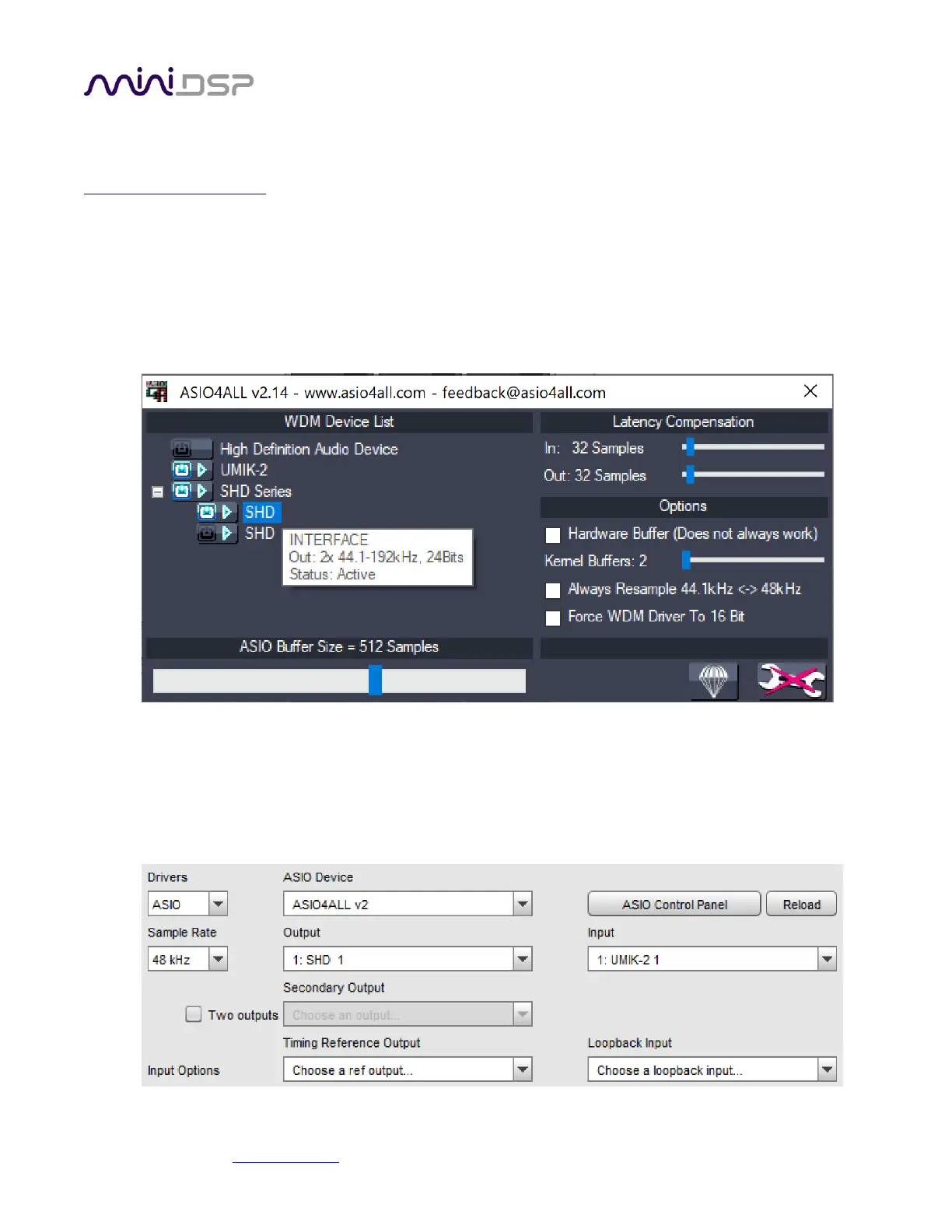
3. Click on the ASIO Control Panel button. Click on the wrench/spanner icon at the lower right to enable
advanced mode. Then select the desired input and output devices from the list on the left. Disable
unused devices. In this example, we are using the miniDSP SHD as the output device and the UMIK-2 as
the input device:
Note that there are two entries for the SHD as it has both input and output channels. Hover your mouse
over them to see which is which, and enable just the output channels.
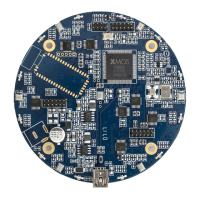
4. Close the ASIO Control Panel. On REW Preferences, select the desired output and input channels. Note
that the Input dropdown will show two channels – it doesn’t matter which one you select. This
screenshot shows a completed I/O configuration:


 To Next Page