5. Usage
MiR Precision Docking Operating guide (en) 2019/11 - v.1.2 ©Copyright 2019: Mobile Industrial Robots A/S. 14
Before creating the marker, you must ensure that the robot is localized correctly in an active
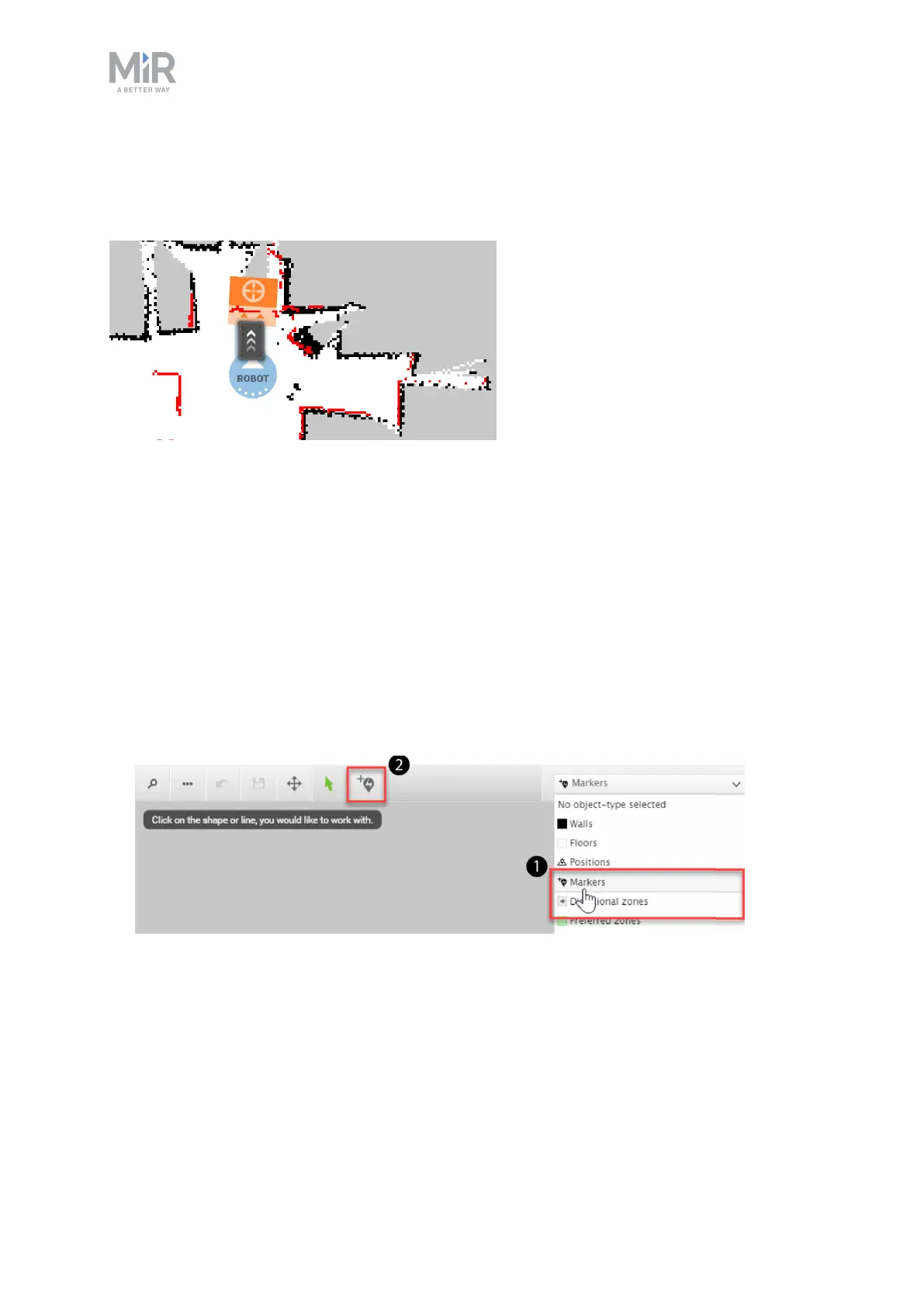
map. If in doubt, you can check if the red lines representing the laser scanner line match the
black lines on the map as shown in Figure 5.1.
Figure 5.1. The red lines represent what the laser scanners detect. The robot is correctly localized when they
align with the black lines that represent walls.
Once the robot is localized, it is possible to insert a precision docking marker correctly on
the map using the following steps:
1. Manually drive the robot so its front is facing the MiR Precision Docking station and is
within one meter from it.
2. In the robot interface, go to the map editor for the active map where you want to create
a marker. This is done by going to Setup > Maps and selecting the edit icon next to the
map you want to work on.
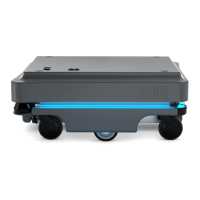
3. In the Object-type drop-down menu, select Markers (1), and then select the icon to Draw
a new marker (2).


 To Next Page