3.10 Setting Display & Sound
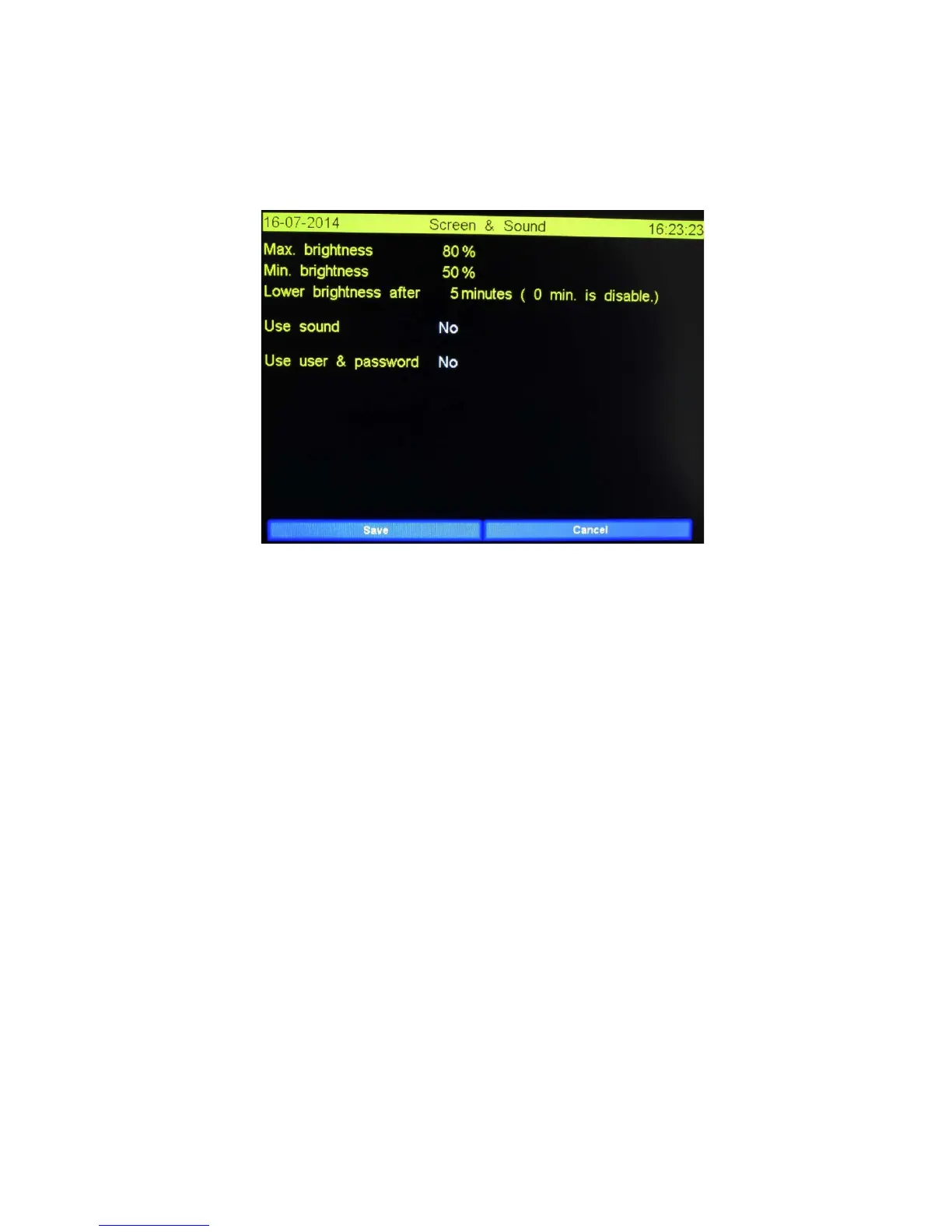
When ticking “Display & sound” in the “Machine settings and info the “Screen & Sound” will be
showing up. There are 5 option which are changeable.
The “Screen & Sound” screen is showed below.
3.10.1Functions explained
Save: Save all changes you’ve made.
Cancel: Close the screen and lose all changes.
3.10.2 Fields explained
It is possible to regulate the brightness of the screen. The preserve the screens lifetime it’s also
possible to set a “sleep mode” during the time the main screen is showed. During a normal
production cycle this screen is hardly viewed.
When ticking on the screen the “Max. brightness” value will be used. In “sleep mode” the “Min.
Brightness” value will be used.
Max. brightness: The screen brightness when you are working on the screen.
Min. brightness: The screen brightness when you do not touch the screen longer then the time
defined in “Lower brightness after”
Lower brightness after: After the time, entered in this field, is finish the brightness of screen is
lowered to the value entered in “Min. brightness”. The timer will be reset if the user ticks on the
screen.
Use sound: Ticking on this field toggles between “Yes” and “No”. When “Yes” is selected then a short
beep sounds when the user ticks at the screen on a function or editable field.
Use user & password: Ticking on this field toggles between “Yes” en “No”. When “Yes” is selected
the machine will be protected against unauthorized use. The user has first to logon. After a
successfully login he can use the machine as described in the group rights he’s belonging to.


 To Next Page