EN-5
EN
3-4. Setting up in Access Point mode
(*1)
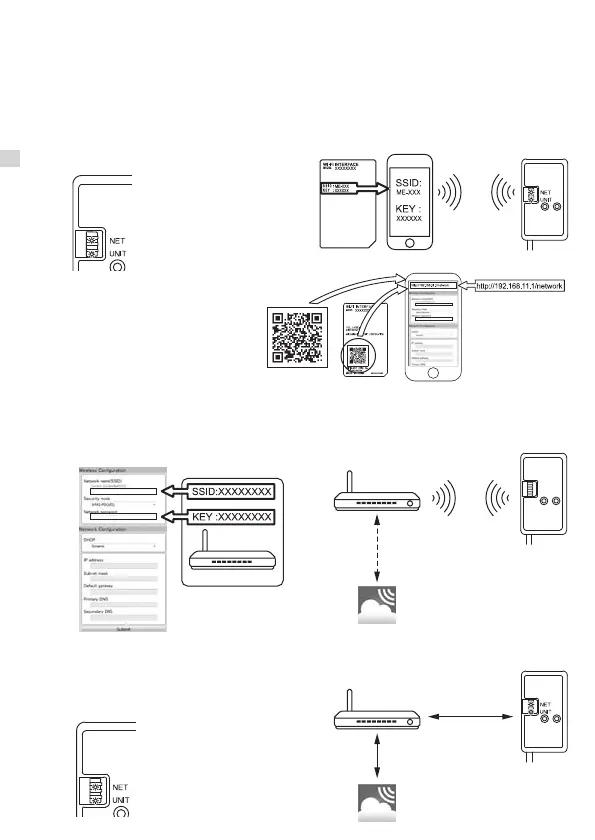
Wi-Fi InterfaceSmartphone
Connecting
Complete the setting up in the Access Point mode within 10 minutes. (MAC-57 series only)
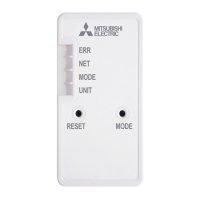
1. Make sure that the LED indication is as shown below.
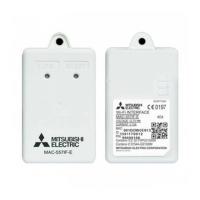
On the Wi-Fi Setting Screen on your smartphone, select SSID and enter KEY, which are printed
on the label of the Wi-Fi interface.
Notes:
● It may take time to show the indication below.
(About 30 seconds for air conditioner, 60 seconds for ATW unit)
● Check Wi-Fi setting of your smartphone if SSID does not appear on it.
● Enter KEY again if SSID appears on your smartphone, but it cannot connect to the Wi-Fi interface.
2. Perform one of the following:
● Scan the matrix barcode on the right.
● Scan the matrix barcode on the label
of the Wi-Fi interface.
● Type the URL (http://192.168.11.1/
network) in the web browser.
3. In the displayed window, select Dynamic in DHCP (*1) and enter the
information of Router, then tap the Submit button.
Notes:
● If you want to use Static, select Static in DHCP (*1) and enter the
information of Router and network, then tap the Submit button.
● LED indication will return to initial state in 3-1. if the connection fails.
LED indication
Router
Connecting
Connecting
LED indication
4. LED indication will be as shown below when the connection is completed.
Note:It may take several minutes to show the indication below.
(If the indication does not change, push RESET switch for more than 14 seconds,
to restart the setup from 3-1.)
Connected
Connected
MELCloud
Flash (every 5 sec)
Flash (every 5 sec)
Flash (every 5 sec)
Flash (every 5 sec)
JG79Y755H01_EN_SETUP.indd 5 2020/01/23 10:34:00



 To Next Page