EN-6
EN
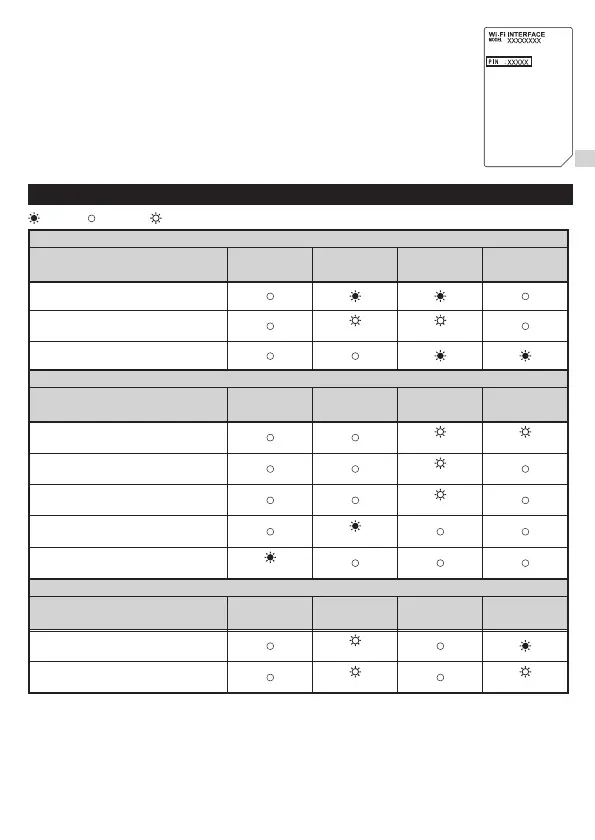
(*1) Details of ash pattern
• Every 0.5 sec: Searching for MELCloud.
• Every second: Registering the information of the Wi-Fi interface to MELCloud.
• Every 5 sec:
Communicating with MELCloud.
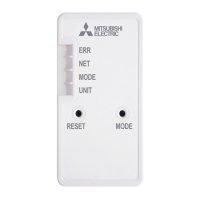
4. LED pattern
● Software initializing
Description
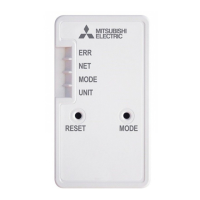
ERR
(Orange)
NET
(Green)
MODE
(Orange)
UNIT
(Green)
Firmware updating
Firmware downloading
(every second) (every second)
Reset to the factory default
● Wireless setting
Description
ERR
(Orange)
NET
(Green)
MODE
(Orange)
UNIT
(Green)
Access Point mode activated
(every 5 sec) (every 5 sec)
WPS-PUSH mode activated
(every second)
WPS-PIN mode activated
(MAC-56 series only)
(every 0.5 sec)
Pairing process via WPS completed
(5 sec)
Pairing process via WPS failed
(5 sec)
● Connection to MELCloud in progress
Description
ERR
(Orange)
NET
(Green)
MODE
(Orange)
UNIT
(Green)
Communicating with MELCloud, and
starting up indoor unit communication
(*1)
Communicating with MELCloud, and
communicating with indoor unit
(*1) (every 5 sec)
: ON : Flashing : OFF
3-5. Setting up WPS-PIN mode (MAC-56 series only)
1. Before using WPS-PIN mode, the PIN code of the Wi-Fi interface needs to be set
on the Router. Refer to Router's manual to enter the PIN.
2. Push MODE switch for 14 seconds and release to set WPS-PIN mode.
3. NET and UNIT LEDs ash (every 5 sec) when the connection is completed.
Notes:
● Please make sure that the Router supports WPS-PIN mode.
Not all Routers supports WPS-PIN mode.
● Push RESET switch for 2 seconds to reset the Wi-Fi interface if LED indication
does not change after 5 minutes.
JG79Y755H01_EN_SETUP.indd 6 2020/01/23 10:34:00



 To Next Page