5.2 Touch Screen
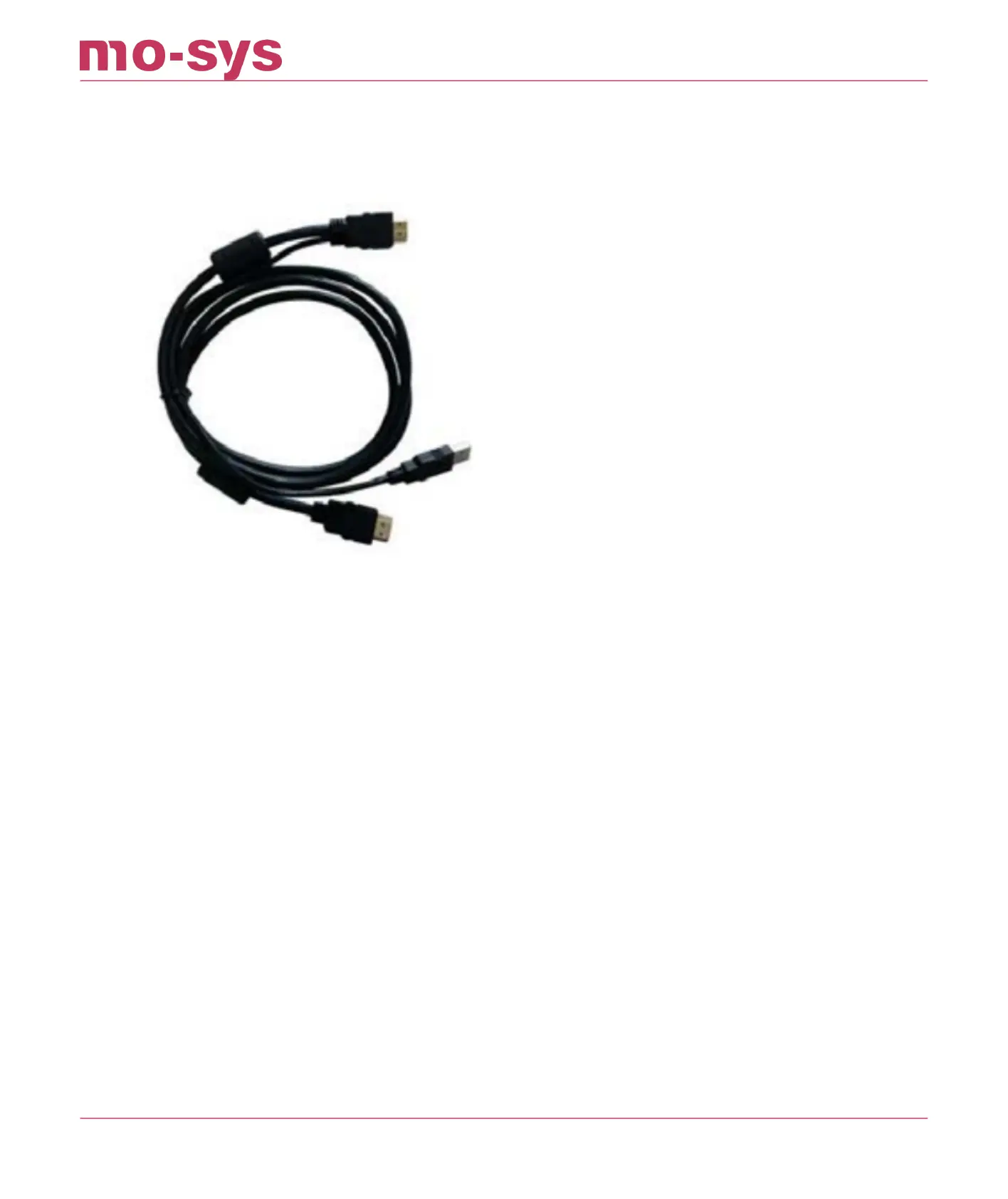
StarTracker comes with touch screen capabilities. When you get your system, you shall have a
Lilliput LCD monitor, and an HDMI cable with a USB attached to it.
To enable the touch screen component, you will need to plug the USB cable into one of the USB
ports on the StarTracker.
Once plugged in, you will be able to go through the StarTracker menus via touch screen.
To take the lock function o, you will need to touch the bottom right that looks like a right click
on a mouse. This will be highlighted, and you will be able to unlock a menu.
NOTE: After using the right click touch function, It will turn back o. So, to continue to unlock
menus of the StarTracker, you MUST hit the right click button again.
Everything is as functional as if it were a keyboard, and if you want to leave or close the menu,
you will need to double tap the right click button. This will act as an “ESC” key.
If you hold the bottom right for longer than 3 seconds, all main menus will unlock.
StarTracker Max Manual
2023 - 2024 © Mo-Sys Engineering Ltd. All rights reserved 14 of 70



 To Next Page