13. Backup and Restore
13.1 Backup
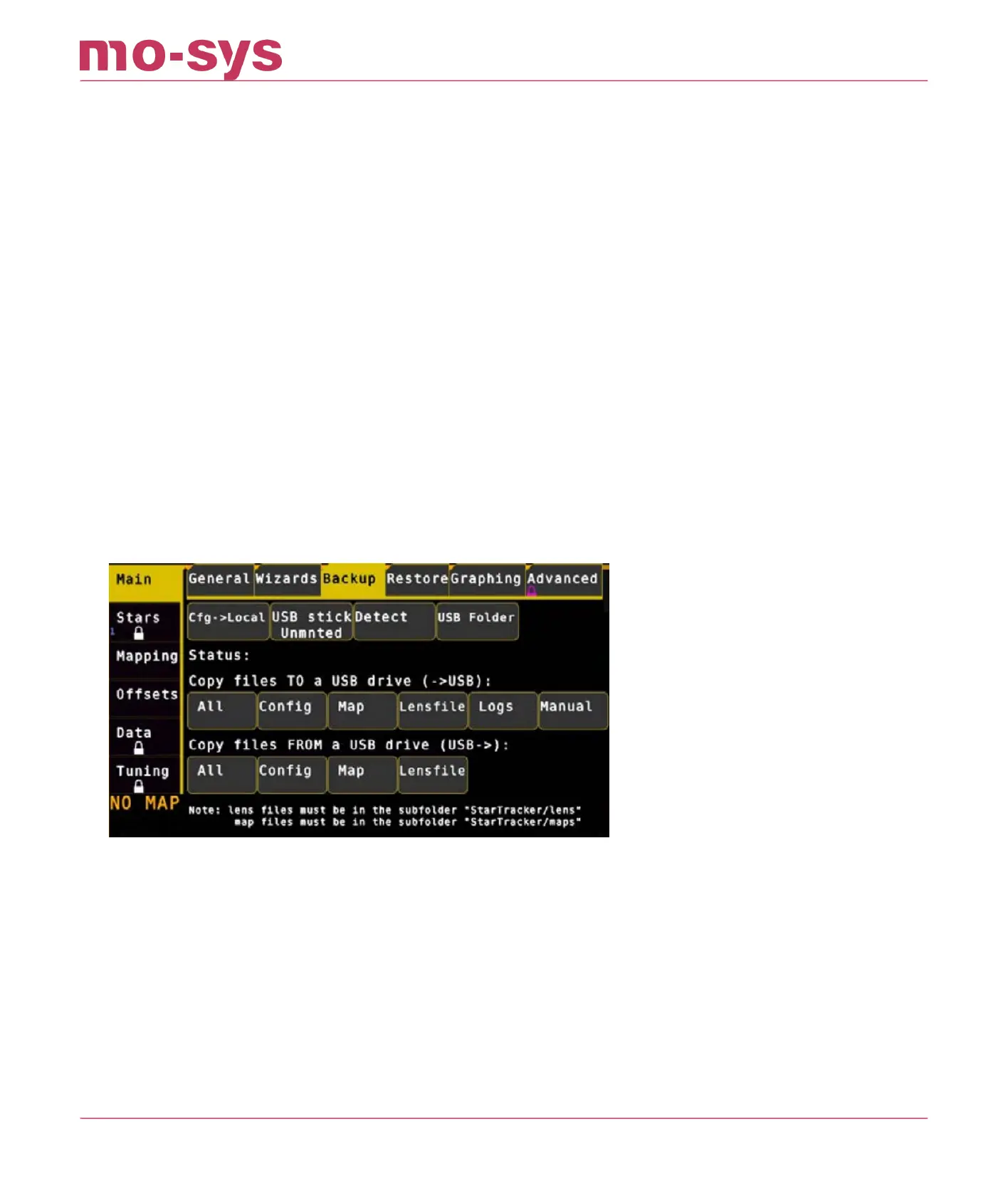
Backup maps, cong les, logs and user manual to/ from USB stick. Insert a USB memory stick
into the StarTracker and a directory window will open. Close it. Click Main → Backup → Detect
until it displays “USB Stick Mounted”
Under “Copy les TO a USB drive” click Maps to copy maps to the USB stick. Repeat for Cong,
Lensle, Logs or if you want to backup everything All.
Click Main → Backup → USB stick until it displays Unmnted as unmounting will ensure the les
are copied correctly to the USB stick. Only then can the USB stick be removed from the
StarTracker
Maps may be shared between devices. Copy the map onto a USB stick and paste it into the map
folders of the other systems. Go to Mapping → Select Map choose the new map, load the map,
press L and Y. You can choose how your back-up Cfg le is applied.
13.2 Restore
Main → Restore restores all the settings, including CCD osets and network settings.
When you click on the Restore button it shows a list of conguration les with a time stamp.
One of these is marked as Factory cfg settings. Use it to restore StarTracker to factory settings.
Be aware that this clears all settings that have been modied during installation.
Add Same (same sensor osets) copies all settings, excluding network settings, Use this when
setting up an identical StarTracker with the same CCD osets.
StarTracker Max Manual
2023 - 2024 © Mo-Sys Engineering Ltd. All rights reserved 58 of 70



 To Next Page