xTablet Flex 10A
With Android
14
5 Camera
5.1 Camera Functions
To use the camera
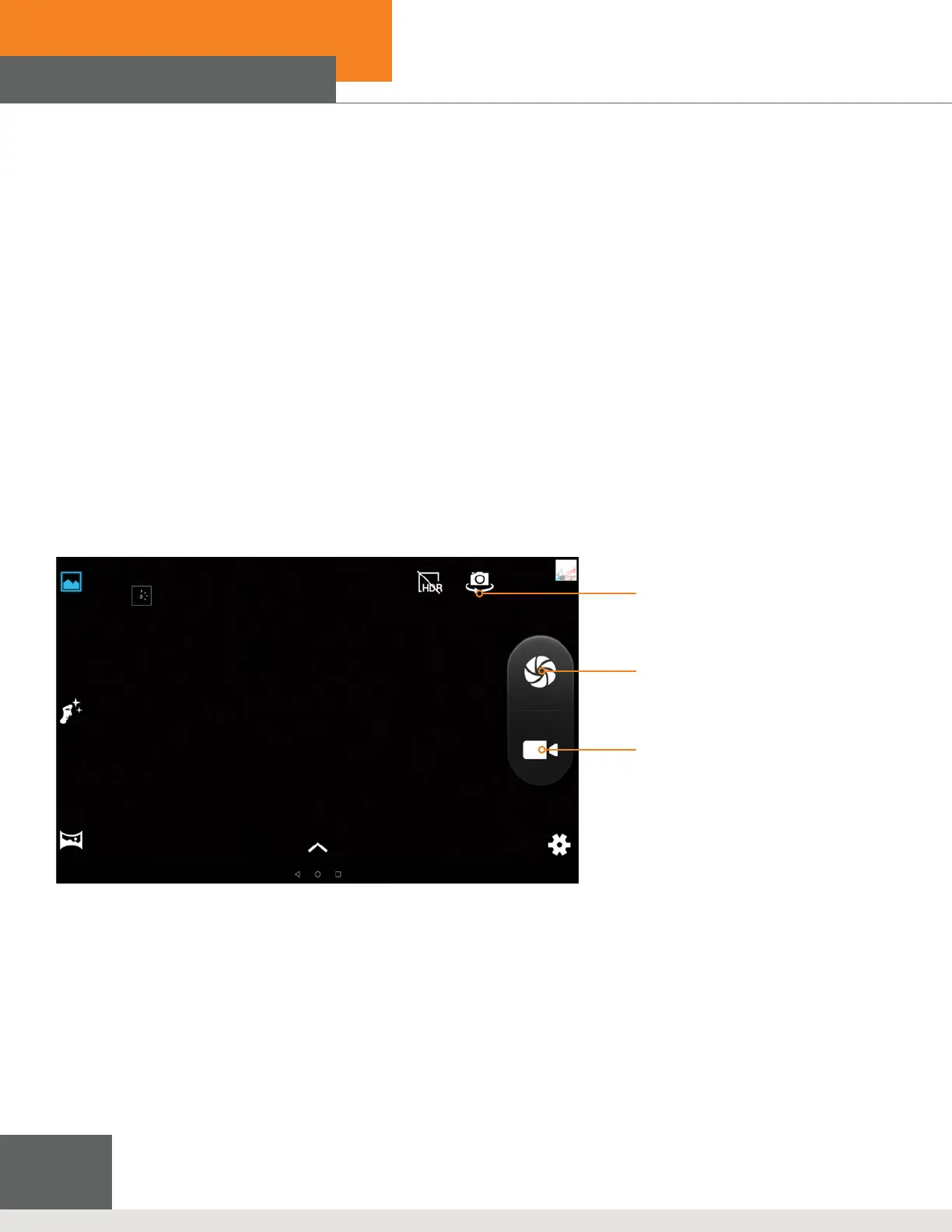
1. On the homepage, tap the “camera” image to open up the camera application.
2. Tap the Photo button to take photos. Use the display to preview your shots.
3. Congure functions as photo size, storage location, white balance, and focal length.
To create a video recording
1. Tap the “Video Recorder” icon, then tap the red Video button to record.
2. Congure functions such as color eect, white balance, and video quality, switch between “720P” and “480P”
high-denition video recordings.
3. Tap the Video button to end the recording and preview the video.
Start/Stop
Video
Cut front
Figure 5-1: Camera/Video Recorder Screen
5.2 HDMI(HighDenitionVideoInterface)
The xTablet (when in the boot status) and a high-denition television is connected by a standard HDMI
cable. The system interface on the xTablet is automatically synchronized with a high-denition TV screen
supporting the high-quality 1080p resolution ratio.
To set the resolution ratio
1. On the homepage, tap the Menu key for the pop-up menu, tap System Setting, then tap Display.
2. Tap Output Select to switch to “HDMI” mode or tap Resolution to set the resolution ratio of the HD TV.


 To Next Page