15
6 File Management
You can use the le browser to manage, edit and delete the les and folders, or to create sharing and
FTP server to achieve resource sharing.
Toopenupthelebrowser
• On the homepage, swipe the desktop to locate, then tap the File browser folder to open.
Tousethelebrowser
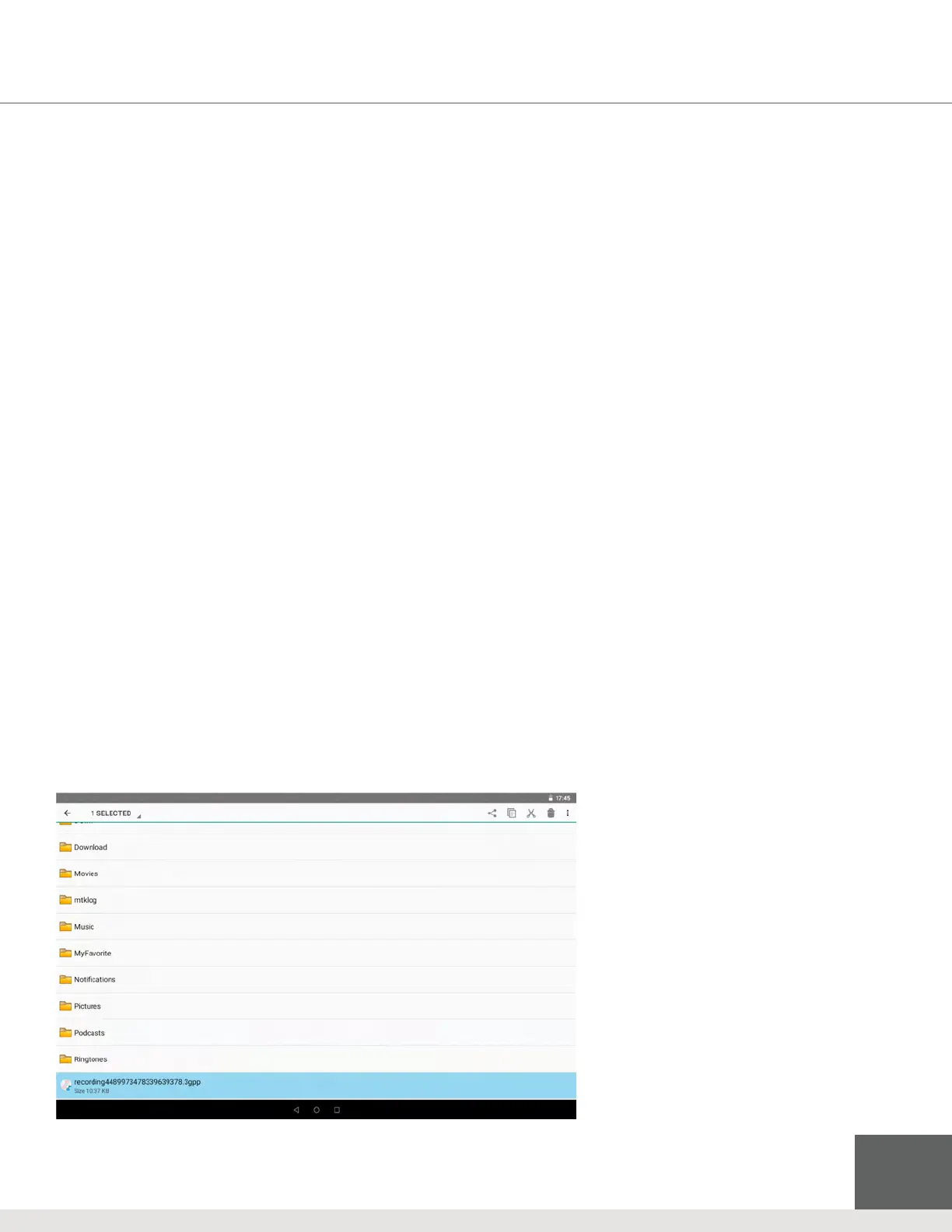
1. In the le browser, press the le or folder for a pop-up menu.
2. Use the available options such as the following:
• Cut or Copy
Select either option to remove the le or folder.
• Paste
Select this option to place the le or folder you had cut or copied.
• Delete
Use this to permanently remove the selected le or folder.
• Folder Setup
Tap Create, tap Folder, enter the name of the folder, then tap OK.
• Quick Search
In the toolbar, tap the Search icon, enter the keywords to search, then tap OK to show the search results.
• Create Sharing
Load the ES le browser, tap Local in the upper left, then tap Share. The system will search all computers within the
LAN – tap OK to view each drive in the xTablet.
Figure 6-1: ES File Browser


 To Next Page