4.3.5. Manage Program
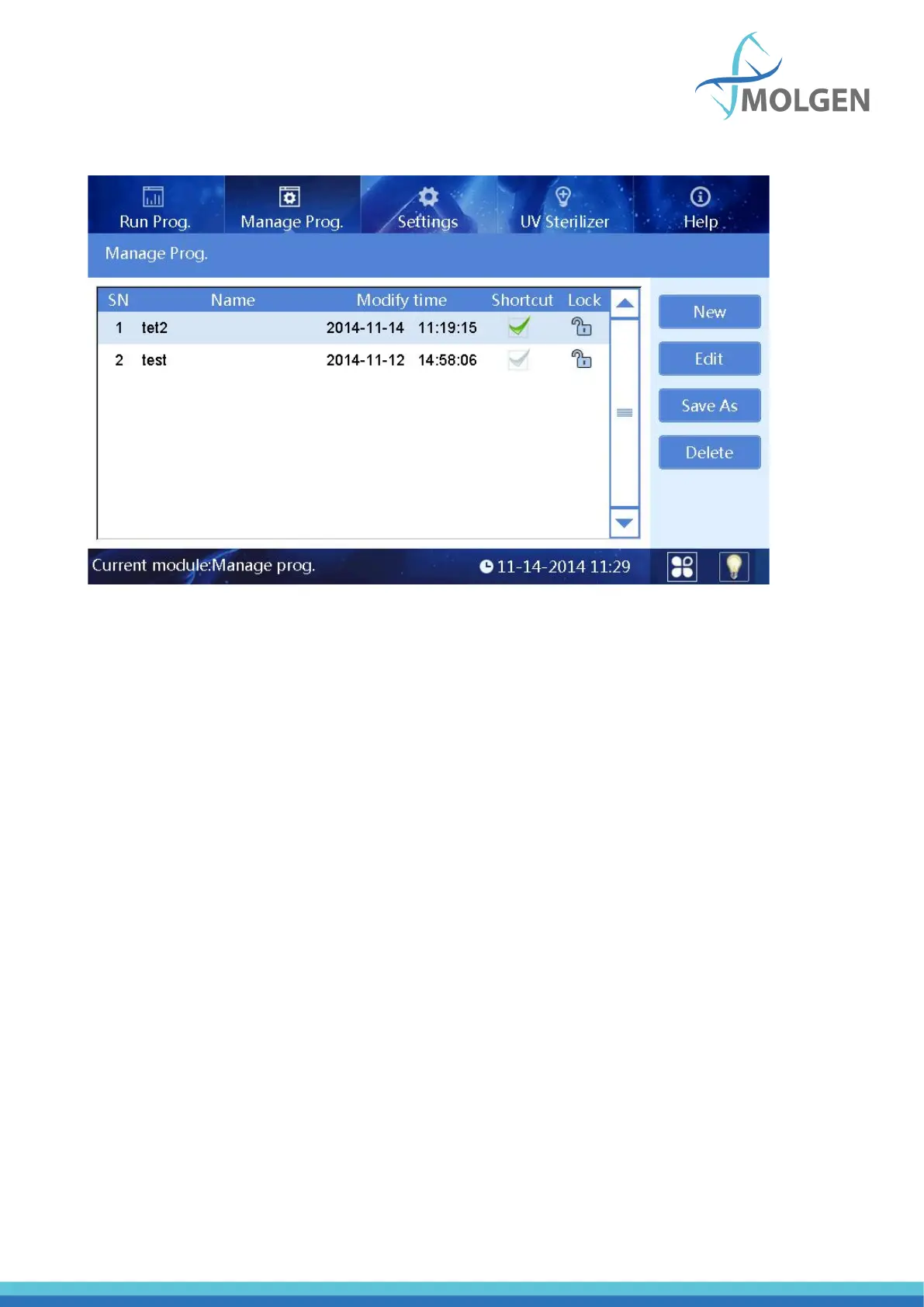
Users can manage all programs in the “Manage Prog.” interface.
Fig 20
4.3.5.1. Management Interface
The management interface is similar to the list interface in program operation, except that the lock
column is a non-operable option in the program run interface while it’s an operable option in the
management interface. Click the lock icon to lock and unlock the program. Programs cannot be edited,
saved or deleted if they are in the locked state.
4.3.5.2. New/Edit interface
When the users click the “New” or “Edit” button, the interface of figure 20 will appear. The main
difference between the “New” interface and the “Edit” interface is whether the program name exists
or not. This interface mainly includes five buttons: “Insert”, “Delete”, “Option”, “Save” and “Back”:
Insert: Click “Insert” to add a new program with default parameters next to the current selected
program, the new program should be with a valid name.
Delete: Delete the selected program.
Option: Display high-level parameter settings which apply to the entire program scope.
Save: Save the program file, please note that a valid program name is necessary.
Back: Return to the previous display.



 To Next Page