TOUCH NAVIGATION ... touch the ESC Button to open the Main Menu on screen
SD Card Forma t
OK
NO
YES
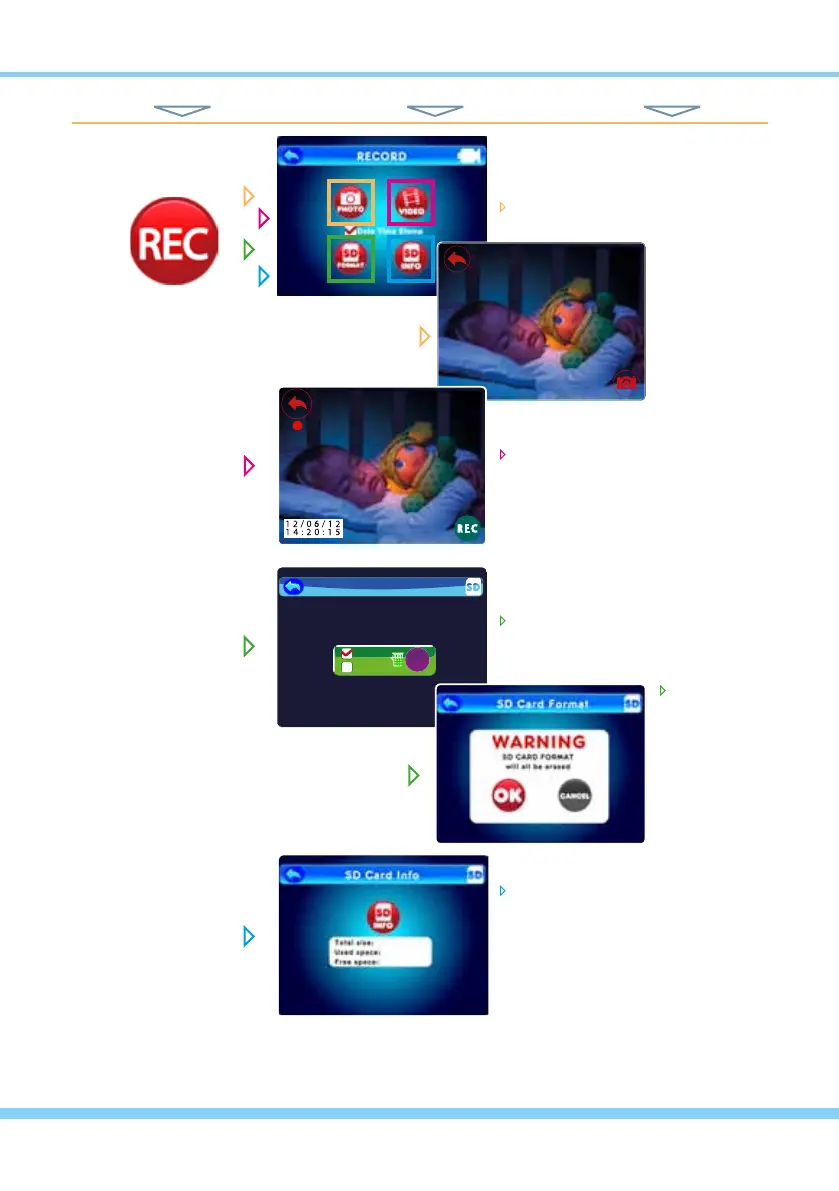
TAKE PHOTO
RECORD
from Main Menu... ... to These Screens... ... to Do This...
touch one of four functions...
Photo
goes to camera view and you can
take a photo of the scene by tou-
ching this Still
Camera icon
Video
goes to the camera view and you
can record a video (with sound)
of the scene by touching this REC
icon to start recording - and press
again to stop recording
SD Format
lets you Format / Erase an SD
memory card
SD Info
displays Total Size, Used Space,
and Free Space on any SD card
you may have in the SD card slot
NOTE: All recording
functions require an
SD memory card with
available space (max
32 Gb) to be in the
SD card slot on the
monitor.
NOTE: While recording
no other functions are
available until recording
is stopped.
HINT: To move back one screen touch Return icon or go to camera view by pressing the ESC Button.
RECORDING
select OK
or Cancel
NOTE: Touch Date
Time Stamp to activate
the Date/Time Stamp
to be displayed on the
screen.
10



 To Next Page