SETTINGS (cont.)
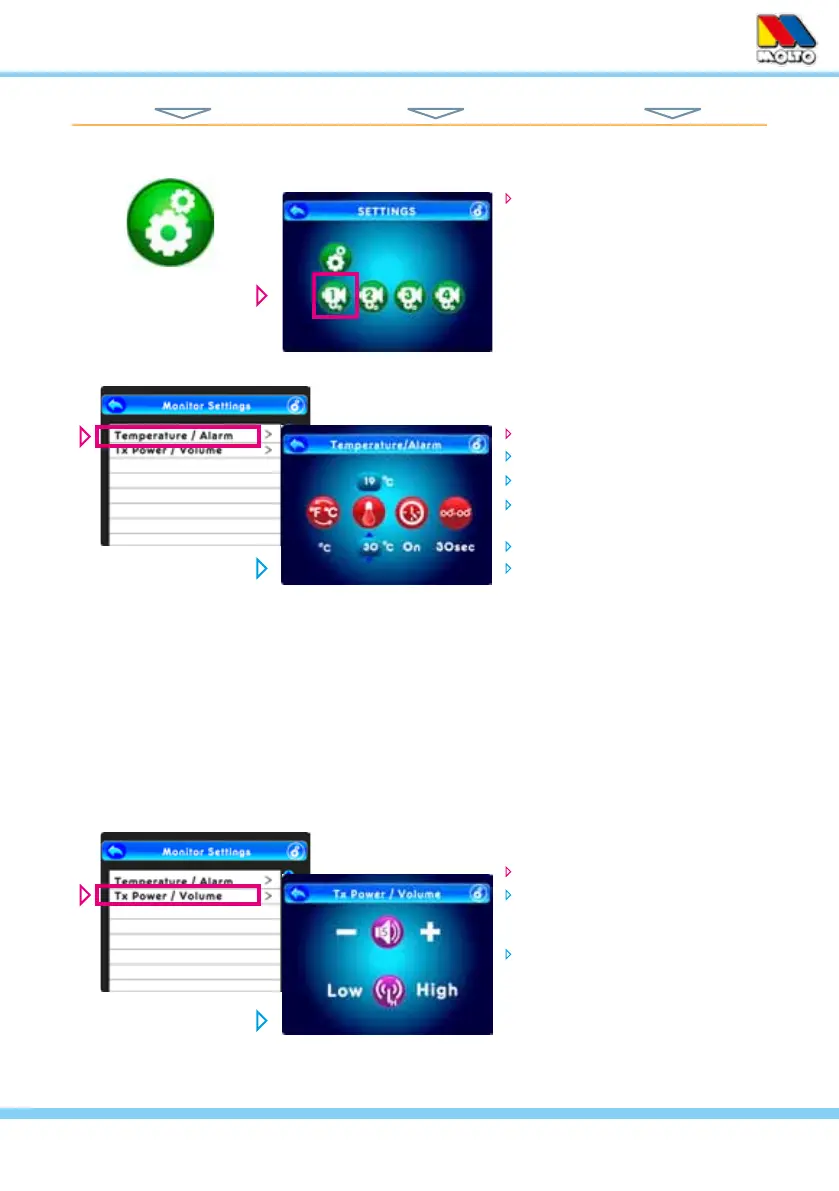
Camera Settings
on the Setting Screen, simply
touch the Camera icon (on the
bottom line) for the one you wish
to control the settings for...
NOTE: Only Paired camera
icons will show in color and be
active for touch control.
From the Camera Setting Screen...
touch Temperature/Alarm
set forºF or ºC (default is ºC)
touch the thermometer icon
set the maximum and minimum
alarm temperature range
set the Alarm to be On or Off
if On, set the interval between
beeps (from 5 to 60 seconds)
From the Camera Setting Screen...
touch Tx Power/Volume
adjust the Camera Speaker Volu-
me (top icon) up or down for the
Two-Way Talk function
set the Transmit Range Power
(lower icon) on High or Low
NOTE: When the room temperature (where the camera
is) goes above or below the temperature range you set,
the monitor will sound an alarm and the small Tempe-
rature icon on the monitor screen will ash showing the
out-of-range temperature in that room. Alarm will not stop
until the temperature returns to the set range, or you turn
the Alarm Off from this screen.
TOUCH NAVIGATION ... touch the ESC Button to open the Main Menu on screen
from Main Menu... ... to These Screens... ... to Do This...
HINT: To move back one screen touch Return icon or go to camera view by pressing the ESC Button.
17



 To Next Page