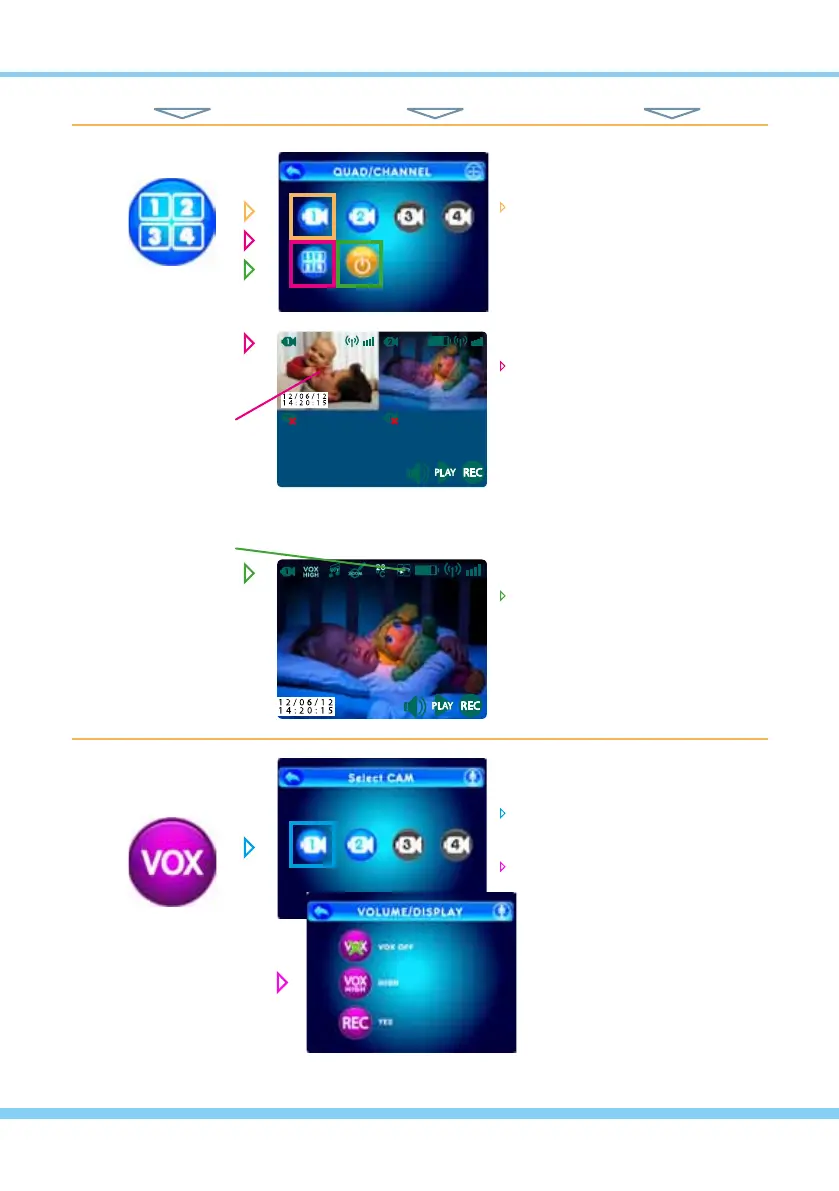
QUAD / CHANNEL
VOX
Sound Activated Monitoring
NOTE: All cameras
must be Paired to the
monitor for viewing ac-
cess (Refer to Pairing
on page 7.)
NOTE: In Quad mode,
touching any active
camera image chan-
ges to that full screen
single camera view.
Also sound only from
the last camera in full
screen mode can be
monitored.
NOTE: In Auto Scan
mode (indicated by
this symbol) you can
select which cameras
to include and the
scan time between
each camera. (Refer to
Auto Switch Time on
page 13.)
choose from these options...
Single Camera View
select a Camera icon (1-4, which
will be shown in color and active if
paired)to be your constant chan-
nel if choosing Single Camera
View
Quad View
select the Quad icon and see all
currently paired cameras (up to 4)
simultaneously.
Auto Scan View
select the Auto Scan icon to go
to a full view from each paired
camera (up to 4) as they change
from one to the next
Sound Activated Mode
(VOX)
select a paired Camera icon (the
ones in color)
select from 3 options...
VOX (set to On or Off)
Sound Sensitivity
(set to High, Med or Low)
Sound-Activated Recording
(set to Yes or No)
NOTE: VOX keeps monitor
(picture and sound) off
until the camera detects a
sound, which automatic-
ally turns the monitor back
on. This helps prevent false
alarms and allows parents
more rest.
TOUCH NAVIGATION ... touch the ESC Button to open the Main Menu on screen
from Main Menu... ... to These Screens... ... to Do This...
HINT: To move back one screen touch Return icon or go to camera view by pressing the ESC Button.
12



 To Next Page