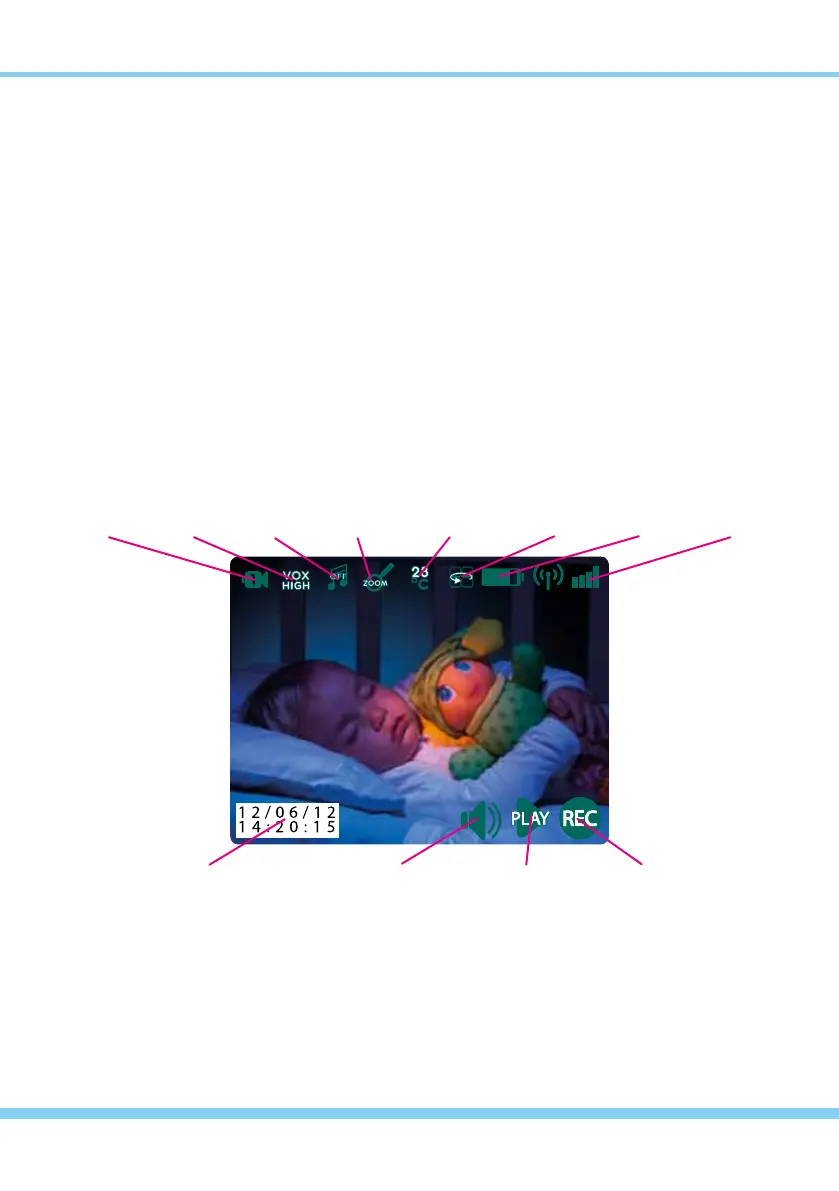
INDIVIDUAL CAMERA and CONVENIENCE ICONS
Each paired camera scene also displays Convenience Icons (shown along the bottom of the
screen) so you can either view the current Date/Time Stamp or...
touch and bypass the Main Menu to...
1... instantly adjust Volume controls for that camera
2... instantly access the Play Video/View Photo control panel
3... instantly Record Video from that camera...with just one touch!
IMPORTANT: Use ONLY a ngertip or other NON-SHARP object to select touch screen
options. Using sharp objects can damage the screen and void the warranty.
Specic small icons are created for each paired camera at the top edge of the screen which relate
to that individual camera (except Battery Level, which is for the monitor only). To use them...
just observe or touch one of the following Individual Camera icons to either...
A... view current Camera Number, or change to the next camera you want to view
B... view current VOX level, or change VOX sound sensitivity level for that camera
C... view Lullaby status, change the Lullaby selection, or turn off Lullabys from that camera
D... add Zoom/Pan/Tilt controls over the scene to manipulate the image from that camera
NOTE: Other individual camera icons appear for informational purposes, such as Room
Temperature, Switching Mode and Signal Strength, and when in Quad Mode, each
camera screen shown will also display the Signal Strength of that particular camera.
A
Camera
Number
DATE / TIME STAMP
(see pag.10)
Year/Month/Day
Hour/Minute/Second
direct to
VOLUME
1
direct to
PLAY
2
direct to
RECORD
3
B
VOX
Level
C
Lullabys
Status
D
Zoom/
Pan/Tilt
Room
Temperature
Battery
Level
(monitor)
Signal
Strength
Switching
Mode (On)
18



 To Next Page