SETTINGS
Monitor Settings
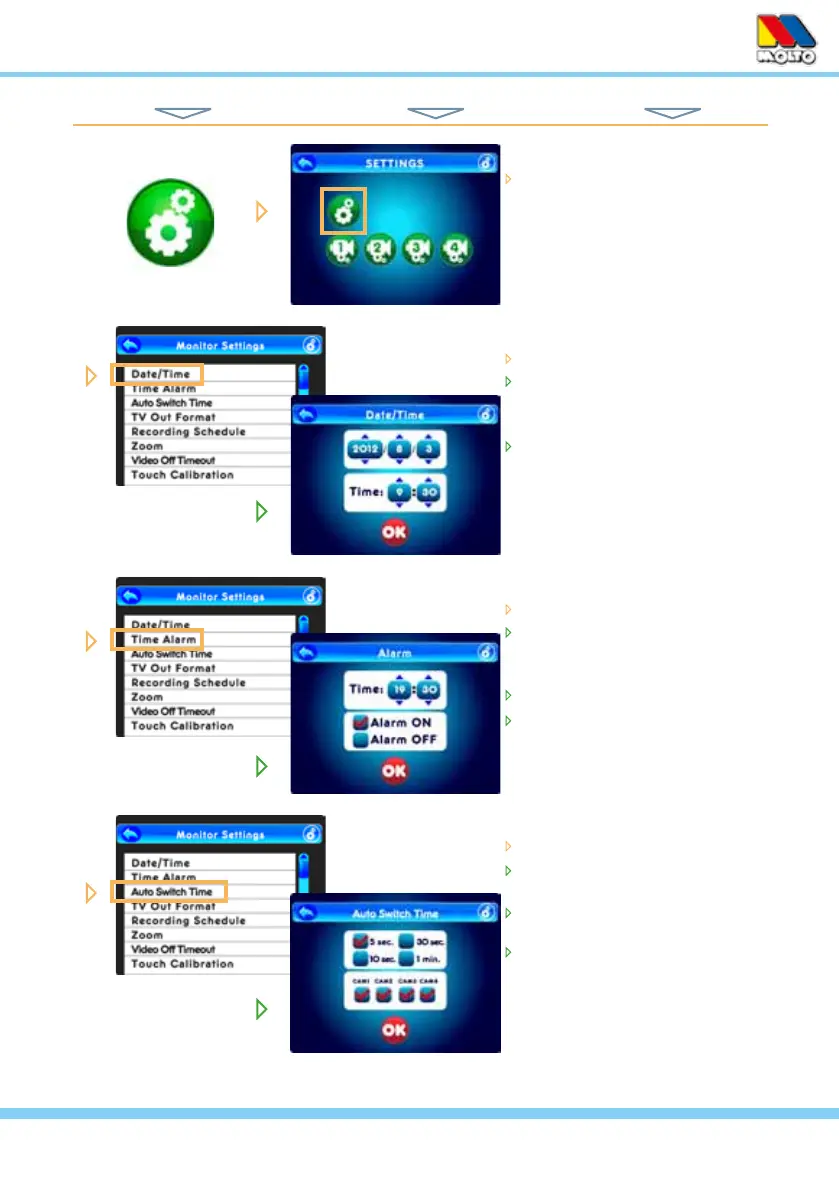
on the Setting Screen, simply
touch the System Setting icon
(at the top) to access monitor
functions...
From the Monitor Setting list...
select Date/Time
touch any value, then touch the
arrows to adjust value up or
down
press OK to save changes
From the Monitor Setting list...
touch Time Alarm
touch any value, then touch the
arrows to adjust value up or
down
touch Alarm On or Alarm Off
touch OK to set
From the Monitor Setting list...
touch Auto Switch Time
select a camera switching inter-
val (5 sec to 60 sec)
check the cameras to be included
in auto switching mode
touch OK to set
TOUCH NAVIGATION ... touch the ESC Button to open the Main Menu on screen
from Main Menu... ... to These Screens... ... to Do This...
HINT: To move back one screen touch Return icon or go to camera view by pressing the ESC Button.
13



 To Next Page