SETTINGS (cont.)
Monitor Settings
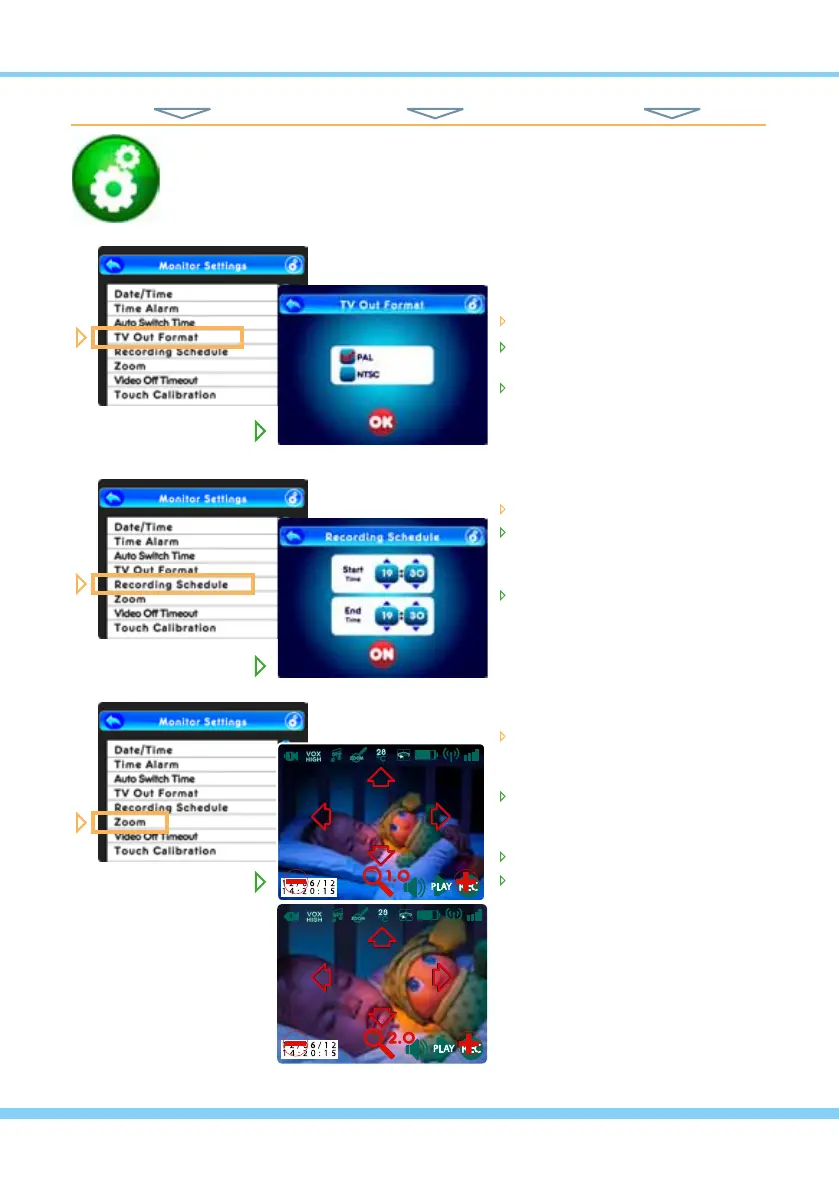
From the Monitor Setting list...
select TV Out Format
choose either PAL or NTSC video
format (EU standard is PAL)
touch OK to set
From the Monitor Setting list...
select Recording Schedule
touch any value and then touch
the up and down arrows to
adjust time
to activate press On
(or OFF to deactivate)
From the Monitor Setting list...
select Zoom/Pan/Tilt and go to
the camera scene with Zoom/Pan/
Tilt icons overlaying the image...
to Zoom-In touch the + icon
(maximum of 3.0-to-1 enlarge-
ment)
to Zoom-Out touch the – icon
to Pan or Tilt touch the arrow
icons (you can Pan or Tilt only
after you have zoomed in)
NOTE: Press the ESC Button to
return to the video image without
Zoom/Pan/Tilt icons overlaying it.
HINT: To move back one screen touch Return icon or go to camera view by pressing the ESC Button.
TOUCH NAVIGATION ... touch the ESC Button to open the Main Menu on screen
from Main Menu... ... to These Screens... ... to Do This...
14



 To Next Page