SETTINGS (cont.)
Monitor Settings
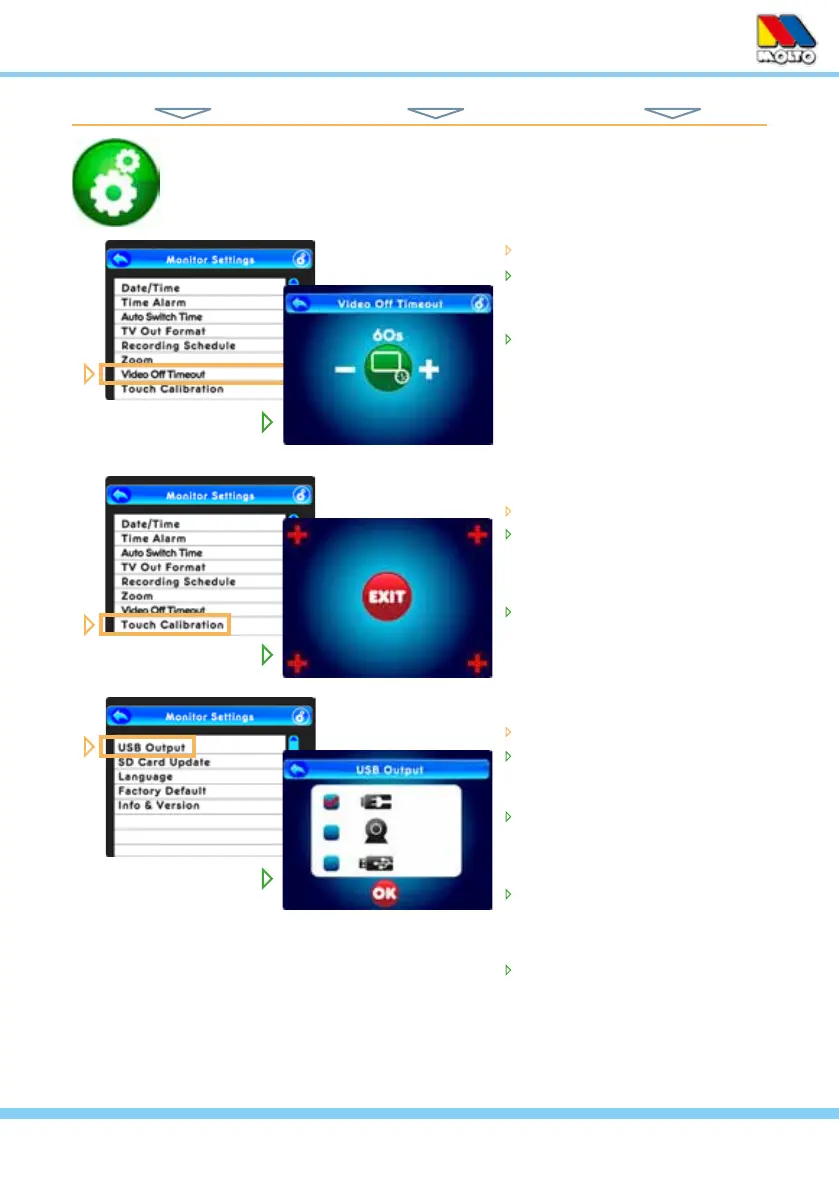
From the Monitor Setting list...
touch Video Off Timeout
touch the timer icon to choose
between non-active (X) or active
(no X) Timeout Mode
if active, touch the – or + icons
to set the limit at which time the
video will automatically Timeout
(turn off)
From the Monitor Setting list...
select Touch Calibration
touch the + icons as they appear
in each corner of the screen (this
calibrates the monitor for best
touch screen accuracy)
once all four corners are touched,
tap EXIT to return to the Monitor
Setting list
From the Monitor Setting list...
touch USB Output
select the Top icon for Charging
the monitor via the AC Adapter
(included)
select the Middle icon to use the
system as a USB Webcam on a
PC* via a USB Data Cable (not
included) or...
select the bottom icon for PC le
transfer mode to or from an SD
Card in the monitor via a USB
Data Cable (not included)
touch OK to set
*See page 19 for details on using
the USB Output for viewing video
or transferring video or photo les
to a PC.
HINT: To move back one screen touch Return icon or go to camera view by pressing the ESC Button.
TOUCH NAVIGATION ... touch the ESC Button to open the Main Menu on screen
from Main Menu... ... to These Screens... ... to Do This...
15



 To Next Page