MOON 600i Dual-Mono Integrated Amplifier
Front Panel Controls
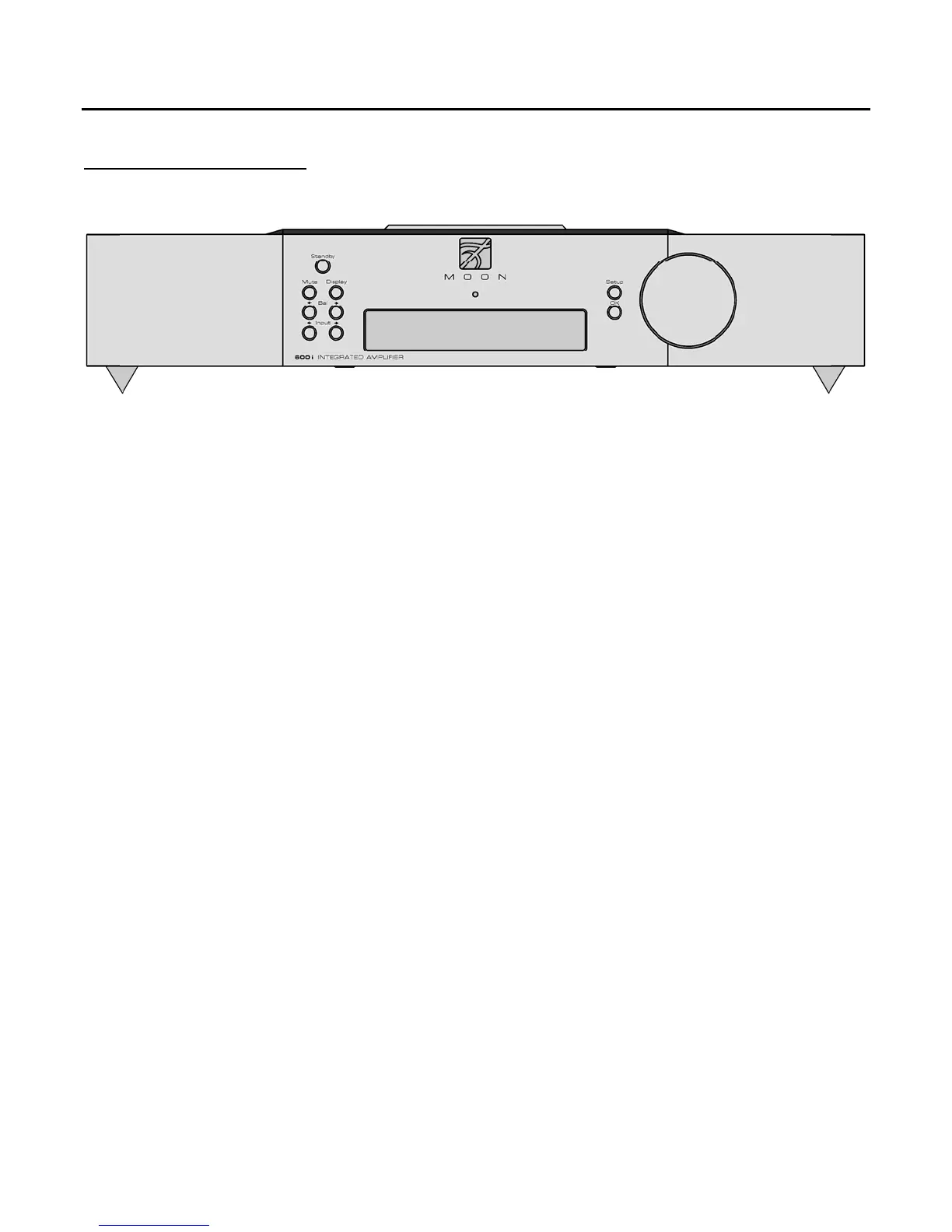
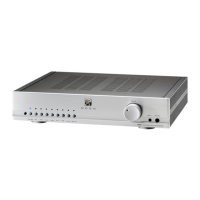
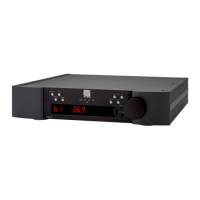
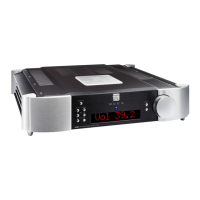
Figure 1: Front panel of MOON 600i dual-mono Integrated Amplifier
The front panel will look similar to Figure 1 (above). The large display window normally indicates the current volume level
and, whenever you change the input, it will briefly show the selected input label. Located to the left side of the display are
seven (7) buttons; To the right side of the display
is large rotary volume control and two (2) more buttons for a total of nine
(9) which are all described in detail below:
The “Standby” button disengages the input section from the rest of the 600i’s circuitry and turns off the digital display.
However, when in “Standby” mode all audio circuitry remains powered up to help maintain optimal performance. When
switching back from “Standby”, both the ‘input’ and volume settings are re-established from the previous listening session.
The blue pilot LED will not be illuminated when the 600i is in “Standby” mode.
The “Mute” button reduces your volume setting to zero. Pressing the “Mute” button a second time will return the output
volume to its previous level. As well, adjusting the volume level while the “Mute” function is engaged will effectively defeat the
muting function.
The “Display” button allows you to adjust the brightness of the large digital display window. It also provides you with the
option of turning off the display. There are three (3) different levels of brightness; The default is medium. Pressing the
“Display” button once will increase the level to medium. Pressing the button a second time will further increase the brightness
to the highest setting. Pressing the “Display” button a third time returns the display to its default setting of medium.
If you want to turn the display off, press and hold the “Display” button for 2 seconds. When the display is turned off, it will
still come back on for a short period of time whenever you press any of the buttons located on the front panel or the remote
control, using the brightness level that was previously set; the display will automatically turn off again once you are done. To
turn the display back on, simply press and hold the “Display” button for 2 seconds.
The “ Bal ” buttons control channel balance; Pressing the left arrow button causes a decrease in the volume level of the
right channel; pressing the right arrow button causes a decrease in the volume level of the left channel. The balance
adjustment operates in 1% increments. When the balance is equal for both channels, “Å 00 Æ” will appear in the front panel
display. The range for the balance control varies from “Å 100” for left channel only to “100 Æ” for right channel only.
____________________________________________________________________________________
Front Panel Controls 7


 To Next Page