Chapter 2 Using your C5t/F5t Entering text and handwriting recognition 25
T
IP: Tap the icons at the top of the input panel to view videos on making editing gestures. To
hide the video tips, tap the icon on the right.
By tapping the keyboard icon at the top of the pad, the input panel opens to the on-screen
keyboard.
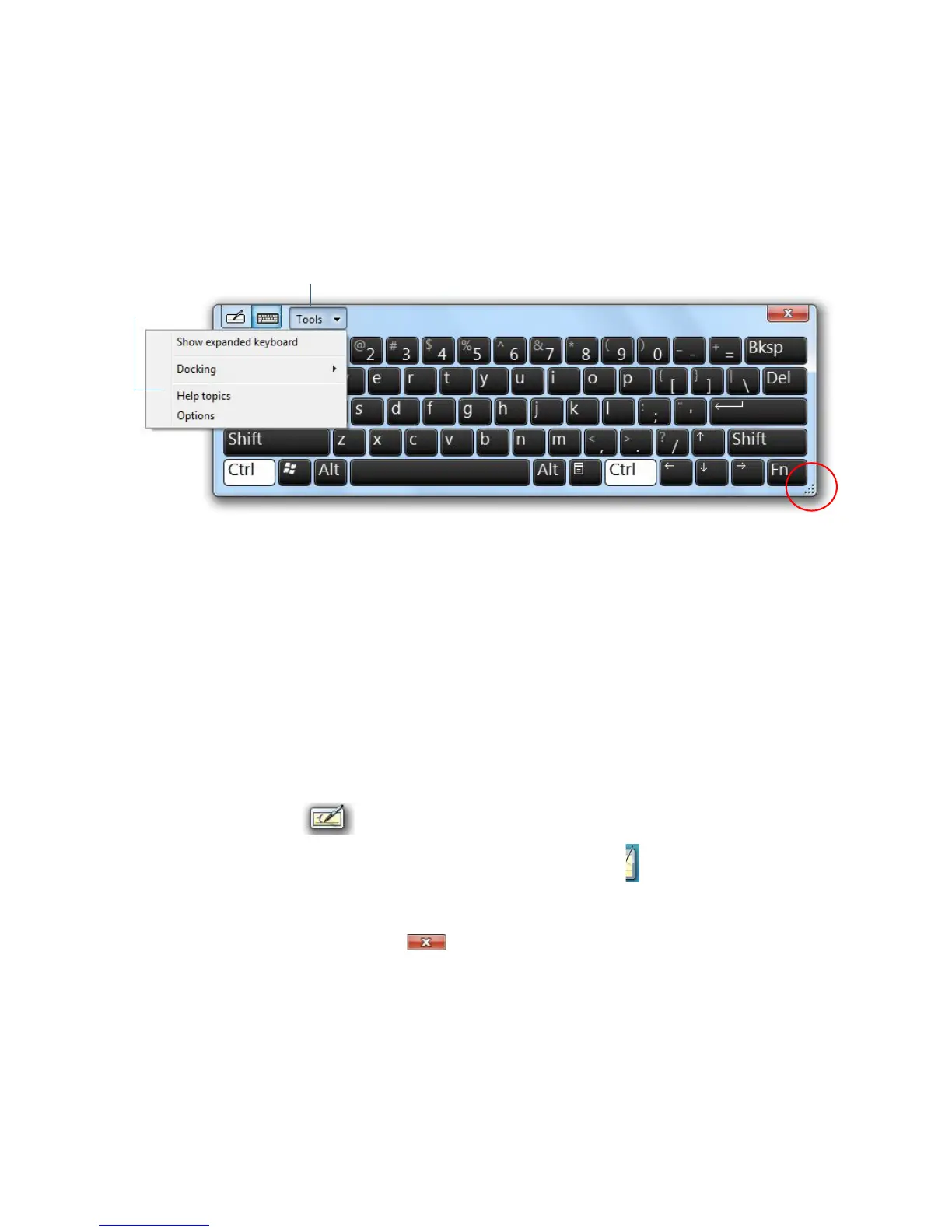
Here’s the input panel open to the on-screen keyboard. Tap the Tool s menu for more input
panel options and for viewing Help Topics.
Input panel open to the on-screen keyboard
T
IP: You can use the Personalization Resize the keyboard panel by dragging the handle at the
bottom right of the keyboard. Also, you can use the Ctrl, Alt, Fn, Del, and Bksp keys as you
do on a normal keyboard.
Opening and closing the input panel
The Tablet PC input panel often opens automatically when you tap in a text field. You can
also tap the tab located on the left side of the screen to expand the input panel.
To open the input panel, either:
• Tap at the place you want to enter text, such as in a text box. Then tap the input panel
icon .
• Tap the input panel tab on the left edge of the screen .
To close the input panel:
• Tap the close button at the top-right. The input panel slides back to the edge of
the screen.


 To Next Page