Chapter 2 Using your C5t/F5t Using the battery 41
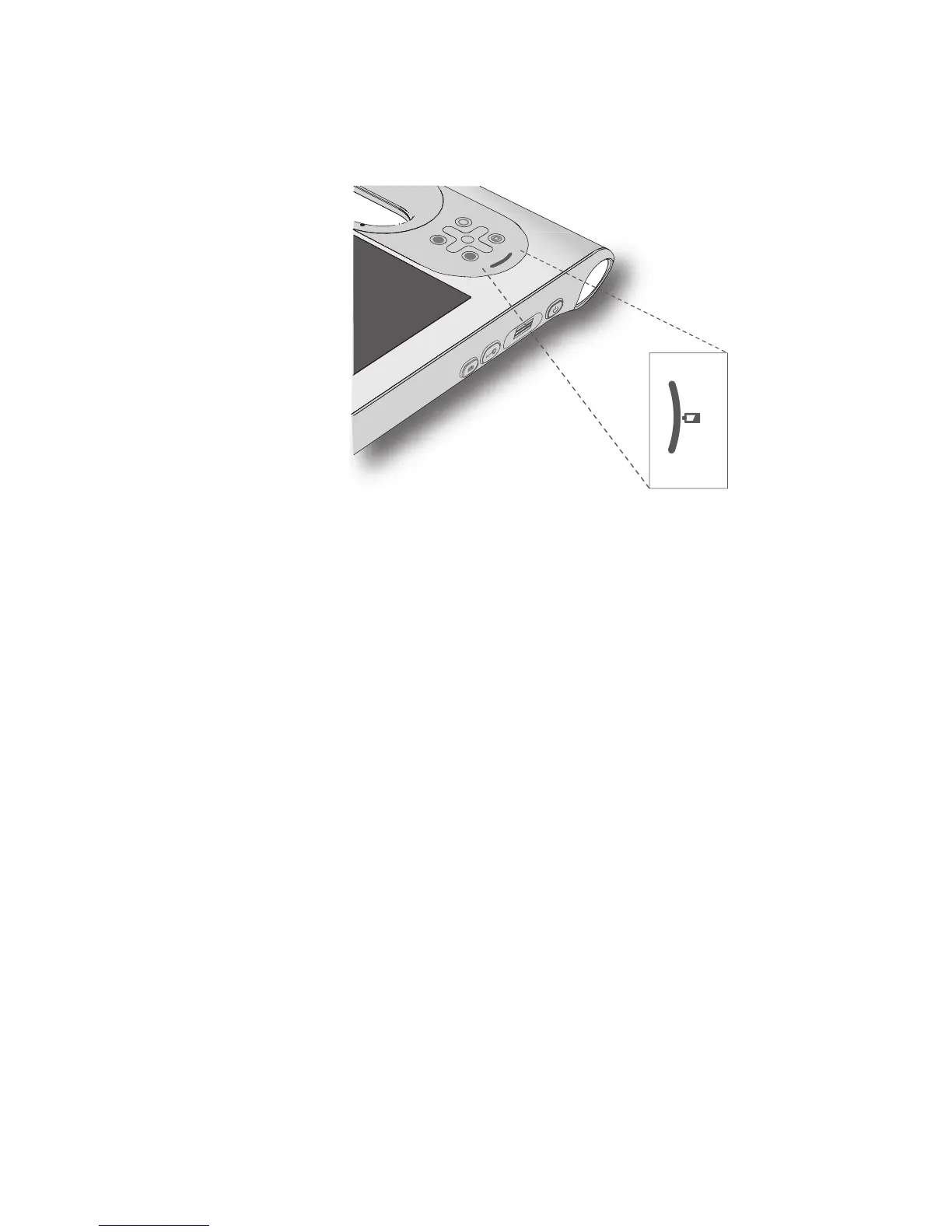
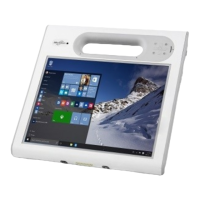
The battery gauge is located on the front of the C5t/F5t Tablet PC as shown:
You can use the battery gauge on the front of the unit to monitor the status of the battery.
To check the remaining battery power while running on the battery:
1. Locate the battery gauge on the front of the tablet.
2. Count the number of battery gauge lights. Each light represents about 20% increments
of a full charge.
When the tablet is on battery power, the lights indicate:
• Four green lights: The battery is three-fourths to fully charged.
• Three green lights: The battery is one-half to three-fourths charged.
• Two green lights: The battery is one-fourth to one-half charged.
• One green light: The battery is one-fourth charged.
• Flashing amber light: The battery is low and requires an immediate charge.
When the tablet is on AC power, the lights indicate:
• One amber light: The battery is less than one-fourth charged.
• Two amber lights: The battery is one-fourth to one-half charged.
• Three amber lights: The battery is one-half to three-fourths charged.
• Four amber lights: The battery is three-fourths charged.
• Four green lights: The battery is fully charged.
To check the remaining battery power when the tablet is off:
• Press the button next to the battery gauge on the back of the battery.


 To Next Page