Installation
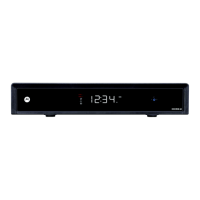
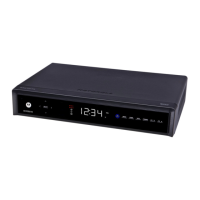
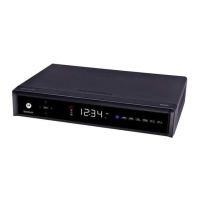
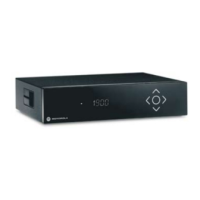
High-Definition DVR DCX3510-M tInstallation Manual 20
365-095-17066-x.1
Connecting an HDTV — Separate Video/Audio Connections
Cable In
Connect an RF coaxial cable to the cable wall outlet and the cable in connector on the
DCX set-top.
DVI
If the TV has a DVI input, use the DVI connection for the video:
x Connect a HDMI-to-DVI adapter or cable to the HDMI out connector on the DCX set-
top and the DVI-HDTV connector on the TV.
Note: A DVI connection supports only the video connection between the DCX set-top
and the HDTV. To connect your audio connections with your TV speakers, go to the
Audio section below. To connect the audio connections for an A/V receiver, go to
Connecting an A/V Receiver — Audio.
Component Video (YPbPr)
Connect the component video cables to the Y, Pb, and Pr connectors on the HDTV and
DCX set-top.
Note: This connection supports only the High-Definition video connection between the
DCX set-top and the HDTV. Be sure to match up each signal to the same connection on
the TV, otherwise the colors will not appear correctly on the TV.
Note: To connect your audio connections with your TV speakers, go to the Audio section
below.
Audio
If the TV does not have digital audio inputs:
x Connect the stereo audio cable to the audio l and r connectors on the DCX3510-M
Series set-top and the audio left and audio right connectors on the HDTV.
If the TV supports a digital audio input:
x If the equipment supports it, use the digital audio optical S/PDIF output instead of
the audio l and r outputs. S/PDIF offers better audio quality, including support for
Dolby
®
Digital audio.
For information on configuring the DCX set-top settings, see Configuring the User
Settings.


 To Next Page
 Loading...