Organize 23
Calendar
See all your events, all in one place.
Find it: Swipe up > Calendar
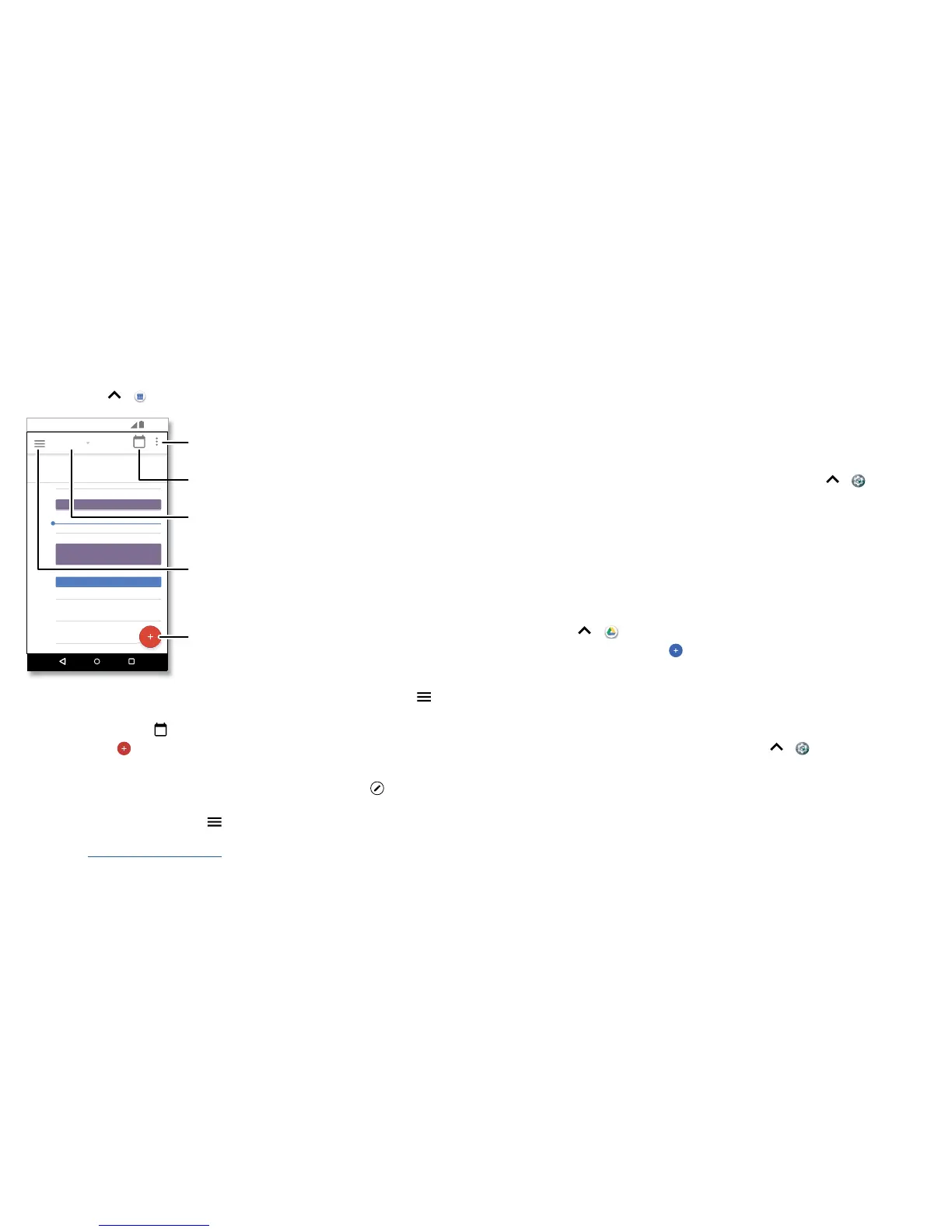
Google Calendar screen with today’s events shown by the hour. Tap the New item icon to add an event.
• Change the view: Tap the month at the top to choose a date to view. Or tap to
choose Schedule, Day, 3 Day, Week, or Month.
• Go to today’s date: Tap at the top.
• Add events: Tap , enter event details, then tap SAVE.
Tip: Alternatively, tap a time on the calendar to enter event details.
• Show, edit, or delete events: Tap an event to open it, then tap edit . Tap DELETE
to remove the event.
• Show, hide, or add calendars: Tap to show or hide calendars from your Google™
account. You can use a computer to add or remove calendars on your Google
account at www.google.com/calendar.
29
January
29
Fri
10 AM
5 PM
4 PM
3 PM
2 PM
1 PM
12 PM
11 AM
Weekly Project Meeting
Start hangout with Alexis
https://plua.Google.com/hangouts
Pick up snacks for the party
11:35
Jump to a dierent day.
Add a new event.
Tap to refresh the
Calendar screen.
Go to today’s date.
Change the calendar view,
adjust settings, get help,
and more.
Tip: Add a Calendar widget to your home screen. Touch and hold an empty spot on the
home screen, tap WIDGETS, then touch and hold the Calendar widget and drag it to
your home screen.
Corporate sync
If you use Microsoft® Oce Outlook on your work computer, your phone can
synchronize email, events, and contacts with your Microsoft Exchange server.
• To add your Corporate account, see “Email”.
• To choose what to sync from your Corporate account, swipe up > Settings >
Accounts, tap your account, then check options like Calendar, Contacts, or Mail.
Oce network
To connect your oce network with a Virtual Private Network connection, see “Virtual
Private Networks (VPN)”.
Google Drive™
Keep all your photos, videos, documents, and more safely in one place—private unless
you choose to share. Available on Google Drive from all your devices.
Find it: Swipe up > Drive
• To create a new file or folder, tap .
• To open a file, tap it.
• To edit a document, tap anywhere in the text to begin typing.
Print
To print your photos, documents, and more from your phone, check if your printer’s
manufacture has an app on Google Play. Then swipe up > Settings > Printing to
get started.
You can also send your photos, docs, and more to any Android device in your cloud or
to Google Drive. Just download the Cloud Print app from Google.




 To Next Page