7
Setting up your WPS
If your terminal supports WPS, you do not have to input the
password manually once your WPS has been set up.
To use WPS please follow these steps:
1. Enable WPS in the WebUI through Settings > Wireless >
WLAN Settings > WPS.
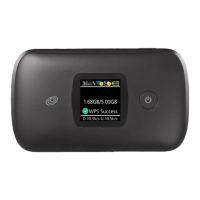
2. Press the Menu Button on the device until the “WPS Active”
3. Press the Power Button to activate the WPS function.
4. Enable the WPS function on your terminal to connect to
the hotspot.
Logging into the WebUI
1. Make sure your hotspot is connected to the computer or
other terminal via Wi-Fi or MicroUSB cable.
2. Open
a browser on your computer or other connected
3.
device, and input
http://192.168.1.1
or
Note: The default username is “admin”; the default password is
Note: You can nd the default username and password printed on
page appears on the display.
http://device.WebUI into the address bar.
Enter your username and password, and click “Log In”.
The administrator has the right to check and modify con-
guration permissions.
“12$XXX”, where “XXX” is the last three digits of your hotspot’s IMEI.
the device label by removing the back cover and battery.
Note: This device will search for software updates periodically and
may result in a small amount of data usage.
3. Click “Connect” and enter the default password found on
your device. Your Wi-Fi SSID and password information can
be found on your device’s “Wi-Fi Info” screen or on the SSID
label located underneath the battery cover.



 To Next Page