13Moxee m2160 User Manual
Editing Text
You can select, copy, or cut the text you’ve entered, then
paste it in another text field within the user interface.
Note: Some applications may offer different text editing methods.
Selecting text
1. Tap the text field.
2. Move the cursor to the beginning or end of the desired
text by tapping in the location you want the cursor.
3. Tap and hold the text field.
4. Tap Select word in the pop-up menu. (Or tap
Select all to select all the text in the text field.)
5. Drag your finger to move the text cursor to a
letter within the text that you want to select.
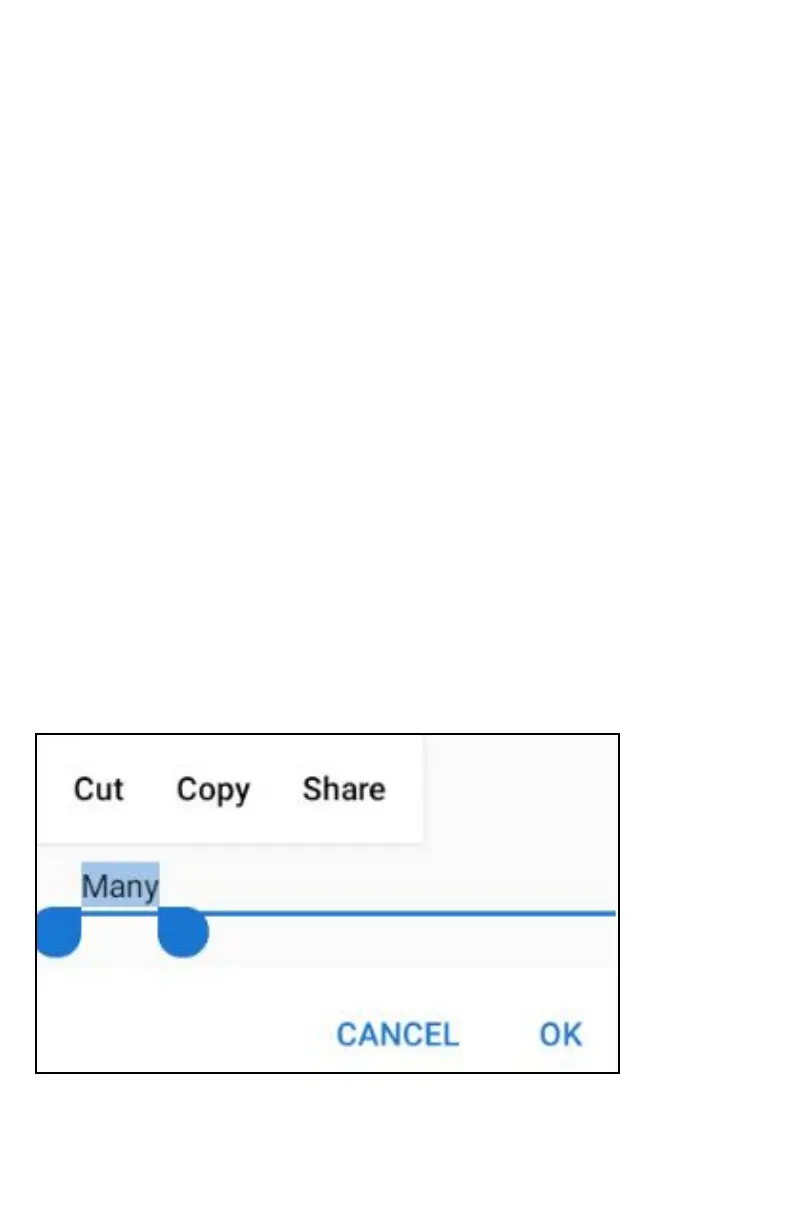
The selected text is highlighted in blue.
Cutting and copying the text
1. Double-click to select the text to cut or copy it.
2. Tap and hold the selected text.
3. Tap Cut or Copy in the menu that opens.
If you tap Cut, the selected text is removed from the text field. In this case, the
text is saved to the clipboard, so that you can paste it into another text field.



 To Next Page