27
Voice Record
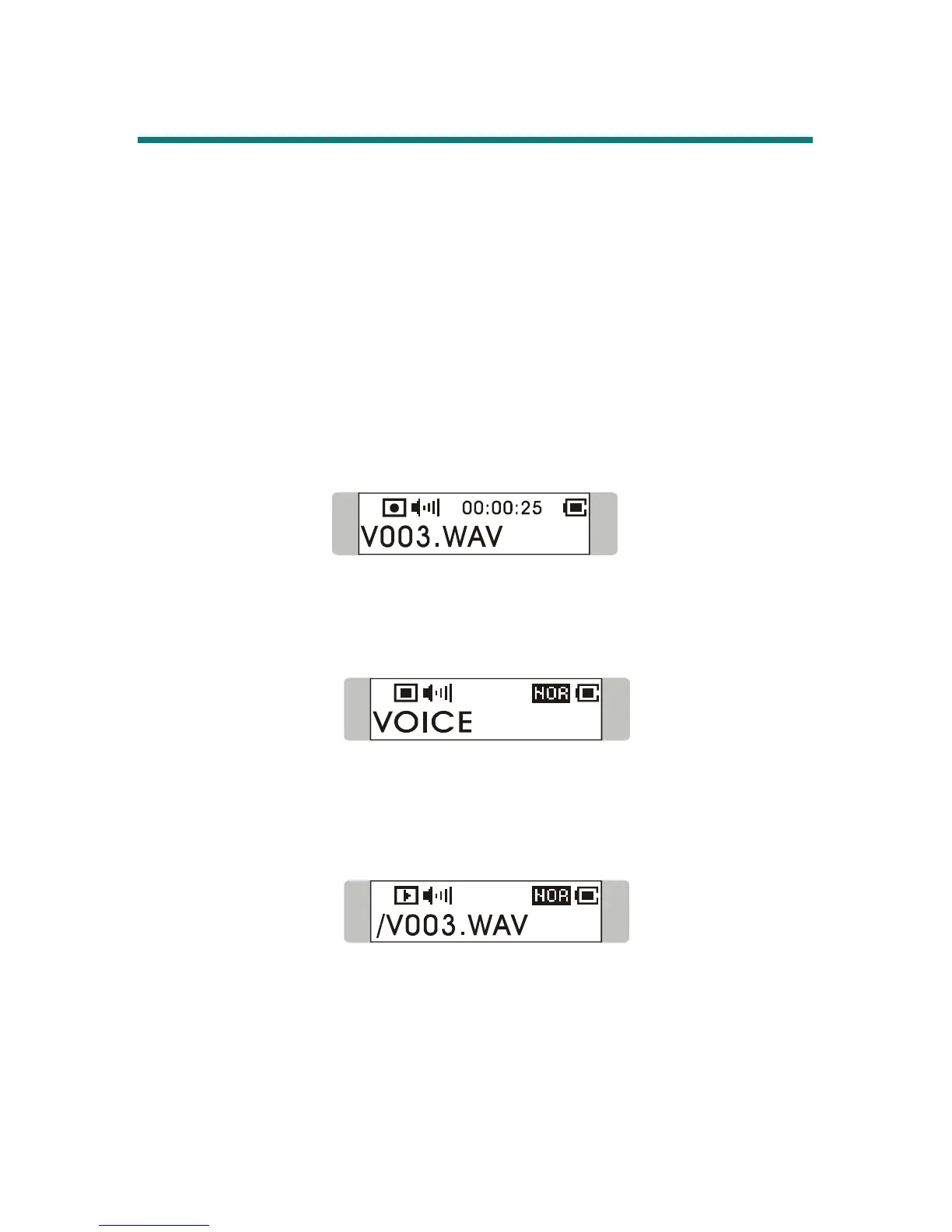
MEGA STICK also works as a synchronizing recorder. You can use it to record
your own voice, an interview or a speech, and so on. To do the Voice Recording,
please follow the steps shown below.
Activate Voice Recording Function
1. Press REC button next to Fn button to start voice recording.
2. On the Display, a recording file should be generated and placed under the
folder of [/VOICE/]. The recording file name sequence starts from
[V001.WAV], and then [V002. WAV], and so forth.
3. To stop recording, simply press down REC button again, and you will see the
status return to the previous status.
Play a Recorded Voice File
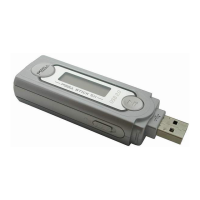
1. To play a recorded voice file, press down Menu button once, and then push
Menu button to the right until VOICE appears on the display.
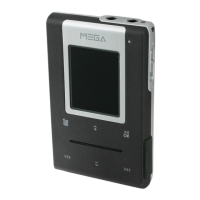
2. Press down Menu button again, and use Menu button to select a desired
recorded voice file by pushing Menu button right or left.
3. Once the desired voice file is selected, press the Play/Pause button to start
playing the file.
4. Note that while you are searching for the desired recorded voice file, all the
recorded voice files will be displayed by sequence.
Delete a Recorded Voice File
1. To delete a recorded voice File, press Menu button once, and push Menu
button to the right until DELETE FILE appears on the display.


 To Next Page