2-23
Hardware Setup
▍
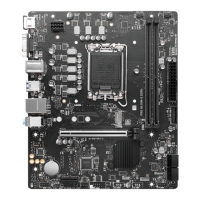
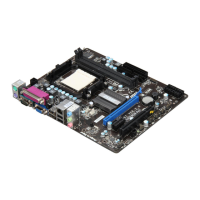
MS-7522
Important
Motherboard photos shown n ths secton are for demonstraton only. The appear-
ance of your motherboard may vary dependng on the model you purchase.
If you ntend to nstall TWO graphcs cards for CrossFreX
TM
mode, make sure that:
a. these two graphcs cards are of the same brand and speccatons;
b. these two cards are nstalled on both mazarne PCIE x16 slots.
Make sure that you connect an adequate power supply to the power connector on the
graphcs card to ensure stable operaton of the graphcs card.
Only Wndows
®
XP wth Servce Pack 2 (SP2)& Wndows
®
XP Professonal x64 Ed-
ton & Wndows
®
Vsta support the CrossFreX
TM
functon.
•
•
•
•
When all of the hardware and software has been properly set up and nstalled, re
-
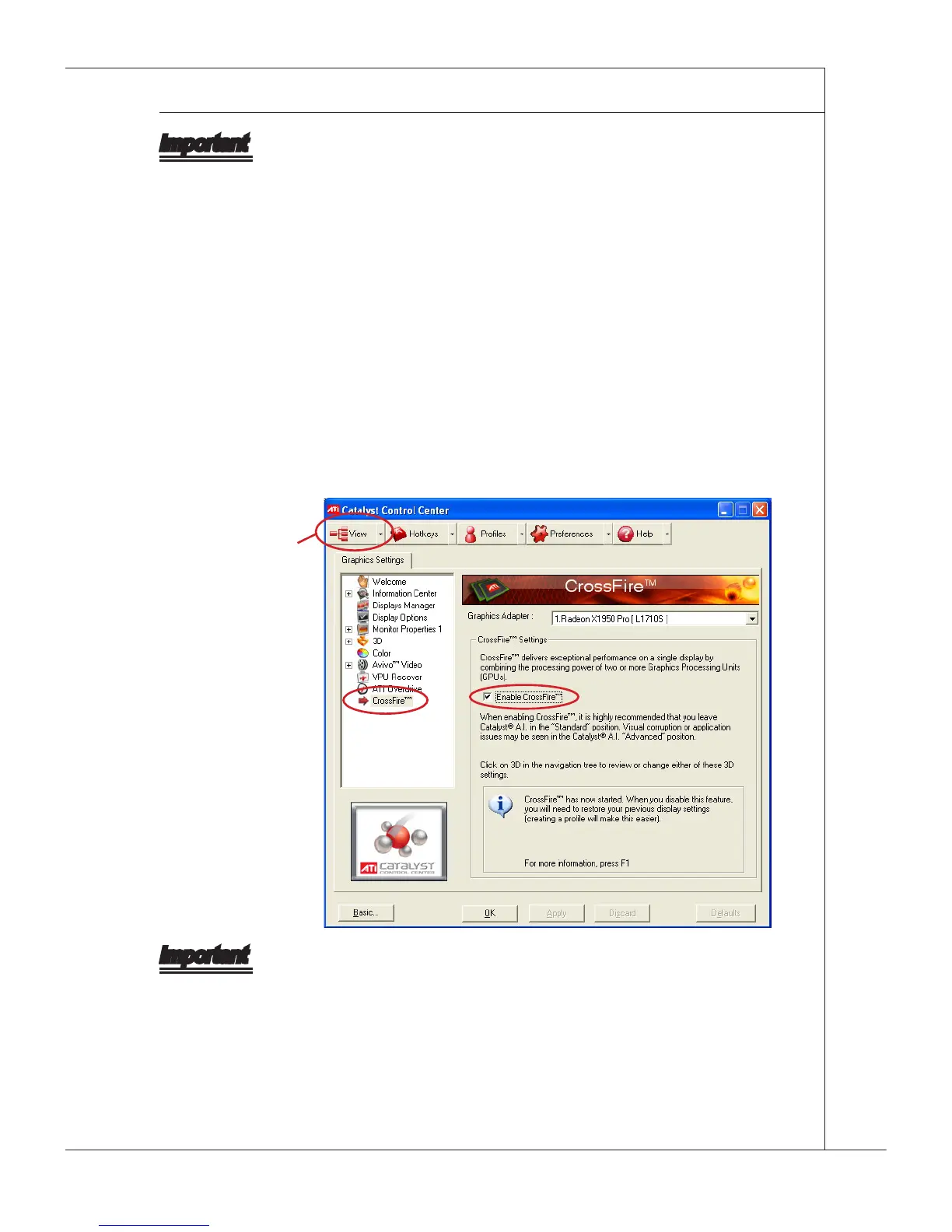
boot the system. After enterng the O.S., clck the “Catalyst
TM
Control Center” con
on the desktop. There s a settng n the Catalyst
TM
Control Center that needs to be
enabled for CrossFreX
TM
to operate. The followng aspect appears n Catalyst
TM
Control Center:
3.
Select the Advanced Vew
from the vew drop menu.
Important
A CrossFreX
TM
system has four possble dsplay modes:
SuperTlng
Scssor Mode
Alternate Frame Renderng
Super Ant-alasng.
for more detals, please consult the graphcs card manual from the manufacturer.
•
•
•
•



 To Next Page