Chapter IV 91 March 2014
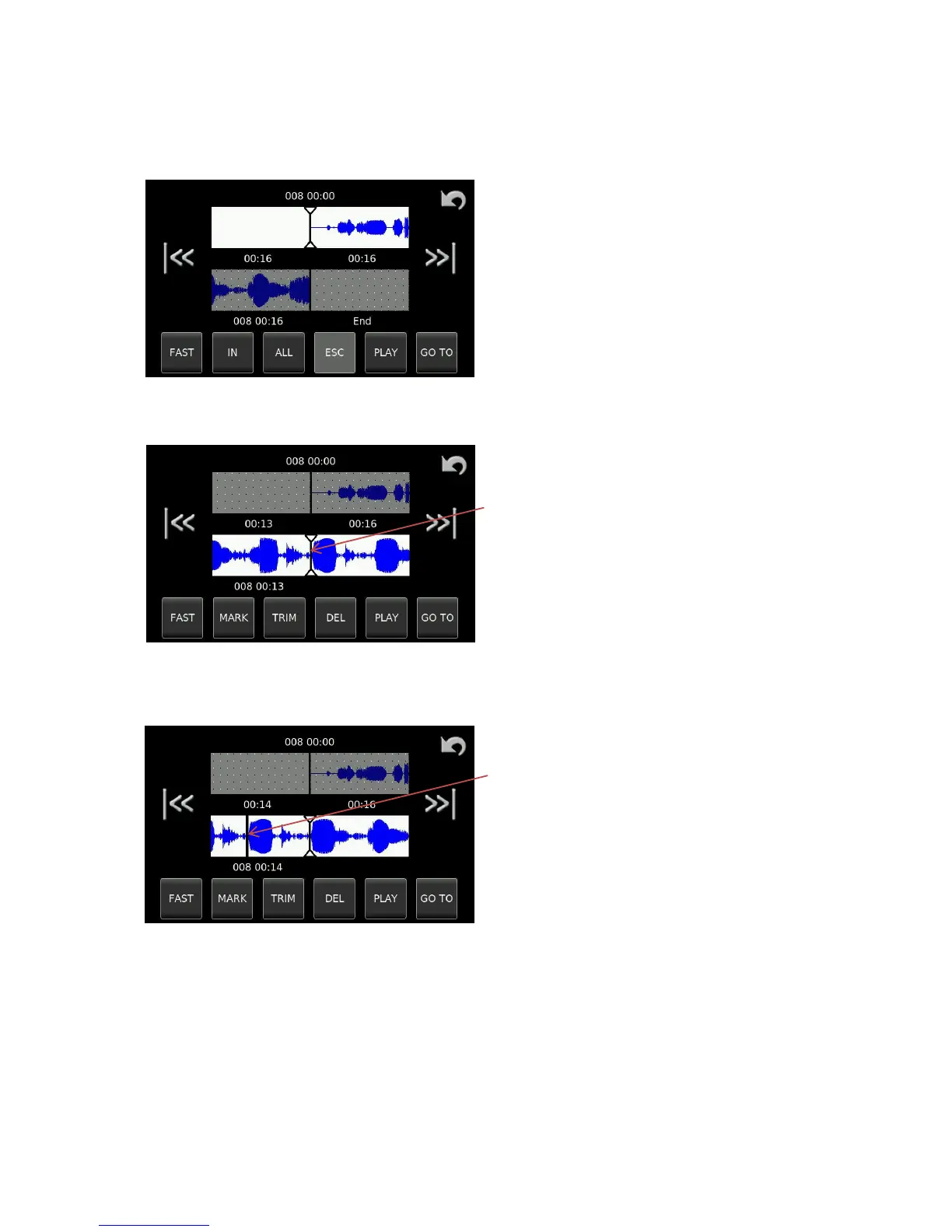
Press the “ALL” button to select the entire audio take to the lower editing track and the following display will
be shown.
On the lower graphic, the end of the copied source
file can be seen on the left side of the display. It is
now possible to join the next piece of audio to this if
desired, but in this example, only unwanted parts of
audio are to be removed from the file using the
editor.
Currently the upper display is active (White).
Click on the lower display to select the edit track to
be active.
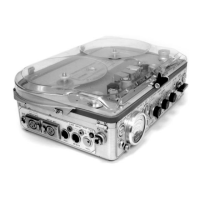
Using either the touchscreen, with a stili pointer, or alternatively the two channel potentiometers move the
edit track graphic display to the start of the audio portion to be removed.
Current location
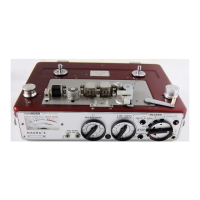
Press the “MARK” button (which will light red) to place the mark or CUT point. Move the audio along to the
second desired mark or “CUT” point and press the MARK button again. The two cut points are now apparent,
as shown in the pictures below.
First edit point


 To Next Page