20
Note: As with any wireless network hardware, connection
reliability will be aected by both network router
performance and Wi-Fi signal quality. To minimise the
possibility of poor connection reliability, Uniti Series
products should be connected to network audio sources
by no more than one wireless “leg”. Other “legs” necessary
between a Uniti Series product and the network audio
sources should be wired.
Note: Uniti Series products cannot connect to a “hidden”
wireless network.
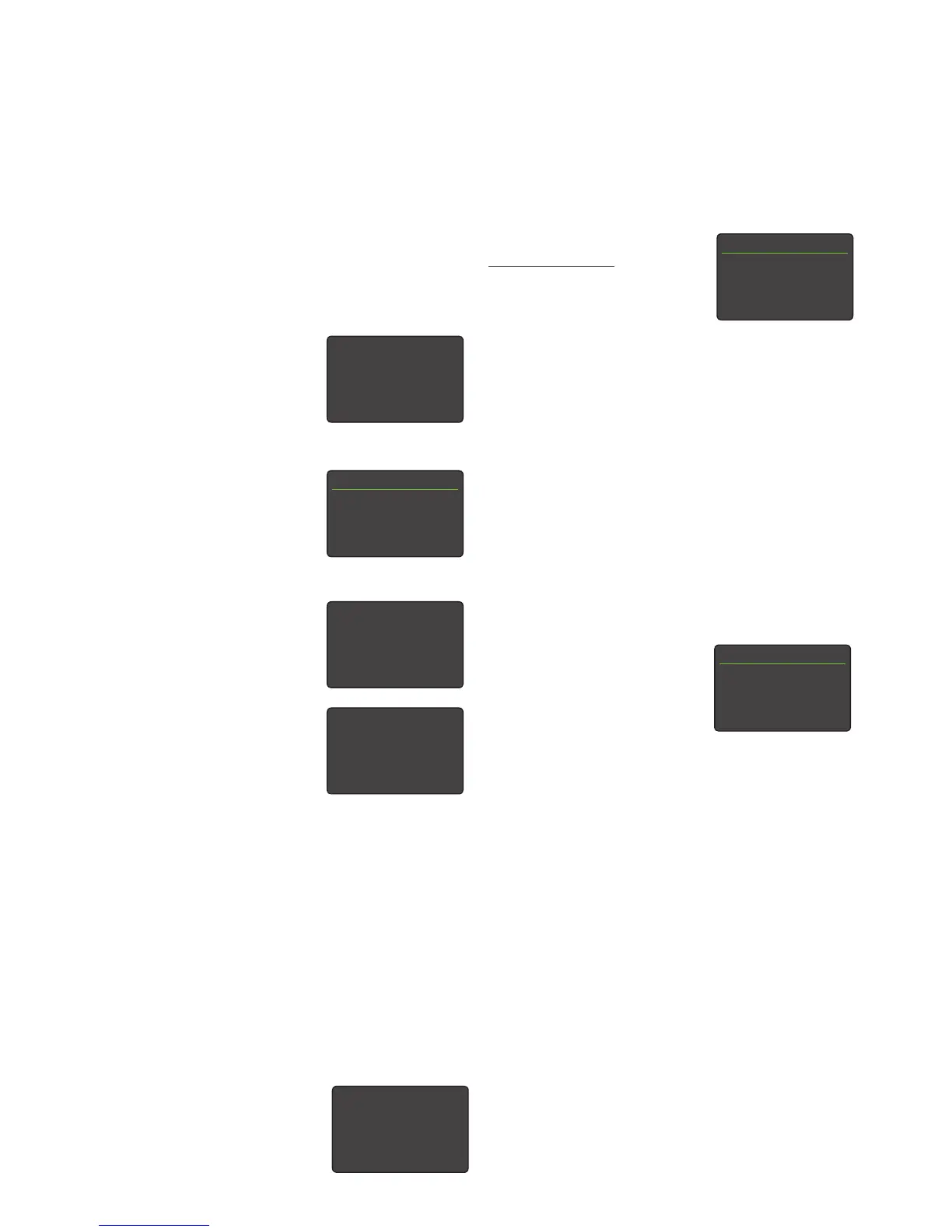
If the selected network is secure
and requires a password to join, an
alert message will display. Pressing
the handset ok/list key will then
open a text entry screen for entry of
the password.
Use the handset numeric/text keys
to enter the password taking care
to ensure that the letter case is
correct. Press the handset ok/list
key when text entry is complete. In
the illustration the password is “atsh”.
If the network is successfully joined
a conrmation screen will display.
If an incorrect password is entered
an alert message will display.
Note: Some routers may also
require a MAC address to be
entered before allowing Uniti
Series products to join a wireless
network. This type of security
feature is known as ‘MAC address ltering’. Uniti Series
product MAC addresses are shown in both their Network
Settings and Factory Settings menus.
Note: The wireless password key is created when the
wireless router is rst set up and could be a word or
a series of numbers and letters. If the password is not
known, check on the router settings page or with the
person who initially set up the router.
Note: If a router oers multiple security congurations,
only the most secure one will be oered.
Note: If WEP security is used the router should be set to
“auto” or “open” authentication.
If the selected network is insecure
and requires no password, an alert
message will display. Pressing the
handset ok/list key will immediately
connect your Uniti Series product to the network and
display a conrmation screen.
Note: Wireless connection diculties can sometimes be
resolved by changing the wireless connection channel in
the router settings.
4.7.2 Non-DHCP (Static)
Network Connection
If DHCP is de-selected in the
Network Settings menu, ve further
parameters will be displayed.
Parameter Options
IP: User denable (numerical entry)
Mask: User denable (numerical entry)
Gateway (Gtwy): User denable (numerical entry)
DNS1: User denable (numerical entry)
DNS2: User denable (numerical entry
These settings enable a Uniti Series product to connect
to a network using a xed IP address. On selecting each
one in turn, numerical entry screens will be displayed that
require completion with the appropriate network IP address
settings. Consult your network router’s user documentation
for help with specifying xed IP address settings.
4.8 The Front Display Menu
The Front Display setup menu
enables the behaviour of the front
panel display, logo illumination,
clock display and logo-touch
muting to be modied. The options
are tabulated and described in the following section:
Parameter Options
O During Mute: Yes / No
Auto O: Select from list
Clock When O: Yes / No
Logo O: If Muted / If Display O /Always /
Never
Logo Mute: Yes / No
Note: Logo-touch muting and illumination options are only
available on the UnitiQute 2 and SuperUniti.
When O During Mute is selected the front panel display
will switch o when mute is engaged. Auto O denes the
length of time the display will remain switched on after
the last interface operation is carried out. Time periods of
between 10 seconds and 1 hour can be selected.
Note: If the display has been switched o using the
handset disp key this setting will take priority over the
Auto O setting. The display will always switch on briey
when control commands are received.
Network Settings 1/5
4IP: 192.168.0.80
Mask: 255.255.255.0
Gtwy: 192.168.0.1
DNS1: 192.168.0.1
This wireless network is
insecure and requires no
passphrase or access key.
Press OK To Connect
Front Display 1/5
4Off During Mute: No
Auto Off: 2 mins
Clock When Off: Yes
Logo Off If Muted
4. Configuration
Now enter your wireless
passphrase or access key.
Press OK to continue
flatfish abc
flatfish
|
Press OK to confirm
Connected
Press OK To Finish
Can’t Login
Press OK To Re-Try




 To Next Page