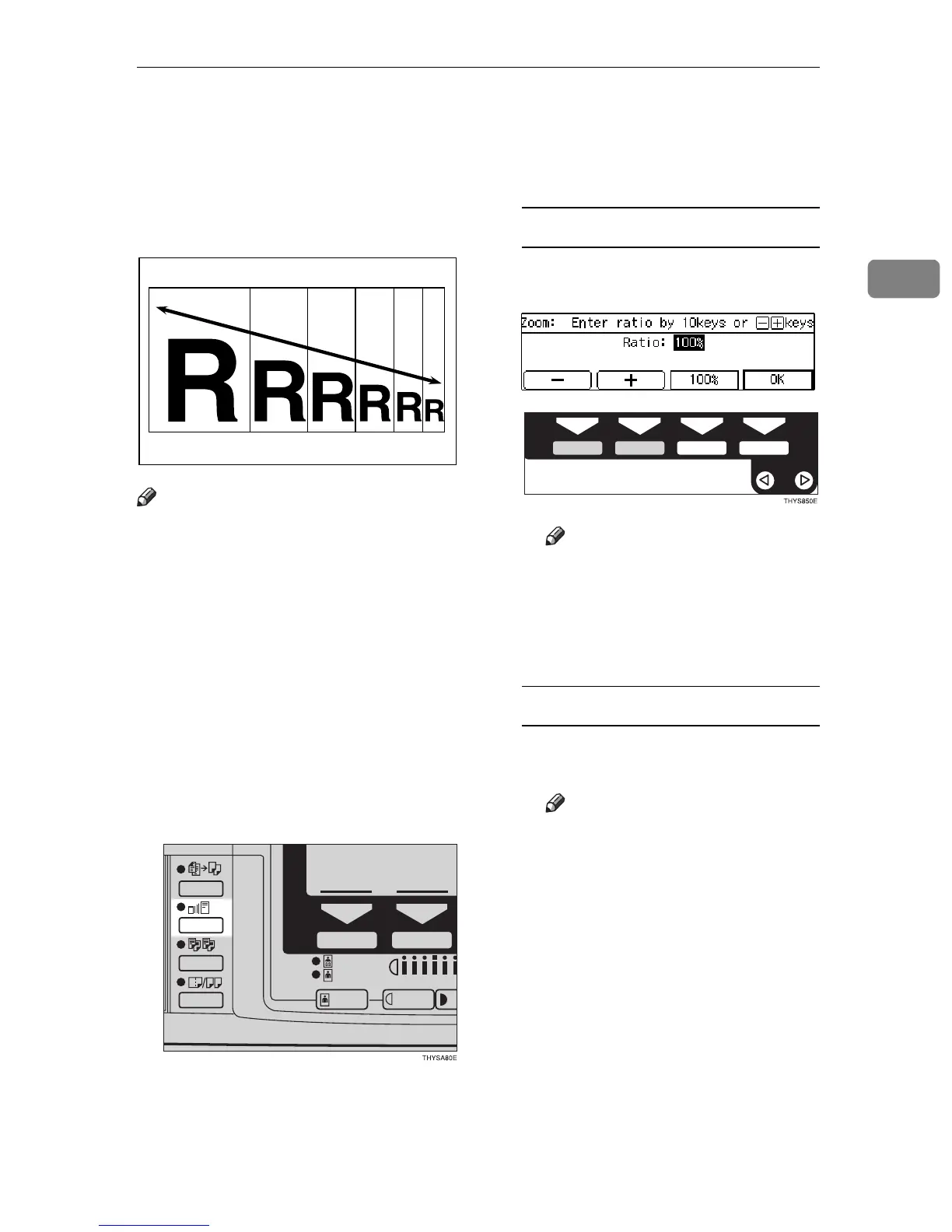
Zoom—Reducing and Enlarging in 1% Steps
53
2
Zoom—Reducing and Enlarging in 1%
Steps
You can change the reproduction ra-
tio in 1% steps.
Note
❒ You can specify the reproduction
ratio within between 50% and
200%.
❒ You can select a ratio regardless of
the size of an original or copy pa-
per. With some ratios, parts of the
image might not be copied or mar-
gins will appear on copies.
❒ You can select a preset ratio which
is near the desired ratio, then press
the {
Zoom
} key and adjust the ratio
with the
[
n
]
or
[
o
]
key.
A Press the {
{{
{
Zoom
}
}}
} key.
B Enter the ratio.
When using the
[
n
]
or
[
o
]
key
A Enter the desired reproduction
ratios with the
[
o
oo
o
]
or
[
n
nn
n
]
key.
Note
❒ To change the ratio in 1%
steps, just press the
[
n
]
or
[
o
]
key. To change the ratio
in 10% steps, press and hold
down the
[
n
]
or
[
o
]
key.
When using the
{
Number
}
keys
A Enter the desired ratio with the
{
{{
{
Number
}
}}
} keys.
Note
❒ To change the ratio entered,
press the {
Clear/Stop
} key
and enter the new ratio.
B Press the
[
OK
]
key.
C Set your originals, then press the
{
{{
{
Start
}
}}
} key.



 To Next Page