EasyManua.ls Logo

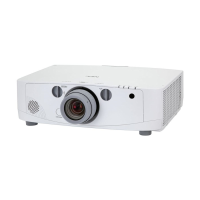
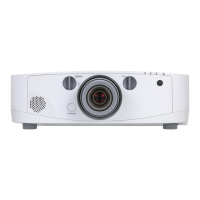
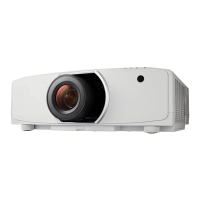
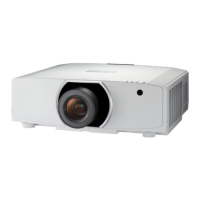
NEC PA571W - User Manual

NEC PA571W
293 pages
Print Icon
To Next Page IconTo Next Page
Loading...
Projector
PA622U/PA522U/PA672W/
PA572W/PA722X/PA622X/
PA621U/PA521U/PA671W/
PA571W/PA721X/PA621X
User’s Manual
• ThePA522U,PA572W,PA622X,PA621U,PA671W,andPA721XarenotdistributedinNorthAmerica.
ModelNo.
NP-PA622U/NP-PA522U/NP-PA672W/NP-PA572W/NP-PA722X/NP-PA622X/NP-PA621U/NP-PA521U/NP-PA671W/
NP-PA571W/NP-PA721X/NP-PA621X

Table of Contents

Other manuals for NEC PA571W

Questions and Answers

  • B
    Brian SmithAug 17, 2025
    What to do if my NEC PA571W Projector will turn off by itself?
    • S
      Steven KrauseAug 17, 2025
      If your NEC Projector turns off unexpectedly, make sure that the [OFF TIMER], [AUTO POWER OFF] and [PROGRAM TIMER] settings are disabled.
  • C
    carol64Aug 21, 2025
    Why is my NEC Projector picture blurred?
    • G
      Gina DeckerAug 21, 2025
      If the picture on your NEC Projector appears blurred: * Adjust the focus. * Reposition the projector to improve its angle to the screen. * Ensure the distance between the projector and screen is within the lens's adjustment range. * Check if the lens has been shifted beyond its guaranteed range.
  • A
    Andrea FrazierAug 25, 2025
    Why does the image on my NEC PA571W suddenly become dark?
    • T
      tara57Aug 25, 2025
      If the picture on your NEC Projector suddenly becomes dark, it might be in Forced ECO mode due to high ambient temperature. To fix this, select [HIGH] for [FAN MODE] to lower the projector's internal temperature.
  • A
    anthonysmithAug 28, 2025
    How to fix unusual color tone or hue on NEC PA571W?
    • A
      Ashley CollinsAug 28, 2025
      To correct an unusual color tone or hue on your NEC Projector, check if an appropriate color is selected in [WALL COLOR]. If not, select the correct option.
  • C
    Christopher WatkinsSep 1, 2025
    What to do if the image isn’t square to the screen on my NEC PA571W Projector?
    • L
      Linda FarleySep 1, 2025
      If the image from your NEC Projector isn’t square to the screen: * Reposition the projector to improve its angle to the screen. * If the image is distorted like a trapezoid, use the [GEOMETRIC CORRECTION] feature.
  • S
    Sarah PorterSep 5, 2025
    Why does flicker appear on the screen of my NEC PA571W Projector?
    • C
      Christopher VazquezSep 5, 2025
      If flicker appears on your NEC Projector's screen, and you are using the projector at altitudes of approximately 5500 feet/1700 meters or lower, set [FAN MODE] to a setting other than [HIGH ALTITUDE] mode.
  • A
    Adrian FrostSep 8, 2025
    What to do if the image is scrolling vertically or horizontally on my NEC PA571W?
    • E
      Eric StevensonSep 9, 2025
      If the image on your NEC Projector is scrolling vertically, horizontally, or both, check the computer’s resolution and frequency. Ensure that the resolution you are trying to display is supported by the projector.
  • P
    Phillip DouglasNov 13, 2025
    Why does my NEC PA571W Projector have no picture?
    • R
      Robin MooreNov 13, 2025
      If your NEC Projector displays no picture, there are several potential causes: * Ensure the correct input is selected. If not, press the INPUT button or one of the input buttons. * Verify that all cables are properly connected. * Adjust the brightness and contrast settings in the menu. * Make sure the lens cover is open. * Reset the settings to factory defaults using the [RESET] option in the Menu. * If the Security function is enabled, enter your registered keyword. * If using HDMI or DisplayPort, reinstall or update your graphics card driver. * For HDBaseT models, the signal may not be supported by the HDBaseT transmission device. * Connect the projector and notebook PC while the projector is in standby mode before powering on the notebook PC. * If the screen goes bl...

Summary

Important Information and Safety

Safety Cautions and Precautions

General safety advice, installation guidelines, fire/shock prevention, and disposal.

Lamp Features and Operation

Details on lamp replacement, characteristics, and high altitude operation.

Power Management and 3 D Viewing

Covers standby modes, power management functions, and 3D viewing health precautions.

1. Introduction

Whats in the Box

Lists all items included in the projector packaging for user verification.

Projector Overview

General introduction to the projector's capabilities, installation, and video features.

Projector Part Identification

Identifies external parts of the projector (front, rear, controls, terminals).

Remote Control Details

Overview of remote control parts, battery installation, and operating range.

2. Basic Projection Operation

Projecting an Image Flow

Step-by-step guide for projecting an image from computer or video source.

Connecting Computer and Power

Instructions for connecting computer and power cord to the projector.

Turning on the Projector

Steps to power on the projector and start the projection process.

Selecting Input Sources

How to detect and select the active input source automatically or manually.

Adjusting Picture Position and Size

Using lens shift, zoom, focus, and tilt feet for image adjustment.

Signal Optimization and Volume

Optimizing computer signal automatically and adjusting audio volume.

Turning off the Projector

Procedures for properly powering off the projector.

3. Convenient Features

Muting Image and Sound

Temporarily muting video and audio using BLANK, MUTE, and AV-MUTE buttons.

Picture Freezing and Enlarging

Features for freezing images and enlarging the picture using D-ZOOM.

Eco Mode and Energy Saving

Selecting Eco modes for power saving and checking energy-saving effects.

Remote Mouse and Security Functions

Using optional remote mouse receiver and enabling projector security features.

3 D Video Projection

Guidelines and precautions for projecting 3D videos with compatible equipment.

Network Control via HTTP Browser

Operating the projector remotely using a web browser and its HTTP server.

MM Model Network Settings

Configuring network settings specific to MM models for wired and wireless LAN.

Network Projector Function

Projecting computer screen images over a network using the Network Projector feature.

Remote Desktop Operation

Remotely operating a computer via network using the projector and Desktop Control Utility.

4. Multi-Screen Projection

Multi-Screen Capabilities

Overview of multi-screen projection using single or multiple projectors.

Dual Screen Display (PIP;PBP)

Displaying two pictures simultaneously using PIP or Picture By Picture modes.

Edge Blending Setup

Configuring edge blending to combine multiple projector images seamlessly.

Black Level Adjustment

Adjusting black level in overlapping and non-overlapping areas for multi-screen projection.

5. Using On-Screen Menu

Navigating the On-Screen Menu

General instructions on operating the projector's on-screen menu system.

Menu Elements and Item List

Explanation of menu elements and a comprehensive list of menu items and options.

Input and Picture Settings

Descriptions and functions for input sources and picture adjustments.

Image Options and Aspect Ratio

Settings for clock, phase, horizontal/vertical position, overscan, and aspect ratio.

3 D Settings

Configuration options for stereo viewer, filter, format, and L/R invert for 3D video.

Display Menu Functions

Functions for PIP/Picture By Picture modes, including sub input and border settings.

Geometric Correction

Correcting keystone, cornerstone, pincushion, and PC tool adjustments.

Multi Screen and Setup Options

Settings for multi-screen display, fan mode, lamp mode, and factory reset.

Network Settings Configuration

Configuration for wired/wireless LAN, including profiles, DHCP, security, and authentication.

6. Installation and Connections

Mounting Optional Lenses

Instructions for mounting and removing optional bayonet style lenses.

Signal Connections

Connecting analog, digital RGB (HDMI/DisplayPort), component, and DVI signals.

HDBaseT and Portrait Projection

Connecting HDBaseT devices and setting up portrait projection.

LAN Connections

Connecting the projector to wired and wireless LAN environments.

7. Maintenance

Cleaning Filters, Lens, and Cabinet

Procedures for cleaning projector filters, lens, and cabinet.

Lamp and Filter Replacement

Detailed steps for replacing the projector lamp and filters.

8. User Supportware

Software Overview and Environment

Lists bundled software, features, and operating environment requirements.

Software Installation (Windows;Mac)

Instructions for installing software programs on Windows and Mac OS.

Virtual Remote Tool Operation

Operating the projector remotely via LAN using the Virtual Remote Tool.

PC Control Utility Operation

Controlling the projector over LAN using PC Control Utility software.

Image Express Utility Operation

Sending computer images/video to projector via LAN using Image Express Utility.

Desktop Control Utility Operation

Remotely operating a computer via LAN using Desktop Control Utility.

9. Using the Viewer (MM Models)

Viewer Capabilities and File Support

Features of the Viewer, supported file formats, and playback requirements.

Preparing Presentation Materials

Creating and saving presentation materials in supported file formats.

Projecting Images from USB Memory

Steps for projecting images stored on USB memory devices using the Viewer.

Thumbnail and Slide Screen Controls

Navigating and controlling image display in thumbnail and slide screens.

Shared Folder and Media Server Projection

Projecting files from shared folders and media servers on a network.

File Display Restrictions

Lists restrictions for displaying PowerPoint, Excel, and PDF files.

10. Appendix

Throw Distance and Screen Size

Information on throw distance and screen size for different lenses.

Lens Shifting Range

Explains lens shift function and range for desk/front and ceiling/front projection.

Compatible Input Signals

Lists compatible analog, digital RGB (HDMI/DisplayPort), and component signals.

Projector Specifications

Detailed specifications for HDBaseT and MM models, including ports and power.

Cabinet Dimensions

Dimensional drawings of the projector showing overall measurements.

Connector Pin Assignments

Pin assignments and signal names for main projector connectors.

Troubleshooting Indicators

Explains projector indicator lights (power, status, lamp, temperature) and their meanings.

Common Problems and Solutions

Troubleshooting common issues such as no power, no picture, and image distortion.

PC Control Codes and Cables

Lists PC control codes for projector functions and cable connection details.

Troubleshooting Checklist

A checklist to identify problems before contacting service personnel.

Projector Registration

Instructions for registering the projector online for warranty and service.

NEC PA571W Specifications

General IconGeneral
BrandNEC
ModelPA571W
CategoryProjector
LanguageEnglish

Related product manuals