7Chapter 2 .
Basics
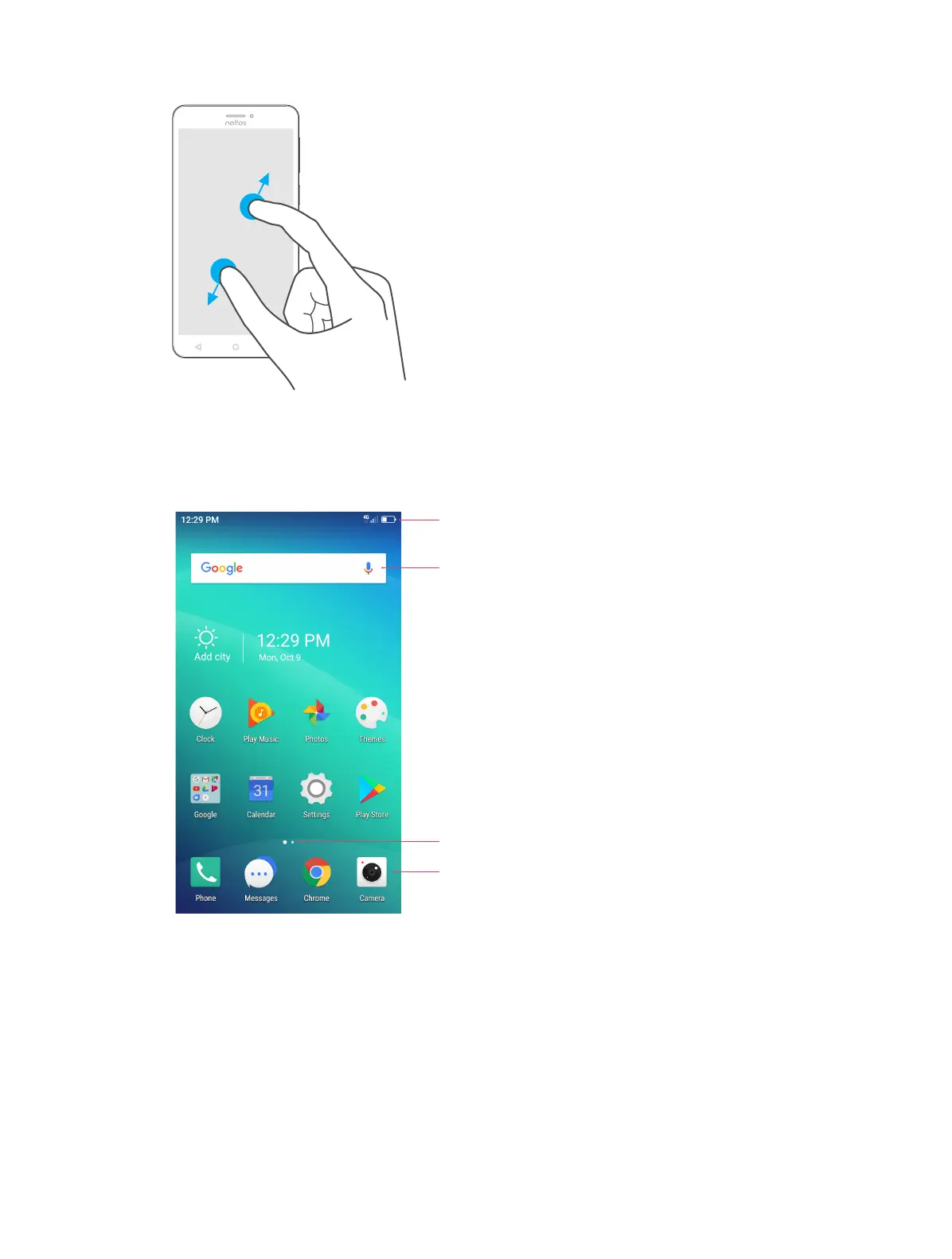
Zoom in: Spread two fingers apart on the screen. For example, pinch two fingers out to zoom on a picture.
2. 2 Home screen
Your home screens are where you can find your favorite widgets and all your applications.
Status bar
Widget
APP screen indicator
APP shortcuts
Status bar: Displays notifications and status icons.
Widget: Self-contained applications that run on the Home screen (not shortcuts).
APP screen indicator: Indicates which screen is displayed.
APP shortcuts: Shortcuts to your favorite applications.
Organize applications and widgets on the Home screen
On the Home screen, tap and hold a blank area on the screen to access the Home screen editor. You can:
• Add a widget to the Home screen
Add frequently used widgets to the Home screen for quick access.



 To Next Page