8Chapter 2 .
Basics
1. On the Home screen, tap and hold a blank area to open the Home screen editor.
2. Tap Widgets and select a widget. Touch and hold the widget and drag it to a blank area on the Home
screen.
3. Tap a blank area on the Home screen to quit the Home screen editor.
Note:
You must have enough space on the Home screen to add widgets. If there is not enough space, add another Home screen
or free up some space.
• Move a widget or icon
On the Home screen, touch and hold an application icon or widget and then drag them to the desired location.
• Delete a widget or icon
On the Home screen, touch and hold the application or widget you want to delete and then tap .
Note:
Some pre-installed system applications cannot be removed.
• Create a folder
Create Home screen folders to organize your applications by type. For example, you can create a Camera folder
that contains all of your camera applications.
1. On the Home screen, drag an icon on top of another icon to create a folder containing both applications.
2. To rename the folder, open the folder, tap Unnamed Folder and enter the folder name.
2. 3 Status icons
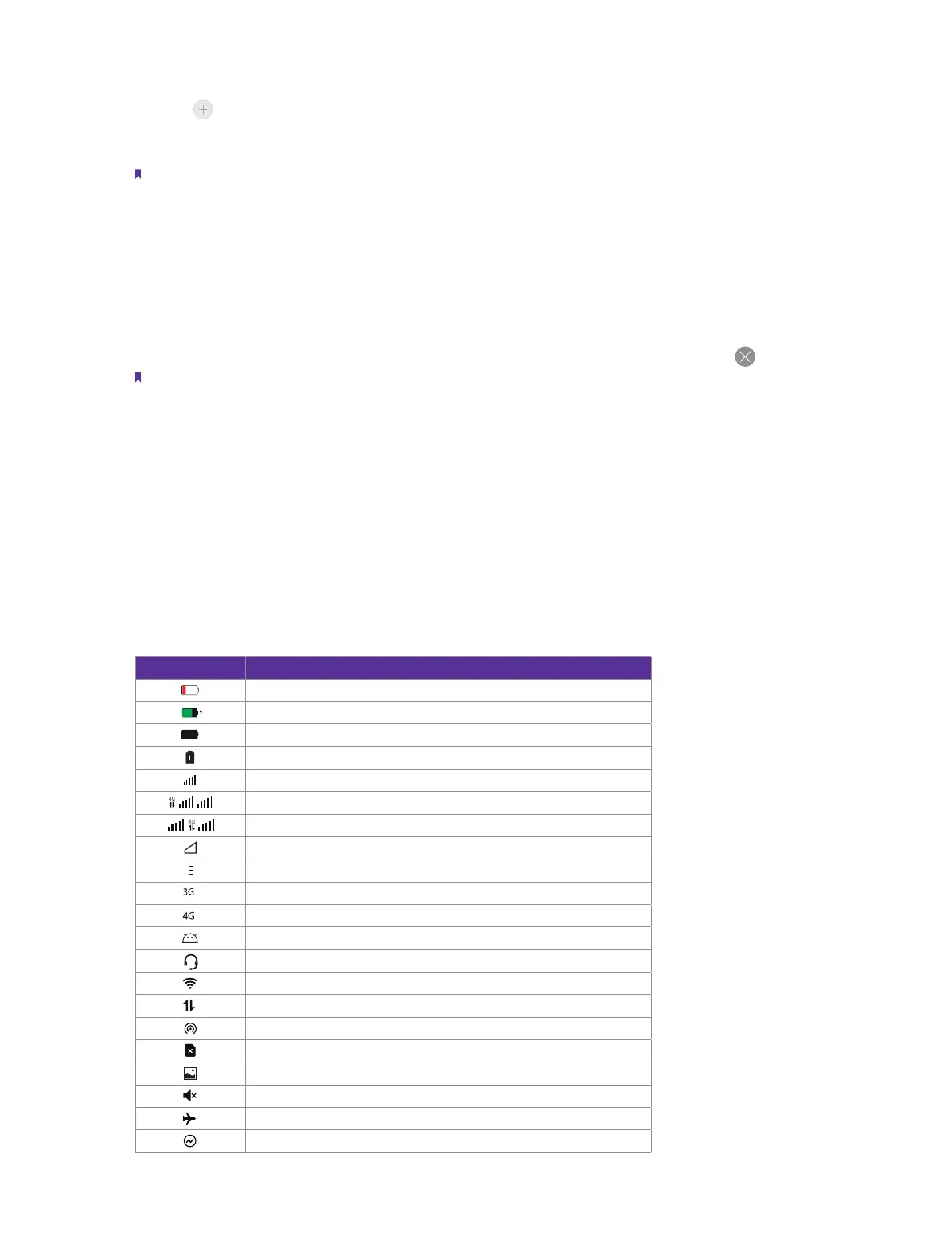
The icons in the status bar at the top of the screen diaplay information about your phone’s status.
Status icons Indications
Battery low
Charging
Battery full
Battery saver
Signal strength
4G
SIM 1 selected for cellular data
SIM 2 selected for cellular data
No signal
E
Connected over GPRS
3G
Connected over 3G
4G
Connected over LTE
Connected to a PC using USB cable
Headset inserted
WLAN
Mobile data
Hotspot
No SIM card installed
Screenshots
Mute mode enabled
Airplane mode enabled
Data saver



 To Next Page