10Chapter 2 .
Basics
10. Airplane mode: Tap to enable airplane mode.
11. Mobile data: Tap to enable mobile data.
12. Do not disturb: Tap to silence your phone.
13. Battery saver: Tap to enable battery saver.
14. Silent: Tap to enable silent mode.
15. Hotspot: Tap to enable hotspot.
16. Edit: Tap to enter the edit page. You can drag the shortcut switches on the edit page to/from Quick
settings panel.
17. Data saver: Turn on data saver to reduce data usage.
18. Nearby: Tap to scan for links from things nearby(need to open Bluetooth and Location).
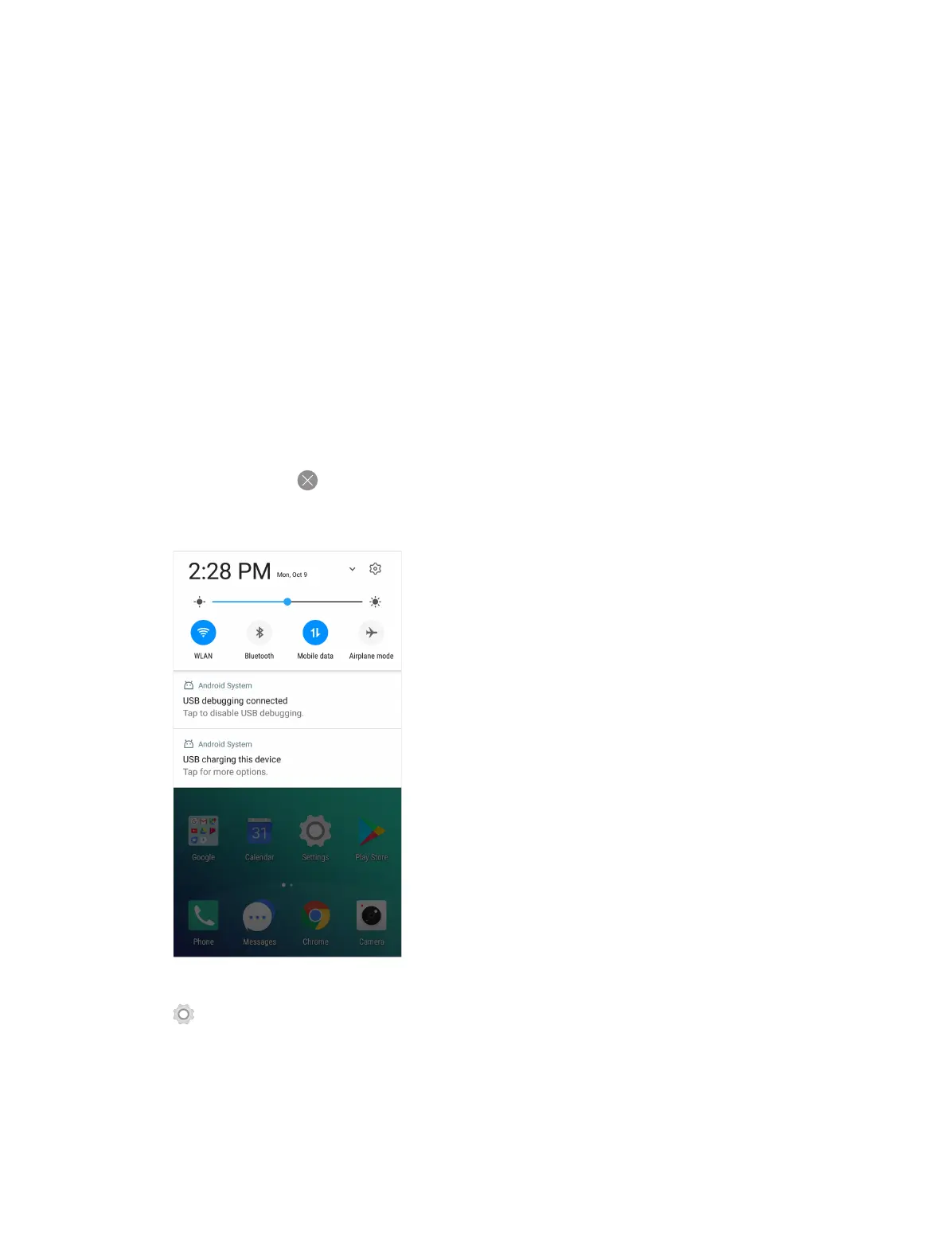
2. 5 Notification Panel
Notification panel collects all the notifications and alerts so that you can review them whenever you like.
• Open Notification Panel: Swipe down from the status bar to open the Notification Panel.
• View a notification: Tap an item to view the details. Or swipe the notification left or right to remove it from
the list. You can also tap to remove the details all at once. (New notifications, such as missed calls and
messages are displayed on the Lock screen. Double-tap it to view the details.)
• Close Notification Panel: Swipe up, or press the Back button or Home button.
Notification management
Go to Settings -> Notification manager, select the desired application. You can:
• Allow notifications: Turn the switch Allow notifications off to disable notifications for the application so as
to prevent unnecessary disturbances. Turn the switch on to enable notifications for the application.
• Treat as priority: Let this application’s notifications to be heard when Do not disturb is set to Priority only.
• Show silently: Don’t make sound, vibrate, or peek these notifications into view on the current screen.



 To Next Page