3Chapter 1 .
Get started
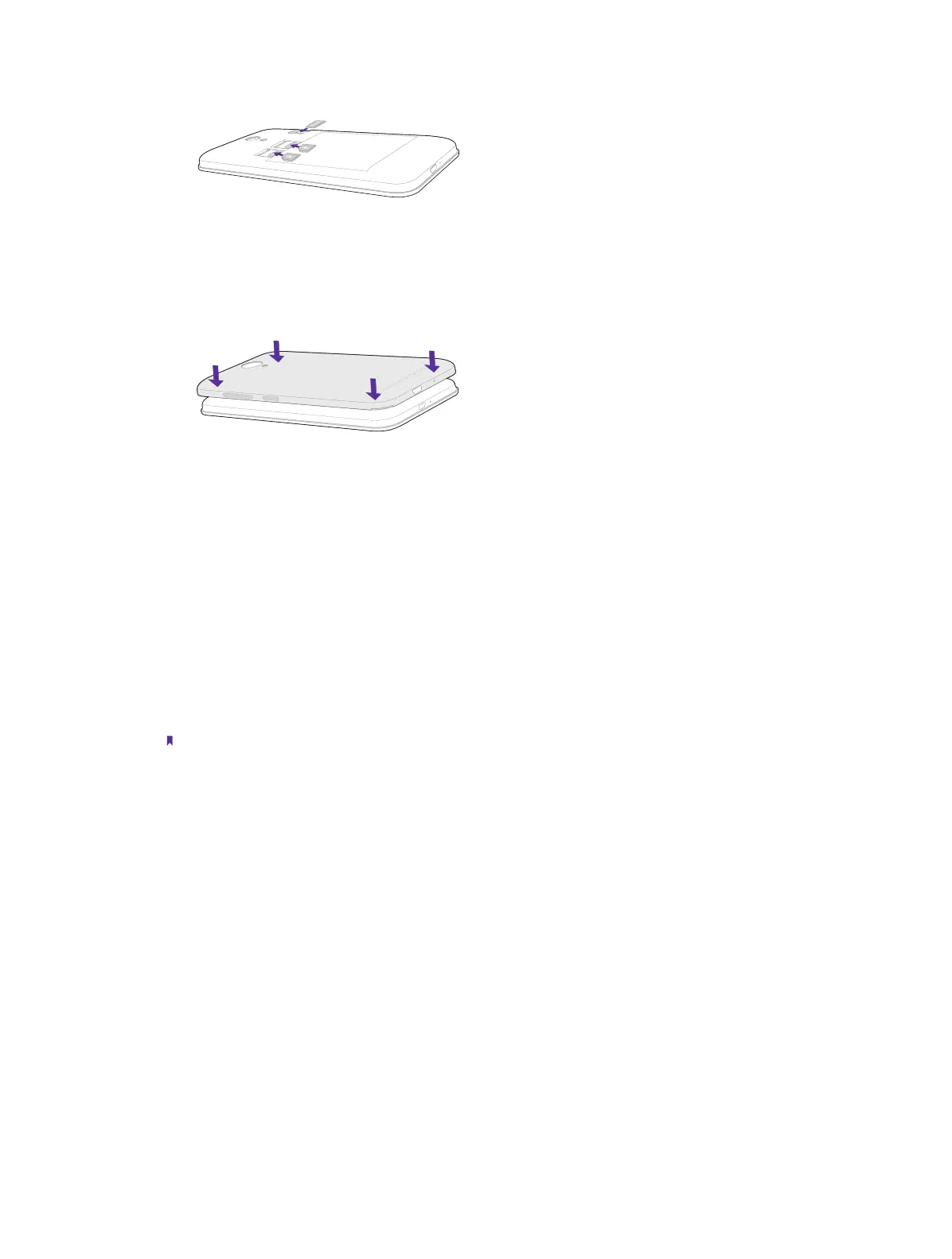
Replace the back cover
Align the cover and press all the way around the cover’s edges, making sure it snaps into place.
1. 4 Initial setup
Press and hold the Power button to turn on your phone, and then follow the onscreen instructions to complete
the initial setup. It is recommended to insert your SIM card before you start the initial setup.
1. Select your language, and then tap LET’S GO.
2. Proceed to Welcome to your Neffos Y5s screen. Tap to select copy your data (From an iPhone or
Android device, or the cloud) or Set up as new.
3. Proceed to Get connected screen. Choose a available Wi-Fi. If you can’t connect any Wi-Fi on the screen,
swipe down and tap See all Wi-Fi netwoks or Use cellular network for set up. If both Wi-Fi and cellular
data are not available, you can tap Don’t use any network for setup -> CONTINUE.
Without a connection, you can’t:
• Sign in to your Google Account.
• Get software updates.
• Automatically set up time and data.
You can finish these settings later.
4. Proceed to Name screen. Add your name to allow your phone to personalize some apps. Then tap NEXT.
5. Pcoceed to Protect your phone screen. Select a device protection feature and then follow the onscreen
instructions to complete. If you don’t want to set now, tap Not now -> SKIP ANYWAY.
6. Proceed to Google services screen. The services are turned on by default. Tap AGREE.
7. Pcoceed to Anything else screen. You can set up a few more things there, or you can just skip by tapping
ALL SET.
8. When your phone diaplays the Home screen, it means you have finished setting up the phone and can
start use it.
1. 5 Charge your phone
Connect the device to a power outlet using the included USB cable and power adapter.
1. Connect the USB cable into the Charging port.
2. Connect the USB cable to the power adapter, then plug the power adapter into a power outlet.



 To Next Page