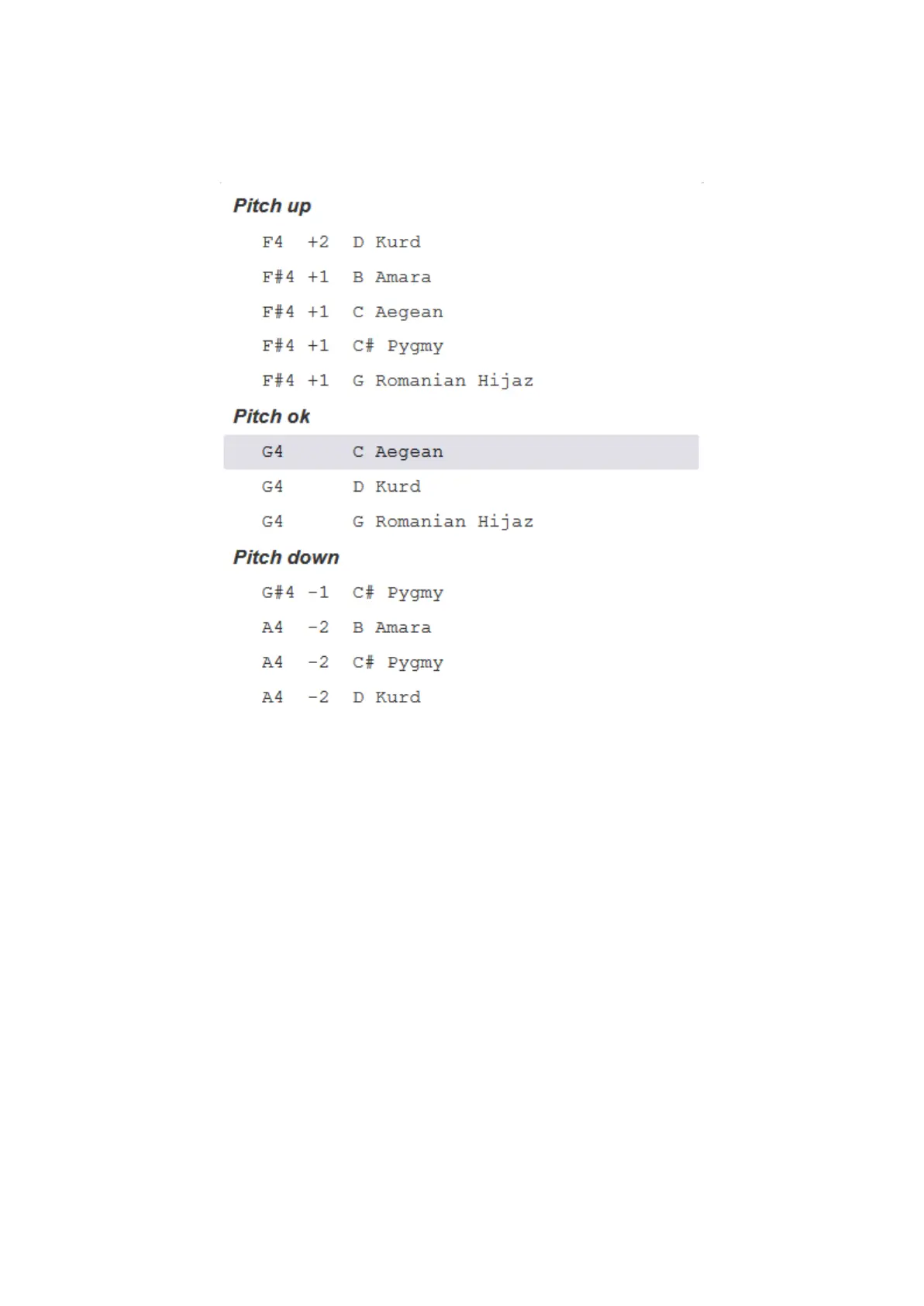
For example, on the following image you can see the source sample options for the G4 note
of the Onoleo scale:
In many cases, the harmony of the custom scale will not be perfect by choosing source
samples at the current frequency. In such cases, feel free to choose a lower or a higher
sample, the software automatically pitches the frequency to the connected note (in this
case, G4).
Starting with software version 5.7, you can listen to the harmony of the scale in a live
preview. You can start this with the live harmony test button at the bottom. By pressing this, a
preview (not so detailed and sensitive) of your scale will load in, which you can try out and
test immediately. If you are not satisfied with the harmony, adjust the source samples step by
step, tonefield by tonefield. These changes will be heard on the instrument in a few seconds.
After setting harmony, it is possible that some notes need gain (volume) correction too. You
can set these with the sliders on the right side of each note.
When you are done with selecting and adjusting the source samples, test how harmoniously
the body sounds fit the custom scale. To avoid disharmony of multiple body sounds, select
only one note whose body sound you want to use as default. In this case, the related body
sound is not added to each tonefield, but it appears as a global body sound on the entire
instrument.


 To Next Page