EasyManua.ls Logo

NETGEAR GS810EMX - User Manual

NETGEAR GS810EMX
85 pages
Print Icon
To Next Page IconTo Next Page
Loading...
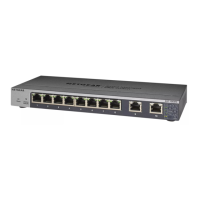
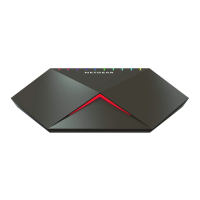
Nighthawk Pro Gaming SX10
8-Port Gigabit Ethernet Switch
with 2-Port 10G/Multi-Gig
Ethernet
User Manual
Model GS810EMX
December 2017
202-11833-01
350 E. Plumeria Drive
San Jose, CA 95134
USA

Table of Contents

Questions and Answers

  • J
    Jennifer WatsonJul 27, 2025
    Why is file transfer slow on my NETGEAR Switch?
    • C
      Connor JacksonJul 27, 2025
      Slow file transfers or degraded performance on your NETGEAR Switch can be caused by a broadcast storm resulting from a network loop (redundant path). To resolve this, ensure that only one path exists between any two networked devices to break the loop.
  • J
    johnsonsharonAug 2, 2025
    What to do if port LED is off on NETGEAR GS810EMX Switch even when the port is connected?
    • S
      Susan BallardAug 2, 2025
      If a port LED is off on your NETGEAR Switch when connected to a powered-on device, it could be due to a faulty port connection or disabled/dimmed LED. Check the connector crimp and ensure the plug is properly inserted and locked into the port on both the switch and the connected device. Also, ensure that the cables used meet Ethernet specifications. Test the port, cable, or module in a known working environment to identify defects. Finally, verify that the port LED is enabled and sufficiently bright.
  • B
    Bailey HendricksAug 8, 2025
    Why are port LEDs blinking continuously on my NETGEAR GS810EMX and the network is disabled?
    • S
      Sue DavidsonAug 8, 2025
      Continuous blinking of port LEDs and a disabled network on your NETGEAR Switch indicates a network loop (redundant path). Resolve this by ensuring only one path exists between any two networked devices to break the loop.
  • H
    Holly HoltAug 14, 2025
    How to fix a NETGEAR GS810EMX Switch when a segment or device is not recognized on the network?
    • C
      Curtis BraunAug 14, 2025
      If a segment or device isn't recognized as part of the network when using your NETGEAR Switch, it may be due to improper connections or cabling that doesn't meet Ethernet guidelines. Verify that the cabling is correct and all connectors are securely positioned in the ports. Also, check for accidentally disconnected equipment.
  • C
    Craig DayAug 20, 2025
    What to do if the power LED is off on NETGEAR Switch?
    • D
      Dana WilliamsAug 21, 2025
      If the power LED is off on your NETGEAR Switch, it could indicate that power is not being supplied to the switch or the Power LED is disabled. Check the power cable connections at both the switch and the power source. Ensure all cables are correctly used and comply with Ethernet specifications. Also, verify that the Power LED is enabled.

Summary

Hardware Overview of the Switch

Related Documentation

Provides links to related user guides and data sheets for the switch.

Switch Package Contents

Lists all items included in the product box upon purchase.

Status LEDs

Explains the function of the various LED indicators on the switch.

Install and Access the Switch in Your Network

Set Up the Switch in Your Network and Power On the Switch

Step-by-step guide to physically connect and power up the switch.

Methods to Discover and Access the Switch

Outlines different techniques to locate and access the switch's interface.

Access the Switch and Discover the IP Address of the Switch

Details how to find the switch's current network IP address.

Set Up a Fixed IP Address for the Switch

Set Up a Fixed IP Address for the Switch Through a Network Connection

Configures a static IP address via the network.

Set Up a Fixed IP Address for the Switch by Connecting Directly to the Switch Off-Network

Assigns a static IP when connected directly, not on a network.

Optimize the Switch Performance

Apply a Performance Preset Mode

Using predefined modes for performance tuning.

Apply the Gaming Preset Mode

Optimizing settings for gaming traffic prioritization.

Apply the Media Streaming Preset Mode

Optimizing settings for media streaming traffic.

Manually Set the Quality of Service Mode and Port Rate Limits

Use Port-Based Quality of Service and Set Port Priorities

Manually configuring QoS priorities per port.

Use 802.1 P;DSCP Quality of Service

QoS based on packet header information.

Manage Individual Port Settings

Set the Priority for a Port

Assigning priority levels to traffic on specific ports.

Set Rate Limits for a Port

Limiting incoming/outgoing traffic speed on a port.

Use VLANs for Traffic Segmentation

VLAN Overview

Explanation of Virtual LANs and their purpose.

Manage Port-Based VLANs

Configuration and management of port-based VLANs.

Activate the Port-Based VLAN Mode

Enabling the port-based VLAN configuration.

Manage the Switch in Your Network

Manage Switch Discovery Protocols

Configuring protocols for switch discovery in the network.

Manage Universal Plug and Play

Configuring UPnP for network discovery.

Manage Bonjour

Configuring Bonjour for Mac network discovery.

Set Up Link Aggregation

Set Up a Link Aggregation Group

Creating groups of ports for increased bandwidth or fault tolerance.

Make a Physical Link Aggregation Connection

Connecting aggregated ports to network devices.

Enable a Link Aggregation Group

Activating the configured link aggregation groups.

Maintain and Monitor the Switch

Manually Check for New Switch Firmware and Update the Switch

Downloading and installing the latest firmware.

Manage the Configuration File

Backing up and restoring switch configuration settings.

Back Up the Switch Configuration

Saving current switch settings to a file.

Manage the LEDs

Manage Individual Port LEDs

Customizing LED activity, color, and brightness per port.

Manage Port LEDs in a Batch

Applying LED settings to multiple ports simultaneously.

Diagnostics and Troubleshooting

Test a Cable Connection

Diagnosing the health and faults of network cables.

Manage Loop Prevention

Configuring settings to detect and block network loops.

Enable Port Mirroring

Duplicating traffic from source ports to a destination port.

Factory Default Settings and Technical Specifications

Factory Default Settings

Default configurations for features like IP, QoS, and LEDs.

Basic Technical Specifications

Key technical details like interfaces, cables, and power.

NETGEAR GS810EMX Specifications

General IconGeneral
BrandNETGEAR
ModelGS810EMX
CategorySwitch
LanguageEnglish

Related product manuals