EasyManua.ls Logo

NETGEAR ProSafe GS108Tv2 - User Manual

NETGEAR ProSafe GS108Tv2
2 pages
Print Icon
To Next Page IconTo Next Page
Loading...
)NSTALLATION'UIDE
NETGEAR ProSafe
®
8-port Gigabit Smart Switch GS108Tv2
Start Here
Follow these instructions to set up your smart switch. Before proceeding with the smart
switch installation, familiarize yourself with the contents of the Resource CD, especially the
reference manuals on your Resource CD.
First, Verify Package Contents
NETGEAR GS108Tv2 Smart Switch
Rubber footpads for tabletop installation
12V/1A Power Adapter
Wall-mount kit
Installation Guide
Smart Switch Resource CD that includes the NETGEAR Device Manager utility (Smart
Control Center).
Then, Prepare to Install Your Smart Switch
Prepare a PC with an Ethernet adapter and a CD ROM drive.
Next, Install the NETGEAR Device Manager
Utility on a PC
1. Insert the Resource CD into your CD drive.
2. Run the Setup program to install the Smart Control Center utility. The Installation
Wizard will guide you through the installation.
Next, Connect Your Smart Switch in the
Correct Order
These instructions assume you are using DHCP in your network. If you are using static IP
addressing in your network, configure the switch IP address before connecting it to your
network. In the absence of a DHCP server, the switch will default to 192.168.0.239 for its IP
address.
To configure the switch before connecting it to your network:
1. Set up the PC with a Static IP address in the 192.168.0.x subnet, and connect the PC to
the switch. Then, use the Smart Control Center utility to configure the switch.
2. Connect each PC to an RJ-45 network port on the Switch front panel.
Use category 5 (Cat5) unshielded twisted-pair (UTP) cable terminated with an RJ-45
connector to make these connections.
3. Connect the switch to your network.
Servers Computers Printers
Smart Switch
GS108T
4. Connect the external power supply and power on the switch.
Note: The NETGEAR GS108T Smart Switch is a PoE Powered Device (PD) and can
receive power from PoE Power Sourcing Equipment (PSE). To power the GS108T
Smart Switch from a PoE power source, such as the NETGEAR GS748TPS ProSafe
Gigabit Stackable PoE Smart Switch, you can connect the PSE to Port 1 on the GS108T
Smart Switch through a standard Cat5 UTP cable. This allows the GS108T Smart
Switch to be powered by PoE.
5. Verify that the PC with the Smart Control Center utility is on the same subnet as the
switch.
Now, Configure the Switch with the NETGEAR
Device Manager Utility
1. Double-click the Smart Control Center icon on your desktop or in Windows
Start menu Programs to run the utility and view this screen.

Question and Answer IconNeed help?

Do you have a question about the NETGEAR ProSafe GS108Tv2 and is the answer not in the manual?

Overview

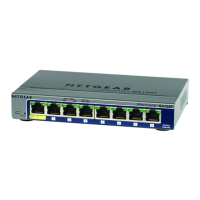
The NETGEAR ProSafe® 8-port Gigabit Smart Switch GS108Tv2 is a smart switch designed for network connectivity, offering a range of features for efficient network management.

Function Description:

The GS108Tv2 is an 8-port Gigabit Smart Switch, meaning it provides eight Ethernet ports capable of Gigabit speeds (10/100/1000 Mbps). As a "smart" switch, it offers more advanced features than an unmanaged switch, allowing for configuration and management of network traffic. It supports Power over Ethernet (PoE) as a Powered Device (PD), meaning it can receive power from a PoE Power Sourcing Equipment (PSE) device, such as a NETGEAR GS748TPS ProSafe Gigabit Stackable PoE Smart Switch, through a standard Cat5 UTP cable connected to Port 1. This eliminates the need for a separate power adapter when powered by a compatible PoE source. The switch is designed to be configured using the NETGEAR Device Manager utility (Smart Control Center), which allows users to discover, access, and manage the switch's settings.

Important Technical Specifications:

  • Ports: 8 x Gigabit Ethernet (RJ-45) ports.
  • Speed: 10/100/1000 Mbps per port.
  • Power Input: Can be powered by a 12V/1A Power Adapter or via PoE (as a PD) on Port 1.
  • Default IP Address (without DHCP server): 192.168.0.239.
  • Cable Type: Category 5 (Cat5) unshielded twisted-pair (UTP) cable terminated with an RJ-45 connector for network connections.
  • Management Utility: NETGEAR Device Manager (Smart Control Center) utility, included on the Resource CD.
  • Default Password: "password" (lowercase).
  • Compliance: European Union Directive 2002/96 on the Waste Electrical and Electronic Equipment (WEEE Directive) compliant, indicated by the WEEE symbol.

Usage Features:

  • Easy Setup: The installation process involves verifying package contents, preparing a PC with an Ethernet adapter and CD-ROM drive, installing the NETGEAR Device Manager utility, connecting the switch in the correct order, and then configuring it using the utility.
  • DHCP Support: The switch is designed to work in DHCP-enabled networks, automatically obtaining an IP address. If no DHCP server is present, it defaults to 192.168.0.239.
  • Static IP Configuration: Users can configure a static IP address for the switch by connecting a PC with a static IP in the same subnet (192.168.0.x) directly to the switch and using the Smart Control Center utility.
  • Web-Based Management: Once logged in through the Smart Control Center, the switch provides a web-based interface for configuration, displaying system information, IP configuration, and various other settings under menus like System, Switching, QoS, Security, Monitoring, Maintenance, and Management.
  • PoE Powered Device (PD): The GS108Tv2 can draw power from a PoE Power Sourcing Equipment (PSE) device connected to its Port 1, simplifying deployment in environments with existing PoE infrastructure.
  • Tabletop or Wall-Mount Installation: The package includes rubber footpads for tabletop use and a wall-mount kit for flexible placement options.
  • Resource CD: Contains reference manuals and the Smart Control Center utility, providing comprehensive documentation and tools for setup and configuration.

Maintenance Features:

  • Troubleshooting Tips: The manual provides basic troubleshooting advice, such as checking secure Ethernet cable connections and verifying correct network settings (DHCP or static IP) on connected computers.
  • Port Status Lights: The switch features port status lights that illuminate when a powered-on computer is securely connected with an Ethernet cable, providing visual confirmation of connectivity.
  • Firmware Updates: The Smart Control Center utility and the NETGEAR support website (kbserver.netgear.com) can be used to check for and apply product updates, including firmware.
  • Reboot Device Function: The Smart Control Center utility includes a "Reboot Device" option, allowing for remote restart of the switch.
  • Configuration Backup/Restore: While not explicitly detailed in the provided snippets, smart switches typically offer features to back up and restore configuration settings, which is a common maintenance practice.
  • Online Help and Reference Manuals: The Resource CD and the switch's online help provide detailed guidance for configuration procedures and advanced settings, aiding in ongoing maintenance and optimization.
  • Technical Support and Registration: Users are encouraged to register their product on the NETGEAR website (www.NETGEAR.com/register) to access telephone support and product updates.

NETGEAR ProSafe GS108Tv2 Specifications

General IconGeneral
BrandNETGEAR
ModelProSafe GS108Tv2
CategorySwitch
LanguageEnglish

Related product manuals