EasyManua.ls Logo

NETGEAR ProSafe GS110TP - User Manual

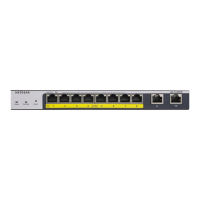
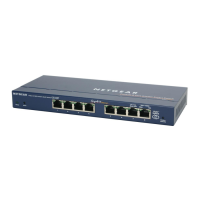
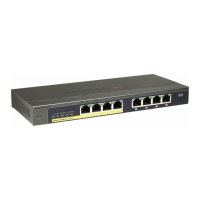
NETGEAR ProSafe GS110TP
32 pages
Print Icon
To Next Page IconTo Next Page
Loading...
202-10596-01
March 2010
v1.0
NETGEAR, Inc.
350 East Plumeria Drive
San Jose, California 95134 USA
GS110TP Hardware
Installation Guide

Questions and Answers

  • K
    Kevin CastilloJul 31, 2025
    What to do if NETGEAR ProSafe GS110TP Switch doesn't recognize a device?
    • J
      James ChapmanJul 31, 2025
      If a segment or device is not recognized as part of the network when using your NETGEAR Switch, it could be due to devices not being properly connected, or cabling not meeting Ethernet guidelines. Verify that the cabling is correct and ensure all connectors are securely positioned in the required ports. Check if any equipment may have been accidentally disconnected.
  • T
    Timothy SmithAug 6, 2025
    What to do if ACT LED is flashing continuously on NETGEAR Switch?
    • M
      mercadonathanAug 6, 2025
      If the ACT LED is constantly flashing on all connected ports and the network is disabled on your NETGEAR Switch, it indicates that a network loop (redundant path) has been created. To fix this, break the loop by ensuring that there is only one path from any networked device to any other networked device.
  • J
    Juan SmithAug 11, 2025
    Why is the Link LED off on my NETGEAR Switch?
    • C
      charlesreidAug 11, 2025
      If the Link LED is off or intermittent on your NETGEAR Switch, the port connection may not be working. Check the crimp on the connectors and ensure that the plug is properly inserted and locked into the port on both the switch and the connecting device. Also, make sure all cables used are correct and comply with Ethernet specifications. Check for a defective PC adapter card, cable, or port by testing them in an alternate environment where all products are functioning.
  • G
    Gary LunaAug 18, 2025
    How to fix NETGEAR ProSafe GS110TP when power LED is off?
    • R
      Rebecca HuntAug 18, 2025
      If the Power LED is off on your NETGEAR Switch, it means no power is being received. Check the power cord connections, the ON/OFF switch, and the connected device. Ensure all cables used are correct and comply with Ethernet specifications.
  • D
    Douglas ConradAug 23, 2025
    Why is file transfer slow on my NETGEAR ProSafe GS110TP Switch?
    • B
      bmarshallAug 23, 2025
      If you are experiencing slow file transfers or performance degradation with your NETGEAR Switch, it might be due to mismatched duplex settings between the switch and the connected device. To resolve this, ensure that the attached device is set to auto-negotiate.

Summary

Chapter 1 Introduction

Overview

Provides a high-level description of the GS110TP Smart PoE Switch's capabilities and features.

Features

Details the key features of the GS110TP Smart PoE Switch, including port specifications and standards compatibility.

Chapter 2 Physical Description

GS110 TP Front and Back Panel Configuration

Details the physical layout and components of the GS110TP Smart PoE Switch's front and back panels.

Chapter 4 Installation

Step 1: Preparing the Site

Ensures the operating environment meets site requirements for switch installation.

Step 2: Installing the Switch

Provides instructions for installing the GS110TP Smart PoE Switch on a flat surface or wall.

Appendix A Troubleshooting

Troubleshooting Chart

Lists common symptoms, their causes, and suggested solutions for troubleshooting the switch.

Additional Troubleshooting Suggestions

Provides further advice and steps for resolving issues not covered in the main troubleshooting chart.

NETGEAR ProSafe GS110TP Specifications

General IconGeneral
MAC address table4000 entries
Jumbo frames supportYes
Maximum data transfer rate1 Gbit/s
Supported data transfer rates10/100/1000 Mbps
10G supportNo
Number of VLANs64
Networking standardsIEEE 802.3ab, IEEE 802.3af, IEEE 802.3i, IEEE 802.3u, IEEE 802.3x, IEEE 802.3z
Copper ethernet cabling technology1000BASE-TX, 100BASE-TX, 10BASE-T
Latency4 μs
Dimensions (WxDxH)236 x 101.6 x 27 mm
Networking featuresGigabit Ethernet
DHCP featuresDHCP client
Switch typeManaged
Switch layer-
Power connectorDC-in jack
SFP/SFP+ slots quantity2
Basic switching RJ-45 Ethernet ports quantity8
SafetycUL IEC 950/EN 60950, CB, CE
CertificationCE mark, FCC Part 15 Class A, VCCI Class A, C-Tick
LED indicatorsLAN, Status
Power source48v, 1.25A
Power consumption (typical)59.3 W
Mean time between failures (MTBF)157004 h
Operating altitude0 - 3000 m
Storage temperature (T-T)-20 - 70 °C
Operating temperature (T-T)0 - 50 °C
Storage relative humidity (H-H)10 - 95 %
Operating relative humidity (H-H)10 - 90 %
Weight and Dimensions IconWeight and Dimensions
Weight700 g

Related product manuals