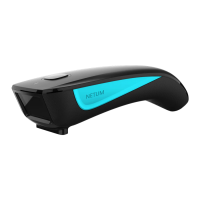
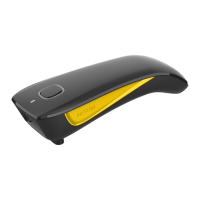
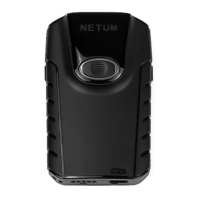
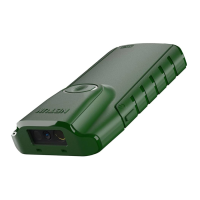
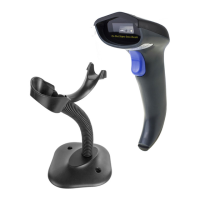
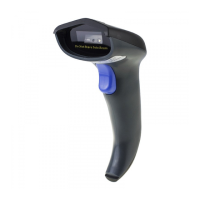
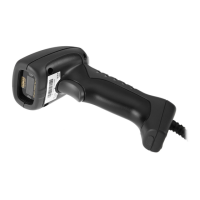
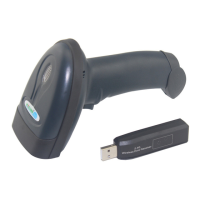
This document describes the NETUM NFC & RFID Reader/Writer, a versatile device designed for reading and writing NFC and RFID tags. It is a portable, handheld scanner that can connect to various devices via USB cable or Bluetooth, offering flexibility in its application.
Function Description
The NETUM NFC & RFID Reader/Writer is primarily used for scanning and interacting with NFC and RFID tags. It can read data from cards, tags, or smart devices, making it suitable for a range of applications such as inventory management, access control, and data collection. The device supports both NFC (Near Field Communication) and RFID (Radio-Frequency Identification) technologies, allowing it to interact with a broad spectrum of compatible tags.
Important Technical Specifications
- Connectivity: The reader supports two primary connection methods:
- USB Cable: For direct connection to a computer or other host device. It is plug-and-play for US keyboards, but other keyboard types may require software configuration.
- Bluetooth: Offers wireless connectivity, supporting both Bluetooth HID Mode and Serial Port Profile (SPP)/Apple Specific Serial Profile (BLE) Mode. The BLE mode is recommended for applications that support SPP or BLE.
- Power:
- DC Plug: V:5V; A>500mA for charging.
- Battery Light/Read Indicator Light: Displays green, blue, or red to indicate battery status and read operations.
- Indicators:
- Scanning Window: The area where tags are presented for reading.
- Power Button (On/Off): Controls the device's power state.
- Battery Light/Read Indicator Light (Green/Blue/Red): Provides visual feedback on battery charge and scan status.
- Trigger Button: Initiates a scan.
- Bluetooth Light: Indicates Bluetooth connection status.
- Beeper: Provides audible feedback for operations such as successful scans, power on/off, and errors.
- Physical Features:
- Lanyard Eyelet: For attaching a lanyard, enhancing portability and preventing loss.
- Type C Port: For USB cable connection and charging.
- Software Compatibility: The device's configuration software is currently compatible only with Windows operating systems. A full manual and configuration software can be downloaded from the official Netum website.
Usage Features
- Charging:
- Turn the device on.
- Connect the reader to a computer via the provided USB cable or use a DC plug to charge it from an electrical wall outlet.
- Red Light On: Indicates charging in progress.
- Red Light Off: Indicates the battery is fully charged.
- Reading Tags:
- Connect the reader to your device via USB cable or Bluetooth.
- Hold the reader over the card, tag, or smart device to be read, ensuring it is parallel to the reader for best results.
- Press the trigger button momentarily. A blue LED light will illuminate, and a short beep will sound, indicating a successful scan.
- Scan Modes: The device supports different scan modes. By default, it operates in "Key Delay Mode," where pressing the button initiates a scan. The green LED will turn on and off within 3 seconds if no cards are read. For continuous scan mode, users need to download and use the configuration software to adjust settings on the "Para Setting" page.
- Data Storage and Upload: If the reader is disconnected from a device (USB or Bluetooth), scanned characters will be stored internally. Once reconnected, pressing the button for 5 seconds will upload the stored characters, and then they will be cleared from the device's memory.
- Keyboard Layout Configuration: For USB cable connections, if using a keyboard type other than US, the keyboard language needs to be configured using the "C RFID Para Setting" software under the "Keyboard layout" section.
- Bluetooth Connection Modes:
- Bluetooth HID Mode: To enable this, navigate to "Para Setting page" -> "BT Profile Mode" -> "HID" in the software.
- Serial Port Profile (SPP) / Apple Specific Serial Profile (BLE) Mode: Recommended for applications supporting SPP or BLE. This mode is enabled by navigating to "Para Setting page" -> "BT Profile Mode" in the software.
- LED Activity and Prompt Tones: The device provides comprehensive visual and audible feedback for various operations and statuses:
- Bluetooth Unpaired: Blue LED flashes slowly (HID Mode) or quickly (SPP/BLE Mode).
- Bluetooth Pairing: Blue LED flashes quickly and turns off after 30 seconds if no connection is made.
- Bluetooth Paired: Blue LED is solid blue.
- RFID Searching for Cards: ON indicator.
- Charging Power/Full Charged: ON/OFF indicator.
- Low Power Warning (less than 20%): Red LED flashes slowly.
- Low Power Warning (less than 10%): Red LED flashes quickly.
- Power On/Bluetooth Paired/Data Uploaded: Blue LED turns on and off quickly (0.3s) with a long beep in 3 tones.
- Successful Scan: Blue LED turns on and off very quickly (0.1s) with a short beep.
- Bluetooth Unpaired/Successful Scan in Low Power: Red LED flashes twice with 2 beeps.
- Data Transmit Failed: Red LED flashes three times with 3 beeps.
- Fail to Turn the Reader On: Red LED flashes five times with 5 beeps.
Maintenance Features
- Factory Reset: To reset the reader to its factory settings:
- Disconnect the USB cable.
- Switch the power button to "Off."
- Press and hold the trigger button.
- While holding the trigger button, switch the power button to "ON."
- Continue holding the trigger button for at least 15 seconds.
- Release the button after hearing one beep.
- Software Updates and Full Manual: A general manual is provided, but for a full manual and additional configurations, users are directed to download them from the official Netum website: www.netum.net. The configuration software is essential for advanced settings and troubleshooting.
- Troubleshooting: If scanned characters are not being transmitted, ensure the device is connected. If connection fails, characters are stored internally and can be uploaded later.
- Support: For any inquiries, users can contact Netum via telephone, WhatsApp, or email. Contact information for both Netum and APEX CE SPECIALISTS LIMITED (for EU support) is provided in the manual.

 Need help?
 General

 To Next Page