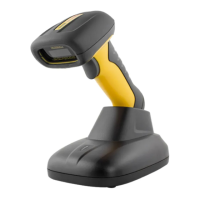
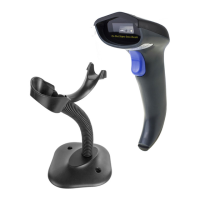
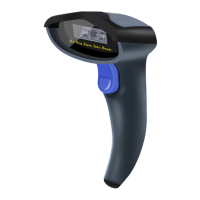
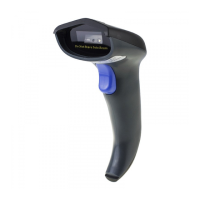
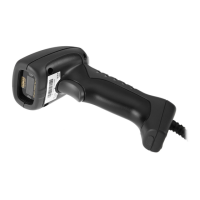
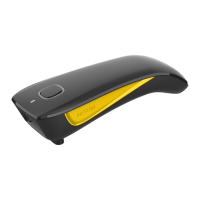
This document provides a comprehensive manual for the NETUM DS Series RF2.4G/Bluetooth CCD 2D RFID Scanner, detailing its functions, technical specifications, usage features, and maintenance.
Function Description
The NETUM DS Series scanner is a versatile device designed for efficient barcode and RFID reading. It supports both RF2.4G wireless and Bluetooth connectivity, offering flexibility in various operational environments. The scanner is capable of reading 1D and 2D barcodes, and its RFID functionality is specifically highlighted for the DS8100 model. The device is designed for ease of use, with features like auto-sense mode for automatic scanning and various trigger modes. It can transmit data to a host device via Bluetooth or 2.4G Wireless, and supports different keyboard languages for global compatibility. The scanner also includes features for managing stored data, adjusting beep volume, and mapping function keys.
Important Technical Specifications
The scanner operates with both RF2.4G and Bluetooth wireless technologies.
- Connectivity: RF2.4G Wireless and Bluetooth.
- Scanning Capability: CCD 2D, supporting both 1D and 2D barcodes.
- RFID: Supported, specifically for the DS8100 model.
- Power: The device can be powered and charged via a USB cable and a power charging dock.
- Indicator Lights: Includes a Bluetooth light, battery light, and reading indicator light (Green / Blue / Red).
- Beeper: Provides audible feedback for operations.
- Data Transmission: Supports USB HID-KBW (Keyboard Wedge) and USB COM Port Emulation for wired connections, and various Bluetooth and 2.4G Wireless transmit speeds.
- Keyboard Languages: Supports multiple keyboard layouts including America EN, French, Germany, Italy, Portugal, Spain, UK, Hungary, Turkey Q, and Turkey F.
- Working Modes: Includes Normal Mode (default), Store Mode, Output Stored Data, and Output Total Entry.
- Idle Time: Configurable idle time for power saving, with a default of 3 minutes.
- Case Conversion: Supports various case conversion options for scanned data: Disable Convert Case (default), Up Low Case Swap, All Upper Case, and All Lower Case.
- Beep Volume: Adjustable to High Volume (default), Low Volume, or Mute.
- Function Key Mapping: Can be enabled or disabled.
Usage Features
The NETUM DS Series scanner offers several features to enhance user experience and operational efficiency:
- Firmware Version Check: Users can scan a specific barcode ("$SW#VER") to display the current firmware version.
- Barcode Programming: The scanner is factory programmed for common terminal and communications settings. Users can change these settings by scanning specific programming barcodes provided in the manual.
- Important Notes for Barcode Programming:
- Some command barcodes only work in a particular connection mode.
- Attention to below symbols when scanning command barcodes.
- Command barcodes only apply to scanner work via Bluetooth.
- Command barcodes only apply to scanner work via 2.4G Wireless.
- RFID Function (DS8100):
- Steps on triggering an RFID reading:
- Connect the reader with your device (refer to page 4-7 for connection methods).
- Set up the corresponding keyboard language (refer to page 8-9 for keyboard language).
- Place your card or device close to the reader (best reading distance around 3cm) and press the button to read it.
- A blue LED and a short beep indicate a successful scan.
- Trigger Mode: The trigger mode is set by default. Users can change it by scanning specific barcodes:
%SCMD#01# for Auto-sense Mode.%SCMD#00# for *Trigger mode (Default).- To activate auto-sense mode from sleep or deactivate it, press the button.
- Connection Way (2.4G Wireless Channel):
- Scanner transmits data to your device via Bluetooth or 2.4G Wireless.
- To transmit data via 2.4G Wireless Channel:
- Get Started:
- Power On the scanner.
- Set up keyboard language: US keyboard is set by default. Refer to Keyboard language section for other types.
- Scan
%#IFSN0$1 for *Wireless Transmit.
2. To change Bluetooth transmit to wireless transmit, follow step (1) and (2) to complete the configurations.
- USB HID-KBW:
- When the dock connects with your device via USB cable, USB HID-KBW feature will be enabled by default.
- Scanner’s transmission will be simulated as USB key-board input.
- It works on a Plug and Play basis and no driver is required.
- Scan
$USB#KEY for *USB HID-KBW.
- USB COM Port Emulation:
- When the dock connects with your device via USB cable, by scanning
$USB#COM "USB COM Port Emulation" will allow your device to receive data in the way as a serial port does.
- A driver is required for this feature.
- Bluetooth Transmit:
- To transmit data via Bluetooth:
- Get Started:
- Power on scanner.
- Scan "Bluetooth Transmit".
- Scan
%#IFSN0$4 for Bluetooth Transmit.
2. Make sure the device is in range with Bluetooth turned on.
3. Pressing the scan button will initiate the attempts to connect.
4. If a connection is made, the blue light will stop blinking and turn solid.
5. If a connection is not made after several attempts, the scanner will emit a long beep (and the blue light will turn off).
6. Bluetooth working channel is not set by default. If you want to connect via Bluetooth, you will have to scan "Bluetooth Transmit" before pairing.
- Bluetooth Modes:
- Basic Mode (HID) (default):
- No software installation needed.
- Connects to most devices.
- Scanner interacts with host device like a keyboard.
- Scan
AT+MODE=2.
- Application Mode (Apple Specific Serial Profile):
- For iOS Devices.
- If you have an iOS application that supports our Scanners, this is the mode to use.
- Scan
AT+MODE=3.
- Applicatin Mode (Serial Port Profile):
- For Android or Windows.
- Software installation is required.
- If you have an application that supports this is the mode recommended.
- Scan
AT+MODE=1.
- Bluetooth Transmit Speed:
- By scanning the appropriate barcode, you can change the Bluetooth transmit speed.
AT+HIDDLY=4 for High Speed.AT+HIDDLY=10 for *Medium Speed.AT+HIDDLY=25 for Low Speed.
- Keyboard Language:
- For example, if you use a French Keyboard, scan the command barcode of "French keyboard".
- If you use a US keyboard, you can ignore this step.
$LAN#EN for *America EN keyboard.$LAN#FR for French keyboard.$LAN#GE for Germany keyboard.$LAN#IT for Italy keyboard.$LAN#PT for Portugal keyboard.$LAN#ES for Spain keyboard.$LAN#UK for UK keyboard.$LAN#HU for Hungary keyboard.$LAN#TK for Turkey Q keyboard.$LAN#TF for Turkey F keyboard.
- Working Mode:
- If you are heading for a working area which lies outside the Bluetooth signal range, you may activate scanner’s store mode.
- Under this mode, all scanned data will be stored directly into the buffer memory of the device.
- Furthermore, data entries will be permanently saved in the buffer memory prior to the manual upload into the working station, so that you may upload them when you are near your working device.
*Normal Mode.Store Mode.Output Stored Data.Output Total Entry.Clear Memory.
- Idle Time:
- Time period set for scanner from idle to sleep. Default Idle Time: 3mins.
$POWER#OFF for Power Off.$RF#ST00 for 0 Min.$RF#ST20 for 10Mins.$RF#ST60 for 30Mins.
- Convert Case:
*Disable Convert Case.Up Low Case Swap (A<->a).All Upper Case (a->A).All Lower Case (A->a).
- Beep Volume:
- By scanning the appropriate barcode, you can change the beep volume.
$BUZZ#1 for *High Volume.$BUZZ#3 for Low Volume.$BUZZ#0 for Mute.
- Function Key Mapping:
- When Function Key Mapping is enabled, function characters are sent over the keypad.
$KEY#M0 for *Disable Function Key Mapping.$KEY#M1 for Enable Function Key Mapping.
Maintenance Features
- Factory Restore: By scanning the command barcode
%#IFSN0$B for Factory Restore, all the default settings within this manual will be restored. This is useful for troubleshooting or resetting the device to its original configuration.
- Charging: The scanner can be charged by connecting it to a power source via the USB cable and power charging dock.
- 2.4G Wireless Transmit Charging Indicators:
- Dock LED Activity: No beep, OFF, Sleeping/Power Off.
- Dock LED Activity: Beep Once, Blue LED On then OFF, Successful Scan, Normal Mode.
- Dock LED Activity: 3 Beeps, LED flashes RED 3 times then OFF, Data transmit failed.
- Dock LED Activity: Beep Once, Green LED flashing, Blue LED On then OFF, Successful Scan, Store Mode.
- Bluetooth Transmit Charging Indicators:
- Beep Pattern: No beep, LED Flashing Blue, Bluetooth Pairing.
- Beep Pattern: Beep Once, Blue LED Flashing ->Solid Blue, Bluetooth Paired.
- Beep Pattern: Beep Once, Solid blue-> LED Flashing Blue once ->Solid Blue, Successful Scan, Normal Mode.
- Beep Pattern: Beep Once, LED Flashing Blue, Unpaired Bluetooth.
- Beep Pattern: 3 Beeps, Red LED Flashing 3 times ->LED Flashing Blue, Data transmit failed.
- Beep Pattern: Beep Once, LED Flashing Green ->LED Flash Blue once->LED Flashing Green, Successful Scan, Store Mode.
- Charge Power via USB Dock:
- Beep Pattern: 5 Beeps, Red LED Flashing 5 times after each scan, Low Power Warning.
- Beep Pattern: No Beep, Red LED ON, Charging Power.
- Beep Pattern: No Beep, Green LED ON, Full Charge.
FAQ
The manual includes a comprehensive FAQ section to address common issues and questions:
- Some barcodes cannot be read, why?
- Dirty or unclear barcodes might not be read.
- The possible reason is that setting for some barcode types not commonly used is off by default. You need to activate a specific barcode type to get it to work. Please contact us for help.
- How to change terminator to TAB?
- Please refer to the section of "Terminator configuration" from the manual or our official website.
- Are there any barcodes for applying or removing prefix & suffix?
- Yes, you may go to our official website "www.netum.net" to download the manual, refer to the section of "prefix and suffix" or turn to customer service for help.
- How to solve the messy code problem encountered while using other foreign languages?
- The default language is English. Please refer to "Keyboard Language" to change the language.
- Why scanner can not read Italy Pharmacy code?
- Download the manual from our official website according to the scanner model number, refer to the section of Code32 then scan "Enable Code32" to enable the scanner to read Italy pharmacy code.
- Why scanner can not read add-on 2 or 5 codes?
- Download the manual from our official website according to the scanner model number, refer to the section of ADD-On code and scan the appropriate command barcode to enable the scanner read it.
- Why scanner can not read datamatrix GS1 in a correct format?
- Scan "Enable Funtion Key Mapping" from this manual will enable scanner to output group separator.
For further assistance, the manual provides contact information:
- Tel: +0086 20-3222-8813
- EU/AU/AE - WhatsApp: +86 136 222 33 974
- EU/AU/AE - Email: service@netum.net
- US/CA/SA - WhatsApp: +86 131 0672 1020
- US/CA/SA - E-Mail: support@netum.net
- Addr: Room 301, 6th Floor and full 3rd Floor, Building 1, No. 51 Xiangshan Avenue, Ningxi Street, Zengcheng District, Guangzhou City, Guangdong Province, China
- EU Name: Apex CE Specialists GmbH
- Add: Habichtweg 1 41468 Neuss Germany
- UK Name: APEX CE SPECIALISTS LIMITED
- Add: 89 Princess Street, Manchester, M1 4HT, UK
- Made in China
This manual serves as a comprehensive guide for users to effectively operate and maintain their NETUM DS Series RF2.4G/Bluetooth CCD 2D RFID Scanner.

 Need help?
 General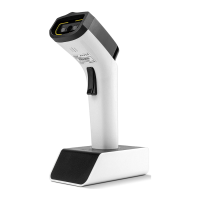

 To Next Page